Overview
Delete කරපු files Recycle Bin එකේ තියෙනවා, empty කරනකම් disk space එක ගන්නවා. හැම drive එකකම ඒවා store කරන hidden $RECYCLE.BIN folder එකක් තියෙනවා. මේ guide එකෙන් ඒ folder එක ගැන, clear කරන එක safe ද කියලා, සහ Recycle Bin එක ක්රම කිහිපයකින් empty කරන ආකාරය පැහැදිලි කරනවා.
Hidden $RECYCLE.BIN folder එක empty කරනකම් delete කරපු files store කරගෙන ඉන්නවා.
Key Takeaways
- Recycle Bin එක delete කරපු files තියාගන්නවා; empty කළාම disk space free වෙනවා.
- හැම drive එකකටම තමන්ගේම hidden $RECYCLE.BIN folder එකක් තියෙනවා.
- Empty කරන එක safe — ඒත් කලින් බලන්න, මොකද empty කළාම permanent.
- Desktop, Settings, command line හෝ Storage Sense එකෙන් empty කරන්න පුළුවන්.
$RECYCLE.BIN Folder එක Delete කරන එක Safe ද?
ඔව් — Recycle Bin එක empty කරන එකෙන් (හෝ $RECYCLE.BIN clear කරන එකෙන්) දැනටමත් delete කරපු files විතරයි අයින් වෙන්නේ. Windows එක folder එක automatically ආපහු හදනවා. හැබැයි මතක තියාගන්න, මේ විදිහට අයින් කරන ඕනෑම දෙයක් permanently delete වෙනවා — ඒ නිසා තවම ඕන වෙන්න පුළුවන් files තියෙනවද කලින් බලන්න.
කොච්චර Space ගන්නවද Check කරන්න
1. Recycle Bin එක right-click කරලා Properties තෝරලා size limit එක බලන්න/set කරන්න.
2. නැත්නම් Settings > System > Storage open කරලා Temporary files (Recycle Bin එකත් ඇතුළත්) review කරන්න.
3. WinDirStat වගේ tool එකකින් drive එකකට $RECYCLE.BIN usage එකත් පෙන්නන්න පුළුවන්.
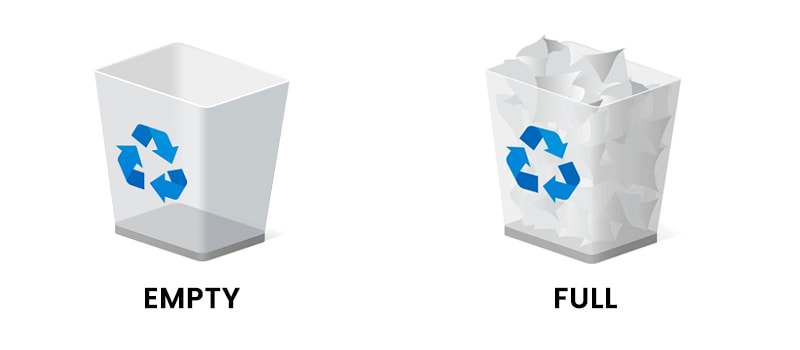
Empty එකකුයි full Recycle Bin එකකුයි.
Method 1 — Desktop එකෙන් Empty කරන්න
1. Desktop එකේ Recycle Bin icon එක right-click කරන්න.
2. Empty Recycle Bin තෝරන්න.
3. Contents permanently delete කරන්න confirm කරන්න.
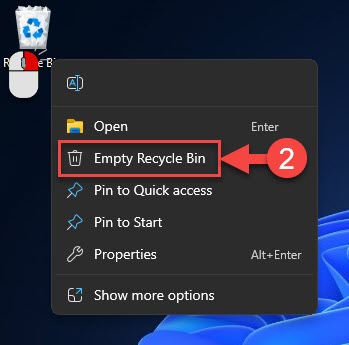
Recycle Bin එක එහි right-click menu එකෙන් empty කරන්න.
Method 2 — Settings එකෙන් Empty කරන්න
1. Settings > System > Storage > Temporary files open කරන්න.
2. Recycle Bin tick කරන්න.
3. Remove files click කරන්න.
Method 3 — Command Line එකෙන් Empty කරන්න
1. Command Prompt එක administrator විදිහට open කරන්න.
2. Run: rd /s /q C:\$Recycle.bin
3. අනිත් drives වලටත් නැවත කරන්න (උදා: D:\$Recycle.bin). Windows එක folder එක automatically ආපහු හදනවා.
Method 4 — Storage Sense එකෙන් Automatic
1. Settings > System > Storage open කරලා Storage Sense on කරන්න.
2. දවස් ගණනකට පස්සේ Recycle Bin එක empty කරන්න configure කරන්න.
3. ඊට පස්සේ ඒක පරණ delete කරපු files automatically clear කරනවා.
Frequently Asked Questions
Problem: Recycle Bins දෙකක් තියෙන්නේ ඇයි?
Solution: හැම drive එකකටම තමන්ගේම hidden $RECYCLE.BIN එකක් සහ per-user subfolders තියෙනවා. Desktop icon එක ඒවා aggregate කරනවා.
Problem: Recycle Bin icon එක නෑ.
Solution: Desktop right-click > Personalize > Themes > Desktop icon settings, එතන Recycle Bin tick කරන්න.
Problem: Files Recycle Bin එක skip කරනවා.
Solution: Recycle Bin Properties බලන්න — "Don't move files to the Recycle Bin" select වෙලා ඇති, නැත්නම් file එක size limit එකට වඩා ලොකු ඇති.
Problem: ඉක්මනට ආපහු පිරෙනවා.
Solution: Properties එකේ Recycle Bin size limit එක අඩු කරන්න, නැත්නම් Storage Sense එකෙන් automatically clear කරන්න.
Conclusion
Recycle Bin එක empty කරන එක space ආපහු ගන්න ඉක්මන් ක්රමයක්. එදිනෙදා cleanup එකට Desktop හෝ Settings, hidden folder එක clear කරන්න command line, තියාගන්න Storage Sense පාවිච්චි කරන්න — හැබැයි files තවම ඕන නෑ කියලා කලින් confirm කරන්න.
About TechHub
මේ guide එක TechHub Knowledge Base එකේ කොටසක්. තව step-by-step IT guides සහ support වලට techhub.com.lk එකට යන්න.