Overview
Remote Desktop Connection lets you control a Windows PC from another computer over the network. The host feature is available on Windows 11 Pro/Enterprise (not Home). This guide shows how to enable it, allow users, open the firewall, and connect.
Enable Remote Desktop to control your PC from elsewhere.
Key Takeaways
- Hosting Remote Desktop requires Windows 11 Pro/Enterprise.
- Enable it in Settings > System > Remote Desktop.
- Add allowed users and ensure port 3389 is open in the firewall.
- Connect using the Remote Desktop Connection app (mstsc).
Step 1 — Turn On Remote Desktop
1. Open Settings > System > Remote Desktop.
2. Toggle Remote Desktop On and confirm.
3. Note the PC name shown — you will use it to connect.
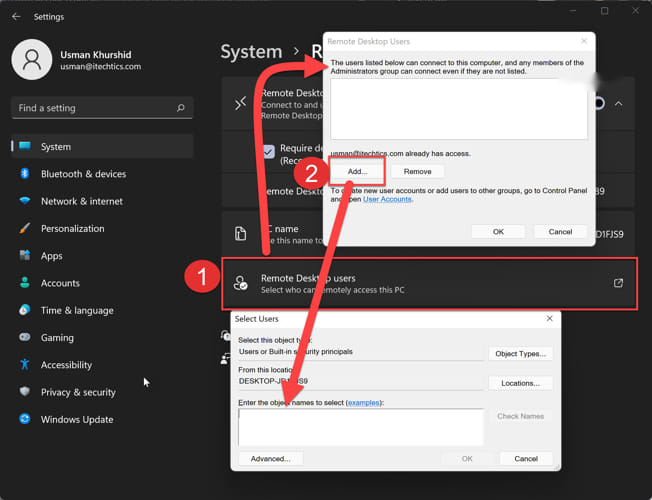
Step 2 — Allow Users
1. Under Remote Desktop, click "Remote Desktop users".
2. Add the accounts allowed to connect (administrators are allowed by default).
3. Ensure each account has a password.
Step 3 — Allow It Through the Firewall
1. Open Windows Defender Firewall > Allow an app or feature.
2. Ensure Remote Desktop is ticked for your active network profile.
3. This opens TCP port 3389 for incoming connections.
Step 4 — Connect From Another PC
1. On the other computer, open Remote Desktop Connection (run mstsc).
2. Enter the host PC’s name or IP address and click Connect.
3. Sign in with an allowed account.
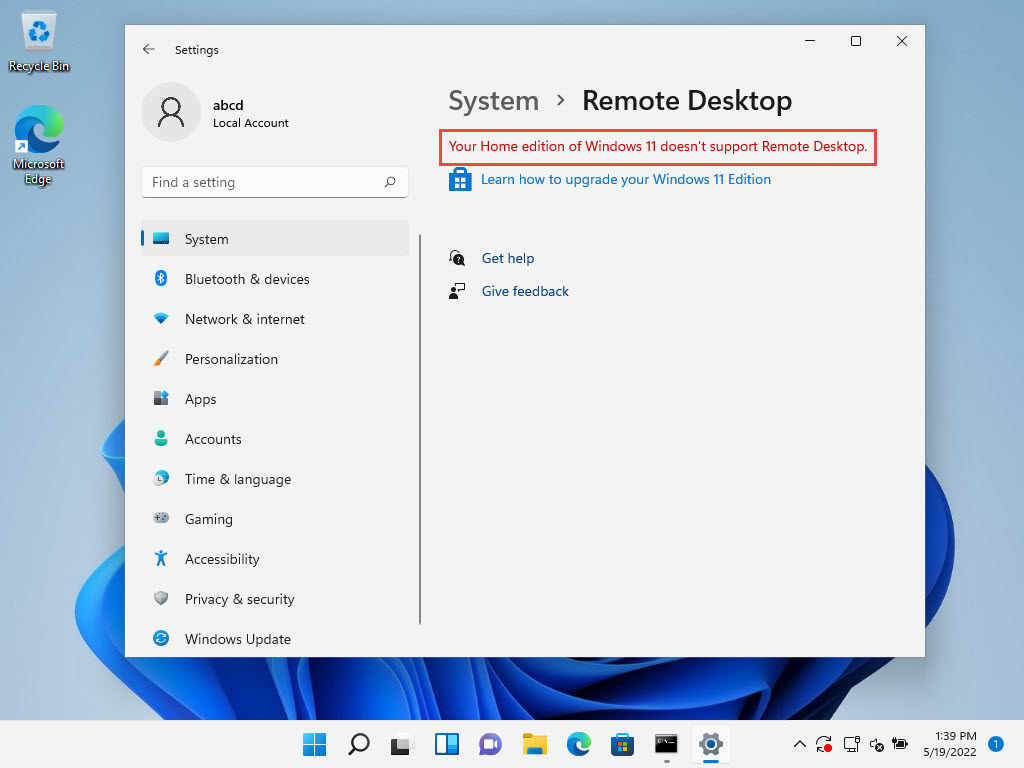
Windows 11 Home
- Home cannot host Remote Desktop officially.
- Use the RDC client to connect out, upgrade to Pro to host, or use Chrome Remote Desktop / Quick Assist as alternatives.
Troubleshooting
Problem: Cannot connect to the host.
Solution: Confirm Remote Desktop is on, the firewall allows it (port 3389), the user is in Remote Desktop Users, and you are using the correct name/IP.
Problem: "Your credentials did not work".
Solution: Use the correct account format (PCName\User or email for Microsoft accounts) and ensure the account has a password.
Problem: Connecting over the internet fails.
Solution: You must forward port 3389 on the router (use with caution) or use a VPN; exposing RDP directly is a security risk.
Problem: Home edition has no toggle.
Solution: Hosting needs Pro — upgrade, or use Chrome Remote Desktop/Quick Assist instead.
Conclusion
On Windows 11 Pro, enabling Remote Desktop is quick: turn it on, add users, open the firewall, and connect with mstsc. On Home, connect out only, or use an alternative remote-access tool.
</w:pBdr><w:spacing w:before="220" w:after="40"/></w:pPr><w:r><w:rPr><w:b/><w:bCs/><w:color w:val="0B5394"/><w:sz w:val="21"/><w:szCs w:val="21"/><w:rFonts w:ascii="Calibri" w:cs="Calibri" w:eastAsia="Calibri" w:hAnsi="Calibri"/></w:rPr><w:t xml:space="preserve">About TechHub
This guide is part of the TechHub Knowledge Base. For more step-by-step IT guides and support, visit techhub.com.lk.