Overview
When Windows Copilot first rolled out, Microsoft withheld it in the European Union while it adapted the feature to the Digital Markets Act (DMA). EU users could still launch it manually using a special URI. This guide explains the background and how to enable Copilot that way.
Windows Copilot was initially blocked in the EU under the DMA.
Note: Microsoft’s Copilot has since evolved (including into a dedicated app). If Copilot is already available in your region or as an app, install it from the Microsoft Store instead of using this workaround.
Key Takeaways
- Copilot was held back in the EU pending DMA compliance, not removed from the OS.
- You can launch it with a Copilot URI from the Run box.
- Create a desktop shortcut to that URI for one-click access.
- Use the official Copilot app where it is available.
Prerequisites
- Windows 11 with the update that introduced Copilot (Moment 4 / 23H2 era).
- Microsoft Edge installed (Copilot launches through Edge’s WebView).
- Confirm your Windows version in Settings > System > About (or run winver).
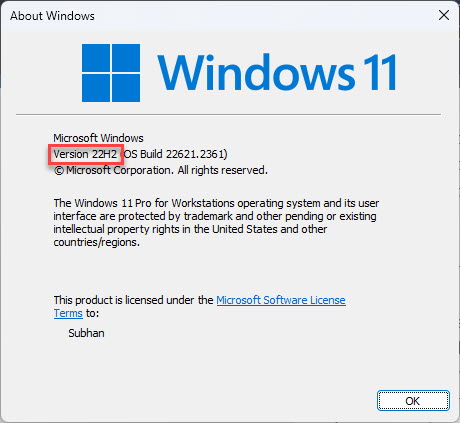
Confirm your Windows version before enabling Copilot.
Method 1 — Launch Copilot From the Run Box
1. Press Windows key + R to open the Run dialog.
2. Enter the Windows Copilot URI (the microsoft-edge Copilot launch link, e.g. microsoft-edge:///?ux=copilot&tcp=1&source=taskbar).
3. Press Enter — the Copilot pane opens on the right side of the screen.
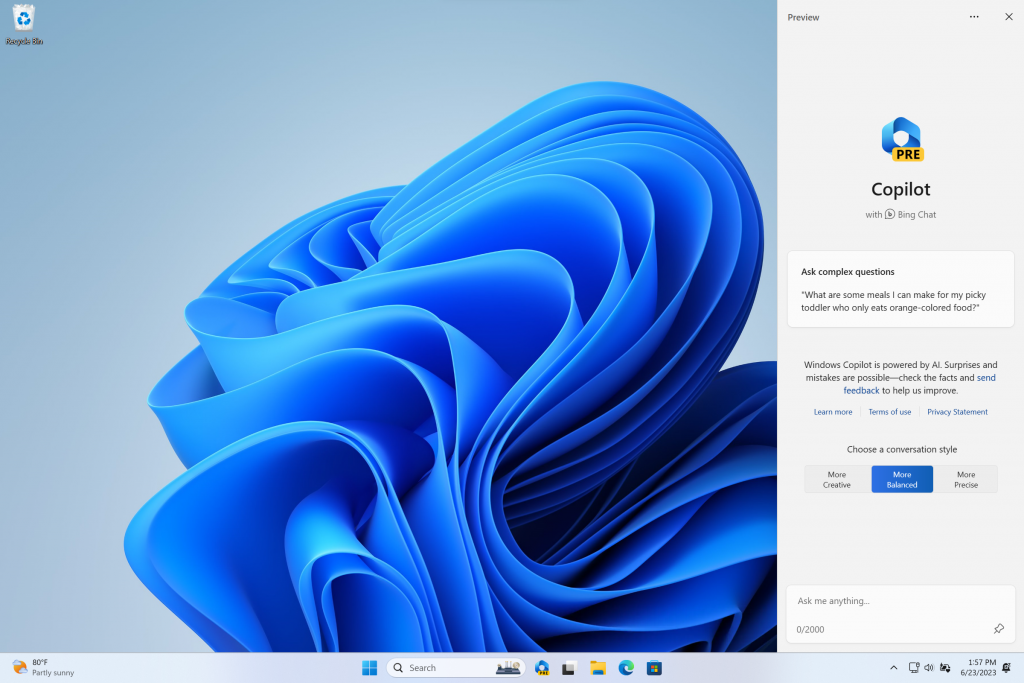
Windows Copilot opens as a side pane.
Method 2 — Create a Copilot Shortcut
1. Right-click the desktop, choose New > Shortcut.
2. Paste the same Copilot URI as the location and click Next.
3. Name it "Copilot" and click Finish.
4. Double-click the shortcut any time to open Copilot.
Tip: Pin the shortcut to the taskbar or Start for quick access.
Troubleshooting
Problem: The URI does nothing.
Solution: Ensure Microsoft Edge is installed and updated, and that your Windows build actually includes Copilot (run winver to check).
Problem: Copilot opens but will not respond.
Solution: Sign in with a Microsoft account, ensure you are online, and update Edge and Windows.
Problem: You prefer the official route.
Solution: Install the Copilot app from the Microsoft Store where available, rather than using the URI workaround.
Problem: It disappeared after an update.
Solution: Copilot’s delivery has changed over time. Check Settings > Personalization > Taskbar for a Copilot toggle, or install the Copilot app.
Conclusion
EU users could enable the held-back Windows Copilot by launching its URI from the Run box or a shortcut. As Copilot has since matured into a dedicated app, prefer the official Microsoft Store version where it is offered in your region.
</w:pBdr><w:spacing w:before="220" w:after="40"/></w:pPr><w:r><w:rPr><w:b/><w:bCs/><w:color w:val="0B5394"/><w:sz w:val="21"/><w:szCs w:val="21"/><w:rFonts w:ascii="Calibri" w:cs="Calibri" w:eastAsia="Calibri" w:hAnsi="Calibri"/></w:rPr><w:t xml:space="preserve">About TechHub
This guide is part of the TechHub Knowledge Base. For more step-by-step IT guides and support, visit techhub.com.lk.