Overview
Too many startup programs slow down boot and consume resources. This guide shows every place Windows keeps startup entries — Task Manager, the Startup folders, and the Registry — so you can find and manage them all.
Finding startup programs in Windows.
Key Takeaways
- Task Manager lists most startup apps and their impact.
- Startup folders exist for the current user and all users.
- Registry Run keys hold additional entries.
- Autoruns reveals every hidden auto-start location.
Method 1: Task Manager
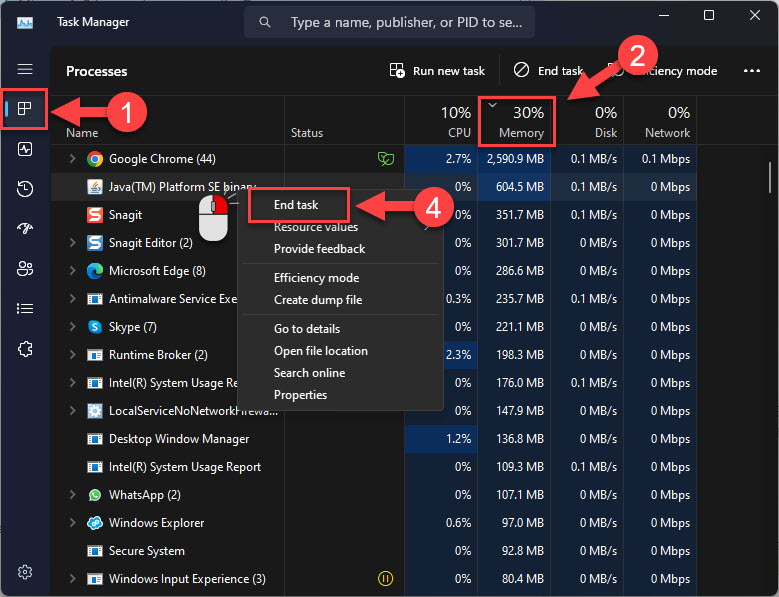
1. Open Task Manager (Ctrl + Shift + Esc).
2. Click the Startup apps tab.
3. Review each entry’s status and "Startup impact".
4. Right-click to Disable items you don’t need.
Method 2: Startup Folders
1. Current user: press Windows + R, type shell:startup, and press Enter.
2. All users: type shell:common startup in the Run dialog.
3. Anything in these folders launches at sign-in; remove shortcuts to stop them.
The Startup folder location.
Method 3: Registry Run Keys
Warning: Editing the Registry incorrectly can cause problems. Back up the Registry first.
1. Open regedit.
2. Current user: HKEY_CURRENT_USER\Software\Microsoft\Windows\CurrentVersion\Run
3. All users: HKEY_LOCAL_MACHINE\SOFTWARE\Microsoft\Windows\CurrentVersion\Run
4. Delete a value to stop that program from auto-starting.
Method 4: Autoruns (Complete View)
Note: Download Autoruns only from Microsoft’s official Sysinternals site.
1. Download and run Microsoft Autoruns.
2. It lists every auto-start location — services, tasks, Run keys, and more.
3. Uncheck entries to disable them (safer than deleting).
Troubleshooting
Problem: An app starts but isn’t in Task Manager.
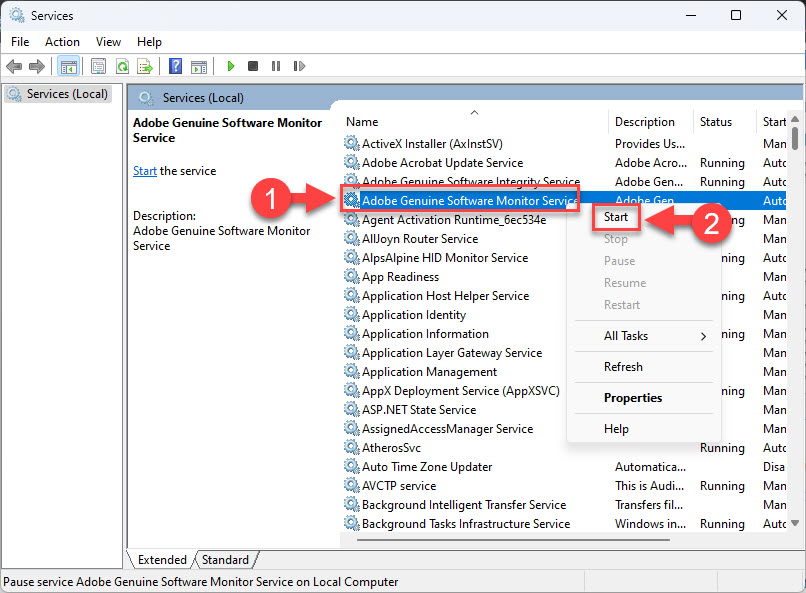
Solution: Check the Registry Run keys, Task Scheduler, and services — use Autoruns to see them all.
Problem: Disabled app keeps returning.
Solution: The app may re-add itself on launch — disable that behaviour in the app’s settings.
Problem: Not sure what an entry is.
Solution: Search the file name; in Autoruns, right-click > Search online before disabling.
Problem: Boot still slow.
Solution: Disable high-impact startup apps and scheduled tasks that run at logon.
Conclusion
Startup entries live in several places: Task Manager, the two Startup folders, and Registry Run keys. Task Manager handles most cases, while Microsoft Autoruns gives the complete picture for tracking down every program that launches at boot.
</w:pBdr><w:spacing w:before="220" w:after="40"/></w:pPr><w:r><w:rPr><w:b/><w:bCs/><w:color w:val="0B5394"/><w:sz w:val="21"/><w:szCs w:val="21"/><w:rFonts w:ascii="Calibri" w:cs="Calibri" w:eastAsia="Calibri" w:hAnsi="Calibri"/></w:rPr><w:t xml:space="preserve">About TechHub
This guide is part of the TechHub Knowledge Base. For more step-by-step IT guides and support, visit techhub.com.lk.