Overview
The error "Windows Update cannot currently check for updates" usually means the update service or its cache is in a bad state. This guide walks through the fixes, from the built-in troubleshooter to resetting update components.
Key Takeaways
- The error typically stems from a stopped service or corrupted update cache.
- The Windows Update troubleshooter fixes many cases automatically.
- Resetting update components clears a corrupted cache.
- System file repairs resolve deeper corruption.
Run the Troubleshooter
1. Open Settings > System > Troubleshoot > Other troubleshooters.
2. Run the Windows Update troubleshooter.
3. Apply any fixes it recommends.
4. Restart and try checking for updates again.
Reset Update Components
1. Open Command Prompt as an administrator.
2. Stop the services: net stop wuauserv and net stop bits
3. Rename the cache: ren C:\Windows\SoftwareDistribution SoftwareDistribution.old
4. Restart the services with net start wuauserv and net start bits, then check for updates.
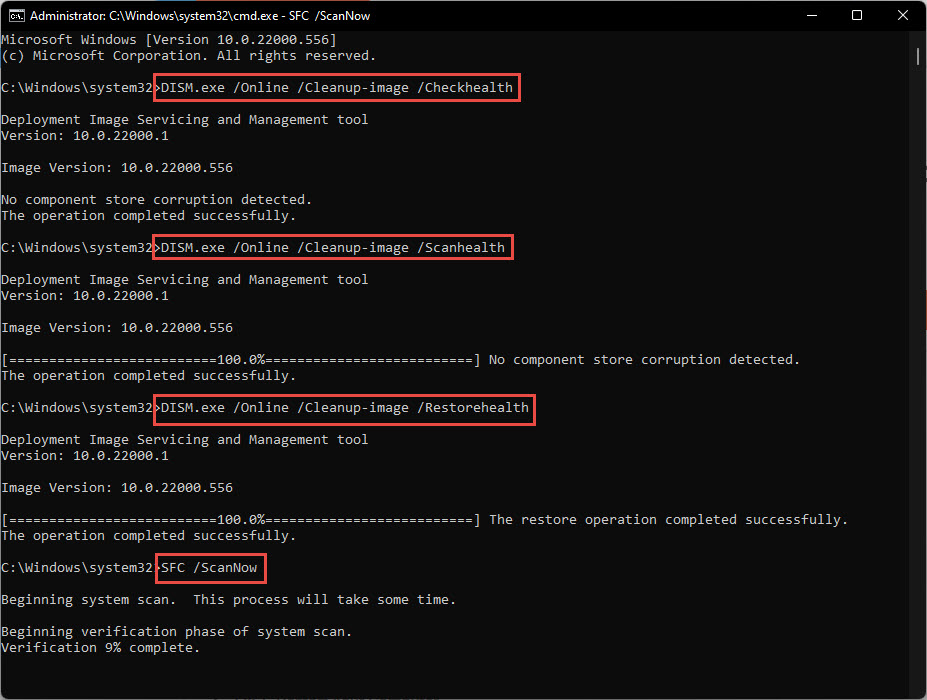
Tip: Running sfc /scannow and DISM /Online /Cleanup-Image /RestoreHealth repairs system files that can also block updates.
Troubleshooting
Problem: The troubleshooter does not fix it.
Solution: Manually reset the update components by stopping the services and renaming the SoftwareDistribution folder.
Problem: Services will not stop.
Solution: Run Command Prompt as administrator and end any stuck update process before retrying.
Problem: The error persists after resetting.
Solution: Run sfc /scannow and DISM RestoreHealth to repair underlying system files.
Problem: Updates fail with a specific error code.
Solution: Note the code and check its meaning, as some point to disk space or network issues rather than the service.
Conclusion
This update error is almost always fixable by repairing the service or clearing its cache. Start with the troubleshooter and escalate to a component reset and system file repair as needed.
About TechHub
This guide is part of the TechHub Knowledge Base. For more step-by-step IT guides and support, visit techhub.com.lk.