Overview
"Unknown USB Device (Device Descriptor Request Failed)" appears in Device Manager when Windows cannot read the identification data a USB device sends during connection. The cause is usually a driver, power, or port issue rather than a dead device. This guide moves from the simplest checks to more thorough driver and power fixes.
Key Takeaways
- The error means Windows could not read the USB device descriptor, often due to drivers or power.
- Simple steps — a different port, a reboot, or a power cycle — resolve many cases.
- Reinstalling the USB controllers and updating chipset drivers fixes most driver-related causes.
- Disabling USB selective suspend and fast startup prevents the error from recurring.
Fix 1: Basic Checks First
1. Unplug the device and try a different USB port, ideally one directly on the PC rather than a hub.
2. Restart the computer and reconnect the device.
3. Test the device on another computer to confirm the hardware itself is working.
Fix 2: Power Cycle the Computer
1. Shut down the PC completely.
2. Unplug the power cable (and remove the laptop battery if it is removable) for about a minute to drain residual power.
3. Reconnect power, start Windows, and plug the device back in.
TIP: A full power drain resets the USB controllers and often clears a descriptor error caused by a temporary power fault.
Fix 3: Reinstall the USB Controllers
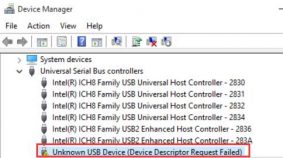
1. Press Win + X and open Device Manager.
2. Expand "Universal Serial Bus controllers".
3. Right-click the "Unknown USB Device (Device Descriptor Request Failed)" entry and choose Uninstall device.
4. Right-click any node and choose "Scan for hardware changes", or restart the PC to let Windows reinstall the controllers.
The failed device appears under Universal Serial Bus controllers in Device Manager.
Fix 4: Disable USB Selective Suspend
1. Open Control Panel > Power Options and click "Change plan settings" for your active plan.
2. Choose "Change advanced power settings".
3. Expand USB settings > USB selective suspend setting and set it to Disabled.
4. Apply the change and reconnect the device.
Fix 5: Update Chipset and USB Drivers
1. Identify your PC or motherboard model.
2. Download the latest chipset and USB drivers from the official manufacturer site (Intel, AMD, or your laptop vendor).
3. Install them and restart the computer.
NOTE: Turning off Fast Startup (Control Panel > Power Options > Choose what the power buttons do) can also stop the error returning after shutdown.
Troubleshooting
Problem: The error only appears with one specific device.
Solution: The device or its cable may be faulty. Test another cable and try the device on a different PC to isolate the hardware.
Problem: The error returns every time the PC wakes from sleep.
Solution: Disable USB selective suspend and turn off Fast Startup so Windows fully reinitialises the USB controllers.
Problem: Uninstalling and rescanning does not help.
Solution: Update the motherboard chipset and USB drivers from the vendor, and install the latest Windows updates.
Problem: Front-panel USB ports fail but rear ports work.
Solution: Front headers can be loose or underpowered. Use the rear ports directly on the motherboard, or reseat the front-panel USB connector.
Conclusion
The device descriptor error is almost always recoverable. Start with a different port and a power cycle, then reinstall the USB controllers and refresh your chipset drivers. Disabling USB selective suspend and Fast Startup keeps the problem from coming back.
About TechHub
This guide is part of the TechHub Knowledge Base. For more step-by-step IT guides and support, visit techhub.com.lk.