Overview
Drive එකක් පිරෙන්න ළං වුණාම Windows "Low Disk Space" warning එකක් පෙන්නනවා. හොඳම fix එක space free කරන එක; notification එකත් disable කරන්න පුළුවන්. මේ guide එකෙන් practical space-saving steps එක්ක දෙකම cover කරනවා.
Low Disk Space warning එක.
Key Takeaways
- මුලින්ම space free කරන්න — warning එකෙන් real problem එකක් signal කරනවා.
- Temp files delete කරලා, Recycle Bin empty කරලා, Disk Cleanup run කරන්න.
- Hibernation එකයි pagefile එකයි ලොකු space ප්රමාණයක් reclaim කරන්න පුළුවන්.
- ඕන නම් Registry value එකකින් warning එක suppress කරන්න.
Fix 1: Temporary Files Delete කරන්න
1. Settings > System > Storage open කරන්න.
2. "Temporary files" click කරලා, review කරලා, delete කරන්න.
3. නැත්නම් Disk Cleanup (cleanmgr) run කරලා system files clean කරන්න.
Fix 2: Recycle Bin Empty කරන්න
1. Recycle Bin එක right-click කරලා Empty Recycle Bin තෝරන්න.
2. Deleted items permanently remove කරන්න confirm කරන්න.
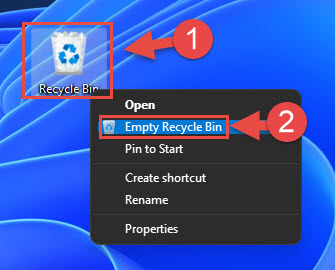
Space reclaim කරන්න Recycle Bin empty කරන්න.
Fix 3: Hibernation සහ Pagefile Manage කරන්න
1. hiberfil.sys remove කරන්න hibernation disable කරන්න: elevated prompt එකක run කරන්න powercfg /hibernate off
2. ඕන නම්, System > Advanced system settings > Performance > Advanced > Virtual memory එකේ pagefile එක adjust කරන්න.
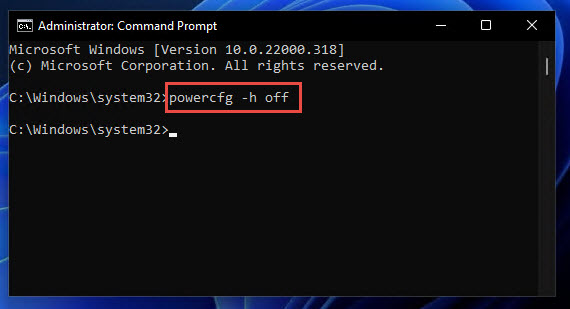
Hibernation disable කරන command එක.
Fix 4: Disk Cleanup සහ Large Files
1. Disk Cleanup > Clean up system files run කරන්න (පරණ updates, temp, delivery optimization files remove කරනවා).
2. Large unneeded files හොයලා remove කරන්න Storage settings හෝ TreeSize වගේ tool එකක් පාවිච්චි කරන්න.
Fix 5: Partition එක Extend කරන්න
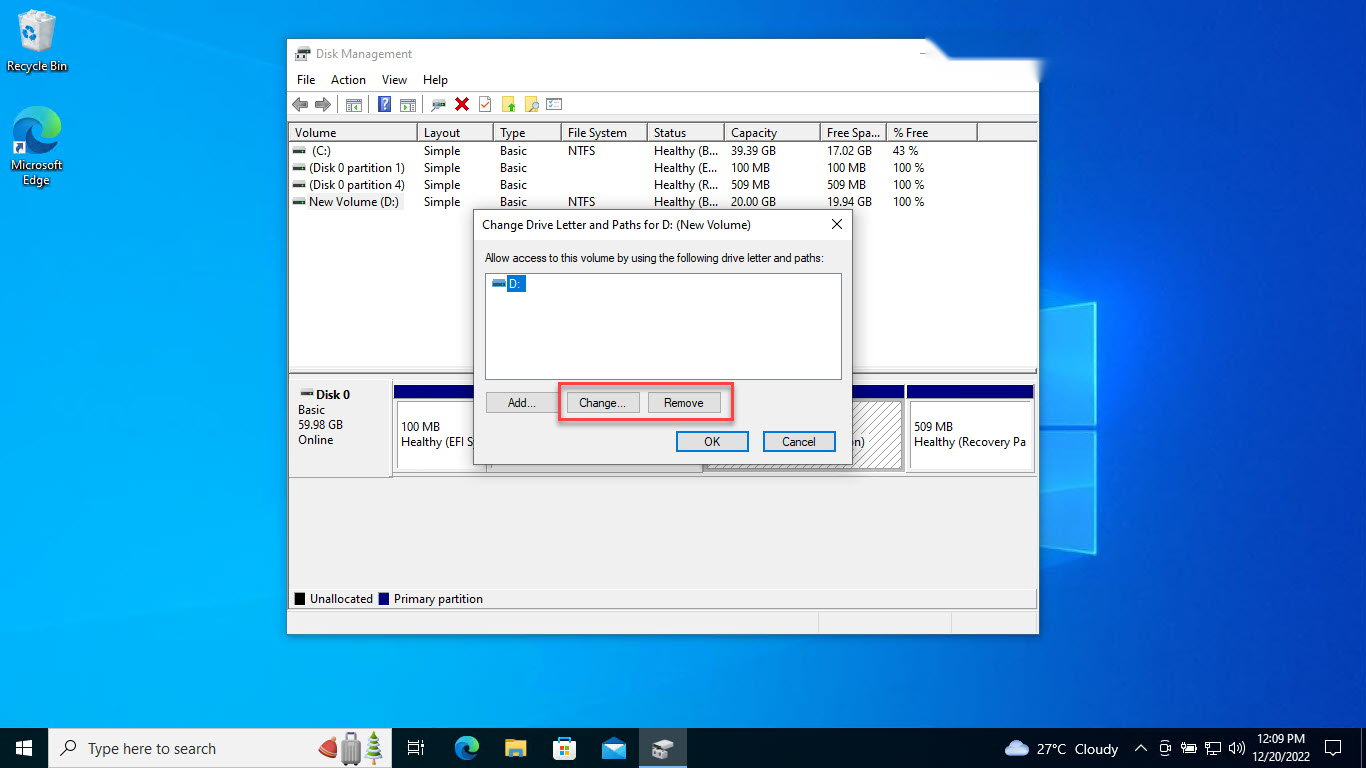
1. වෙන partition එකක free space තියෙනවා නම්, Disk Management (diskmgmt.msc) open කරන්න.
2. Spare partition එකක් shrink කරලා, low-space drive එක freed space එකට extend කරන්න (adjacent වෙන්න ඕන).
Warning එක Disable කරන්න (Optional)
Warning: Registry එක වැරදියට edit කරන එකෙන් problems ඇති වෙන්න පුළුවන්. මුලින් Registry එක backup කරන්න. Warning එක disable කරන එකෙන් genuine alert එකක් hide කරනවා — ඒ වෙනුවට නිතර space free කරන්න.
1. regedit open කරලා HKEY_CURRENT_USER\Software\Microsoft\Windows\CurrentVersion\Policies\Explorer වලට යන්න.
2. NoLowDiskSpaceChecks කියන DWORD එකක් හදලා 1 කරන්න.
3. Apply කරන්න sign out කරලා ආපහු sign in වෙන්න.
Troubleshooting
Problem: Space ආපහු ඉක්මනට පිරෙනවා.
Solution: Temp files auto-clean කරන්න Storage Sense enable කරලා, large downloads හෝ backups pile වෙනවද බලන්න.
Problem: Partition එක extend කරන්න බෑ.
Solution: Extend වැඩ කරන්නේ adjacent unallocated space එකට විතරයි; මුලින් neighbouring partition එක shrink කරන්න, නැත්නම් partition tool එකක් පාවිච්චි කරන්න.
Problem: Cleanup එකට පස්සෙත් warning එක තියෙනවා.
Solution: Explorer restart කරන්න හෝ sign out/in; drive එකට දැන් comfortable free space තියෙනවා කියලා බලන්න.
Problem: hiberfil.sys තවම තියෙනවා.
Solution: ඒක remove කරන්න elevated prompt එකක powercfg /hibernate off run කරන්න.
Conclusion
Low Disk Space warning එකට හොඳම විසඳුම ඇත්තටම space free කරන එක — temp files, Recycle Bin, Disk Cleanup, hibernation, සහ large-file removal ඔක්කොම උදව්. Underlying storage pressure එක address කළාට පස්සේ විතරයි Registry එකෙන් notification එක suppress කරන්න.
About TechHub
මේ guide එක TechHub Knowledge Base එකේ කොටසක්. තව step-by-step IT guides සහ support වලට techhub.com.lk එකට යන්න.