How to Fix "NVIDIA Control Panel Is Not Compatible with the Installed NVIDIA Driver"
Resolve the version-mismatch error by syncing the Control Panel and driver from official sources.
Overview
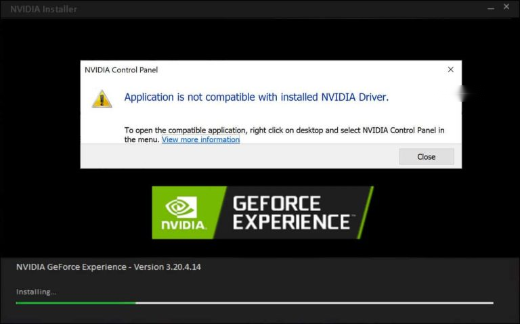
This error appears when the NVIDIA Control Panel app and the installed GPU driver are different versions — often after Windows Update installs a driver while the Store app expects another. This guide fixes the mismatch.
Fixing the NVIDIA Control Panel compatibility error.
Note: Download NVIDIA drivers only from NVIDIA’s official site (or GeForce Experience). Avoid third-party driver sites.
Key Takeaways
- The Control Panel app and driver versions must match.
- Update the NVIDIA Control Panel from the Microsoft Store.
- Reinstall the matching driver from NVIDIA’s official site.
- A clean driver install resolves stubborn cases.
Fix 1: Update the NVIDIA Control Panel App
1. Open the Microsoft Store > Library > Get updates.
2. Let the "NVIDIA Control Panel" app update.
3. Reopen it; the version should now match the driver.
Fix 2: Update/Reinstall the Driver
1. Go to NVIDIA’s official Drivers page (or open GeForce Experience).
2. Download the latest driver for your GPU.
3. Install it, choosing "Custom" > "Perform a clean installation".
4. Restart and open the Control Panel.
Fix 3: Reinstall the Control Panel
1. Uninstall "NVIDIA Control Panel" from Settings > Apps.
2. Reinstall it from the Microsoft Store.
3. Ensure it matches the installed driver version.
Fix 4: Clean Reinstall (DDU)
1. Download Display Driver Uninstaller (DDU) from its official source.
2. Boot into Safe Mode and use DDU to fully remove NVIDIA drivers.
3. Reboot and install the latest driver from NVIDIA’s official site.
4. This clears version conflicts completely.
Troubleshooting
Problem: Store won’t update the app.
Solution: Run the Store troubleshooter, sign in, and check for Windows updates; then reinstall the app.
Problem: Windows keeps installing an old driver.
Solution: Install the newest driver from NVIDIA and pause Windows driver updates temporarily.
Problem: Control Panel still won’t open.
Solution: Do a DDU clean reinstall of the driver, then reinstall the Control Panel app.
Problem: Which driver version?
Solution: Match the Control Panel app to the driver; using the latest of both from official sources is safest.
Conclusion
The error is a version mismatch between the NVIDIA Control Panel app and the driver. Update the app from the Microsoft Store and install the matching driver from NVIDIA’s official site — or do a DDU clean reinstall to fully resolve conflicts.