How to Format a Hard Drive or USB Drive (5 Free Tools)
Format drives safely with built-in Windows tools and free utilities — after backing up.
Overview
Formatting prepares a drive with a file system, erasing its contents. This guide covers the built-in Windows methods (File Explorer, Disk Management, diskpart) and free tools for stubborn drives.
Formatting a hard drive or USB drive.
Warning: Formatting erases all data on the drive. Back up anything important first, and double-check you selected the correct drive.
Key Takeaways
- Formatting erases the drive and sets a file system (NTFS/exFAT/FAT32).
- File Explorer and Disk Management cover most cases.
- diskpart handles drives that won’t format normally.
- Free tools help with stubborn USB drives.
Method 1: File Explorer
1. Open This PC, right-click the drive > Format.
2. Choose the file system (NTFS for Windows, exFAT for cross-platform, FAT32 for small/compatibility).
3. Set a volume label; leave "Quick Format" ticked for speed.
4. Click Start and confirm.
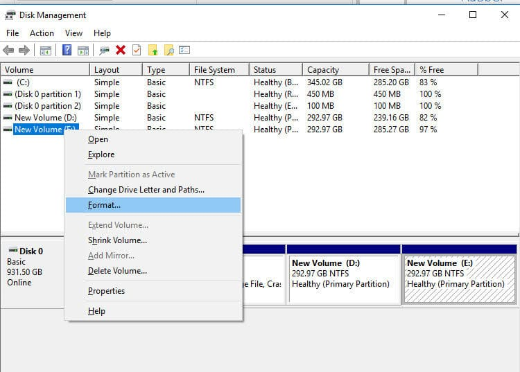
Method 2: Disk Management
1. Run diskmgmt.msc.
2. Right-click the volume > Format (or create a new volume on unallocated space).
3. Pick the file system and allocation size.
4. Complete the wizard.
Method 3: diskpart (Stubborn Drives)
1. Open Command Prompt as administrator and run diskpart.
2. list disk / select disk N (choose carefully!).
3. clean, then create partition primary.
4. format fs=ntfs quick (or exfat/fat32), then assign.
Method 4: Free Tools
Note: Download tools (HP USB Disk Storage Format Tool, EaseUS Partition Master, etc.) only from official sources.
- HP USB Disk Storage Format Tool — great for USB drives.
- EaseUS Partition Master (Free) — flexible partitioning/formatting.
- USB Disk Storage Format Tool — quick USB formatting.
Troubleshooting
Problem: "Windows was unable to complete the format".
Solution: Use diskpart (clean then format) or a tool like EaseUS; the drive may have errors — run chkdsk first.
Problem: FAT32 option missing for large drives.
Solution: Windows caps FAT32 at 32 GB via the GUI; use a tool or diskpart, or choose exFAT/NTFS.
Problem: Drive write-protected.
Solution: Check a physical lock switch, and clear read-only with diskpart (attributes disk clear readonly).
Problem: Wrong drive risk.
Solution: Verify the disk number/letter and size in Disk Management before formatting.
Conclusion
For most drives, File Explorer or Disk Management formats them in seconds; diskpart handles stubborn cases, and free tools help with USB drives. Always back up first and confirm the correct drive — formatting is irreversible.