Hard Drive එකක් හෝ USB Drive එකක් Format කරන හැටි (Free Tools 5ක්)
Backup එකකට පස්සේ built-in Windows tools සහ free utilities වලින් drives safe විදිහට format කරගන්න.
Overview
Formatting කියන්නේ drive එකකට file system එකක් සකසන එක, එකෙන් එහි contents මකලා දානවා. මේ guide එකෙන් built-in Windows methods (File Explorer, Disk Management, diskpart) සහ stubborn drives සඳහා free tools cover කරනවා.
Hard drive එකක් හෝ USB drive එකක් format කිරීම.
Warning: Formatting එකෙන් drive එකේ තියෙන ඔක්කොම data මකලා දානවා. වැදගත් මොනවා හරි තියෙනවා නම් මුලින්ම back up කරගන්න, ඒ වගේම හරි drive එකද select කරලා තියෙන්නෙ කියලා දෙපාරක් check කරන්න.
Key Takeaways
- Formatting එකෙන් drive එක මකලා file system එකක් (NTFS/exFAT/FAT32) සකසනවා.
- File Explorer සහ Disk Management වලින් බොහෝ cases cover වෙනවා.
- සාමාන්ය විදිහට format නොවෙන drives වලට diskpart handle කරනවා.
- stubborn USB drives වලට free tools උදව් වෙනවා.
Method 1: File Explorer
1. This PC open කරලා, drive එක right-click කරලා > Format.
2. file system එක තෝරන්න (Windows වලට NTFS, cross-platform වලට exFAT, small/compatibility වලට FAT32).
3. volume label එකක් set කරන්න; speed එකට "Quick Format" tick කරලා තියන්න.
4. Start click කරලා confirm කරන්න.
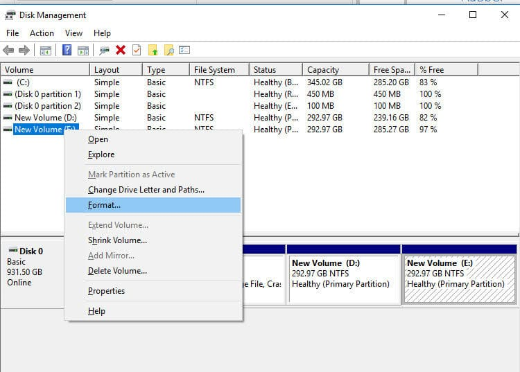
Method 2: Disk Management
1. diskmgmt.msc run කරන්න.
2. volume එක right-click කරලා > Format (හෝ unallocated space එකේ අලුත් volume එකක් create කරන්න).
3. file system එක සහ allocation size එක තෝරන්න.
4. wizard එක complete කරන්න.
Method 3: diskpart (Stubborn Drives)
1. Command Prompt එක administrator විදිහට open කරලා diskpart run කරන්න.
2. list disk / select disk N (පරෙස්සමින් තෝරන්න!).
3. clean, ඊට පස්සේ create partition primary.
4. format fs=ntfs quick (හෝ exfat/fat32), ඊට පස්සේ assign.
Method 4: Free Tools
Note: tools (HP USB Disk Storage Format Tool, EaseUS Partition Master, etc.) official sources වලින් විතරක් download කරන්න.
- HP USB Disk Storage Format Tool — USB drives වලට නියමයි.
- EaseUS Partition Master (Free) — flexible partitioning/formatting.
- USB Disk Storage Format Tool — ඉක්මන් USB formatting.
Troubleshooting
Problem: "Windows was unable to complete the format".
Solution: diskpart (clean ඊට පස්සේ format) හෝ EaseUS වගේ tool එකක් පාවිච්චි කරන්න; drive එකේ errors තියෙන්න පුළුවන් — මුලින්ම chkdsk run කරන්න.
Problem: ලොකු drives වලට FAT32 option එක නෑ.
Solution: Windows GUI එකෙන් FAT32 එක 32 GB වලට cap කරනවා; tool එකක් හෝ diskpart පාවිච්චි කරන්න, නැත්නම් exFAT/NTFS තෝරන්න.
Problem: Drive එක write-protected.
Solution: physical lock switch එකක් තියෙනවද බලන්න, ඒ වගේම diskpart එකෙන් read-only clear කරන්න (attributes disk clear readonly).
Problem: වැරදි drive එකේ risk එක.
Solution: format කරන්න කලින් Disk Management එකේ disk number/letter එක සහ size එක verify කරන්න.
Conclusion
බොහෝ drives වලට File Explorer හෝ Disk Management තත්පර කිහිපයකින් format කරනවා; stubborn cases වලට diskpart handle කරනවා, ඒ වගේම USB drives වලට free tools උදව් වෙනවා. හැමවිටම මුලින්ම back up කරලා හරි drive එකද කියලා confirm කරන්න — formatting කියන්නේ ආපහු හදාගන්න බැරි දෙයක්.
About TechHub
මේ guide එක TechHub Knowledge Base එකේ කොටසක්. තව step-by-step IT guides සහ support වලට techhub.com.lk එකට යන්න.