Overview
YouTube has no official Windows app in the Microsoft Store, but you can install it as a Progressive Web App (PWA) from Chrome or Edge. A PWA runs in its own window with its own icon, just like a native app. This guide shows both methods.
Install YouTube as a desktop app (PWA) on Windows 11.
Key Takeaways
- YouTube has no Store app; install it as a PWA instead.
- Chrome and Edge can both install YouTube as an app.
- The PWA gets its own window, taskbar icon, and Start menu entry.
- It updates automatically with the website.
Method 1 — Install From Google Chrome
1. Open Chrome and go to youtube.com.
2. Click the three-dot menu > Cast, save, and share (or Save and share) > Install page as app… (or the install icon in the address bar).
3. Confirm Install.
4. YouTube opens in its own window and appears in the Start menu and taskbar.
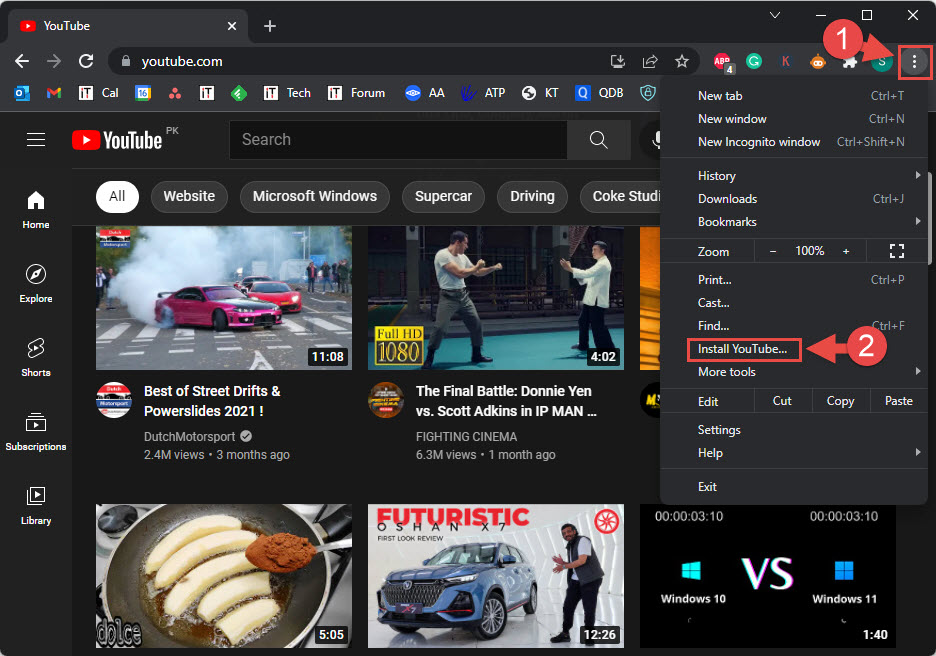
Install the YouTube app from Google Chrome.
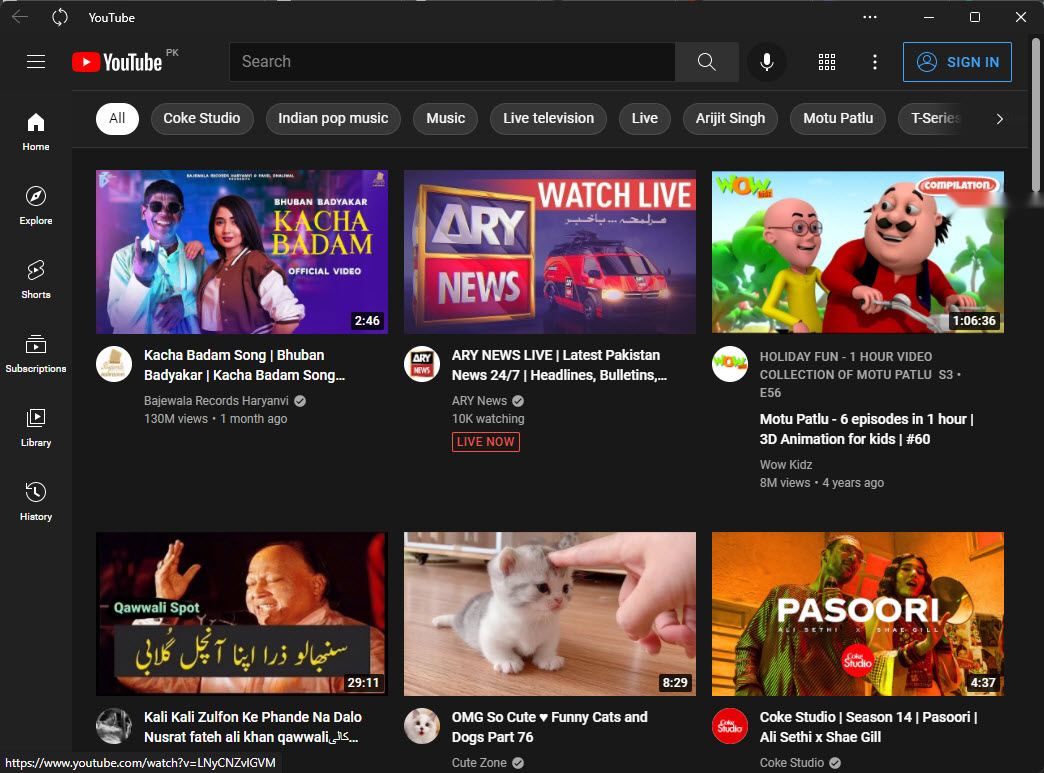
The YouTube PWA installed and running in its own window.
Method 2 — Install From Microsoft Edge
1. Open Edge and go to youtube.com.
2. Click the three-dot menu > Apps > Install this site as an app.
3. Name it (YouTube) and click Install.
4. Choose to pin it to the taskbar/Start if prompted.
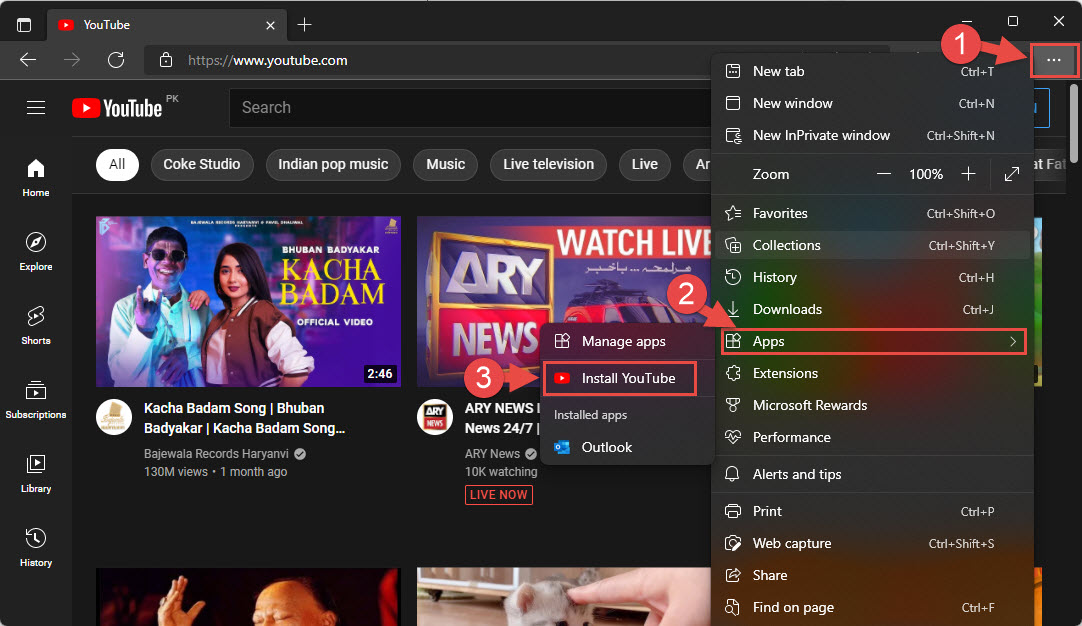
Install the YouTube app from Microsoft Edge.
Tip: You can pin the installed YouTube app to the taskbar for one-click access, just like any program.
Troubleshooting
Problem: There is no Install option.
Solution: Make sure you are on youtube.com (not a video embed) and that your browser is up to date; the install icon appears in the address bar on supported pages.
Problem: The app will not open.
Solution: Reinstall it from the browser, and ensure the browser it was installed from is still present (the PWA relies on it).
Problem: You want to uninstall it.
Solution: Open Settings > Apps > Installed apps and uninstall YouTube, or remove it from the browser’s Apps page.
Problem: No sign-in or it logs out.
Solution: Sign in to YouTube inside the app window; it keeps its own session like the website.
Conclusion
Installing YouTube as a PWA gives you a clean, dedicated desktop app without a Store download. Use Chrome’s "Install page as app" or Edge’s "Install this site as an app", then pin it to your taskbar.
</w:pBdr><w:spacing w:before="220" w:after="40"/></w:pPr><w:r><w:rPr><w:b/><w:bCs/><w:color w:val="0B5394"/><w:sz w:val="21"/><w:szCs w:val="21"/><w:rFonts w:ascii="Calibri" w:cs="Calibri" w:eastAsia="Calibri" w:hAnsi="Calibri"/></w:rPr><w:t xml:space="preserve">About TechHub
This guide is part of the TechHub Knowledge Base. For more step-by-step IT guides and support, visit techhub.com.lk.