Overview
The Intel Driver & Support Assistant (Intel DSA) is Intel’s free official utility that scans your PC, identifies your Intel components, and installs the latest matching drivers. It takes the guesswork out of finding the right driver versions. This guide shows how to download, install, and use it to keep your Intel drivers up to date.
Intel Driver & Support Assistant detects and updates your Intel drivers automatically.
Key Takeaways
- Intel DSA automatically detects your Intel hardware and recommends the correct drivers.
- It can download and install graphics, Wi-Fi, Bluetooth, chipset, and other Intel drivers.
- It runs in your browser and notifies you when new driver updates are available.
- Download it only from Intel’s official website.
How to Download Intel DSA
1. Open Intel’s official Driver & Support Assistant page (intel.com/dsa).
2. Click Download now to save the installer.
3. Confirm the download completed before running it.
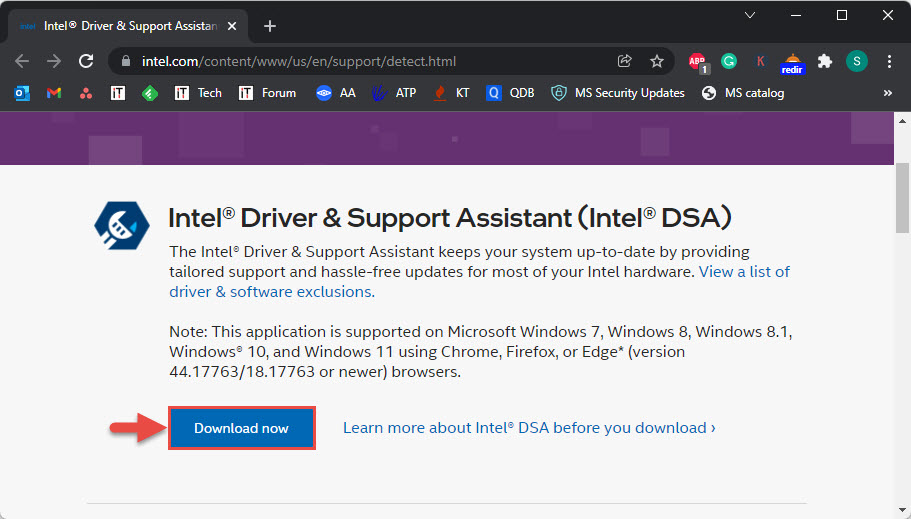
Download the Intel Driver & Support Assistant from Intel’s official site.
How to Install Intel DSA
1. Run the downloaded setup file.
2. Tick the box to accept the licence terms and click Install.
3. Choose whether to join Intel’s optional Computing Improvement Program (you can decline).
4. When installation finishes, restart the PC if prompted.
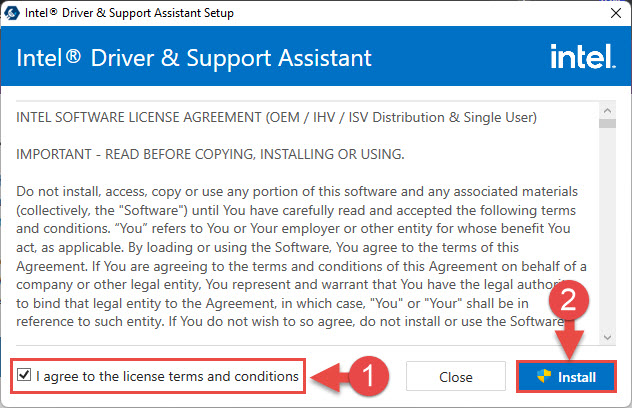
Accept the licence terms and install the assistant.
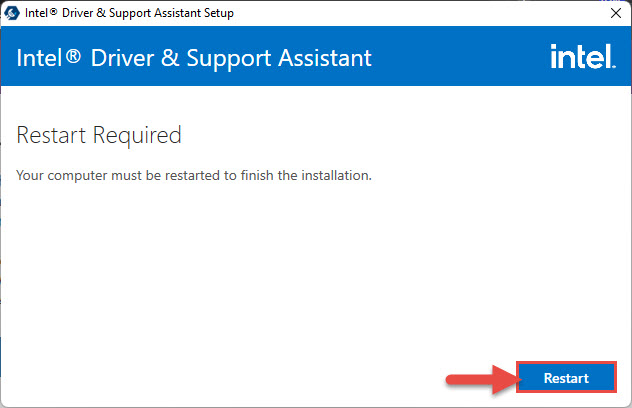
Restart the PC to finish setting up Intel DSA.
How to Update Your Intel Drivers
1. Open the Intel Driver & Support Assistant (it opens in your web browser).
2. Let it scan your system for available driver updates.
3. Click Download all to fetch the recommended updates.
4. Click Install to apply them, following any on-screen prompts.
5. Restart the PC if asked, then re-run the scan to confirm everything is up to date.
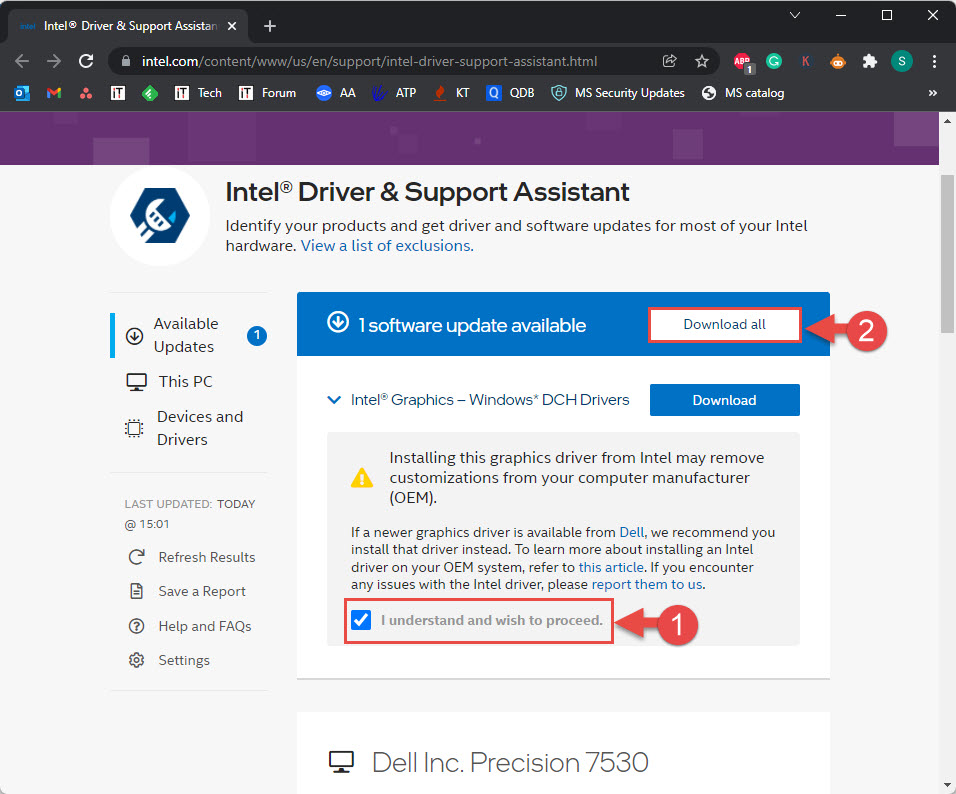
Download all available driver updates from the assistant.
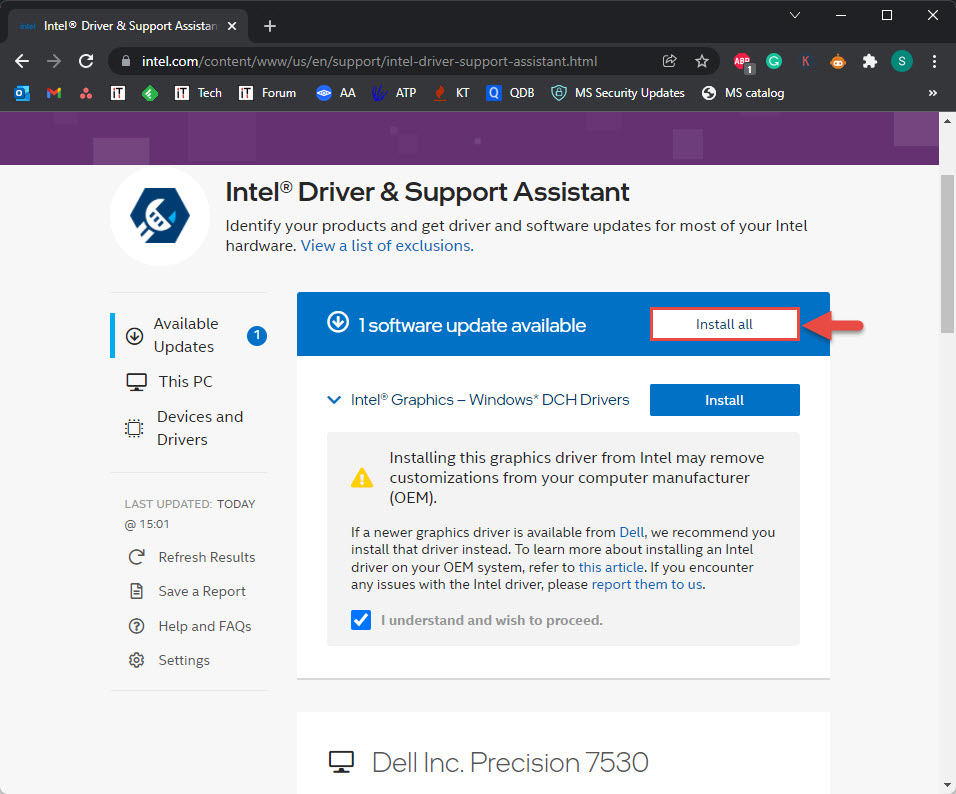
Install the available driver updates.
Tip: Intel DSA shows a notification when new driver updates are released, so you can keep your system current without checking manually.
Updating the Graphics Driver Specifically
1. Run Intel DSA and look for the Intel Graphics entry in the results.
2. Click Download for the graphics driver update.
3. Run the installer and choose a clean installation if offered.
4. Restart and verify the version in Device Manager > Display adapters.
Troubleshooting
Problem: Intel DSA does not detect a driver update.
Solution: Some drivers are managed by your PC manufacturer. Check your OEM support page for those, and re-run the DSA scan after restarting.
Problem: The assistant will not open.
Solution: It runs in your default browser — allow it through your firewall, try a different supported browser, or reinstall Intel DSA.
Problem: A driver fails to install.
Solution: Run the assistant as administrator, temporarily disable antivirus, and retry. For graphics, try a clean installation.
Problem: You prefer manual control.
Solution: You can still download individual drivers from Intel’s Download Center instead of installing them all through DSA.
Conclusion
The Intel Driver & Support Assistant is the easiest, safest way to keep Intel drivers current. Install it once, run a scan, and let it download and install the right updates — with notifications when new ones arrive.
</w:pBdr><w:spacing w:before="220" w:after="40"/></w:pPr><w:r><w:rPr><w:b/><w:bCs/><w:color w:val="0B5394"/><w:sz w:val="21"/><w:szCs w:val="21"/><w:rFonts w:ascii="Calibri" w:cs="Calibri" w:eastAsia="Calibri" w:hAnsi="Calibri"/></w:rPr><w:t xml:space="preserve">About TechHub
This guide is part of the TechHub Knowledge Base. For more step-by-step IT guides and support, visit techhub.com.lk.