Overview
Transparent taskbar එකකින් Windows එකට sleek, modern look එකක් දෙනවා. මේ guide එකෙන් taskbar transparency වැඩි කරන ක්රම පහක් cover කරනවා — Settings app, Registry, සහ full transparency වලට lightweight third-party tools පාවිච්චි කරලා.
Windows එකේ transparent taskbar එකක්.
Key Takeaways
- Settings එකෙන් basic transparency effects දෙනවා.
- Registry tweak එකකින් effect එක boost කරන්න පුළුවන්.
- TranslucentTB වගේ tools full transparency දෙනවා.
- Methods combine කරලා cleanest look එක ලැබෙනවා.
Method 1: Settings App
1. Settings > Personalization > Colours open කරන්න.
2. "Transparency effects" on කරන්න.
3. Taskbar, Start menu, සහ වෙන surfaces partly translucent වෙනවා.
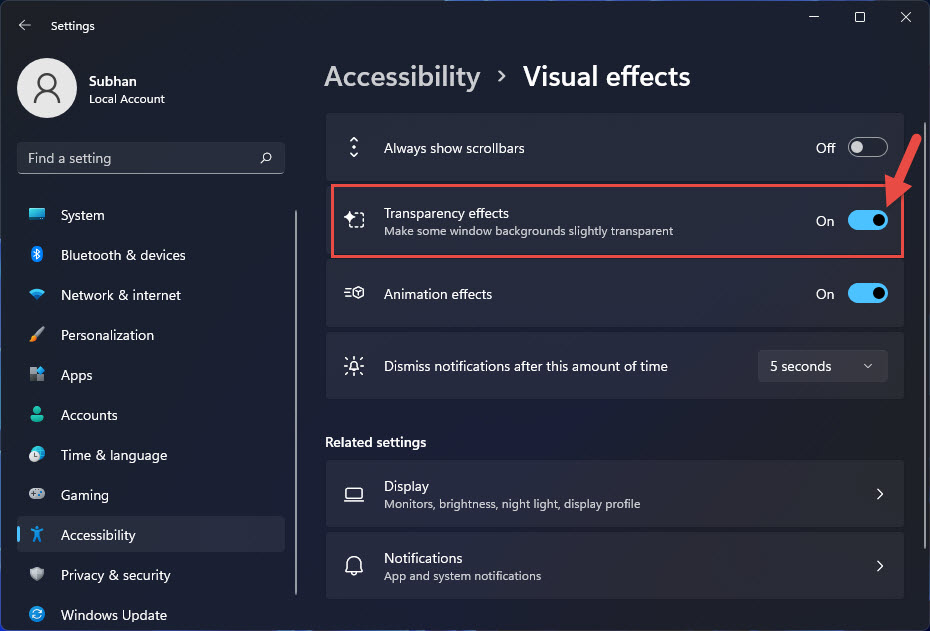
Settings එකේ Transparency effects option එක.
Method 2: Accent Colour පෙන්නන්න (Stronger Tint)
1. Settings > Personalization > Colours එකේ, "Choose your mode" set කරලා accent colour එකක් pick කරන්න.
2. Tint එක control කරන්න "Show accent colour on Start and taskbar" (Windows 10) enable කරන්න.
3. Custom look එකකට transparency එක්ක combine කරන්න.
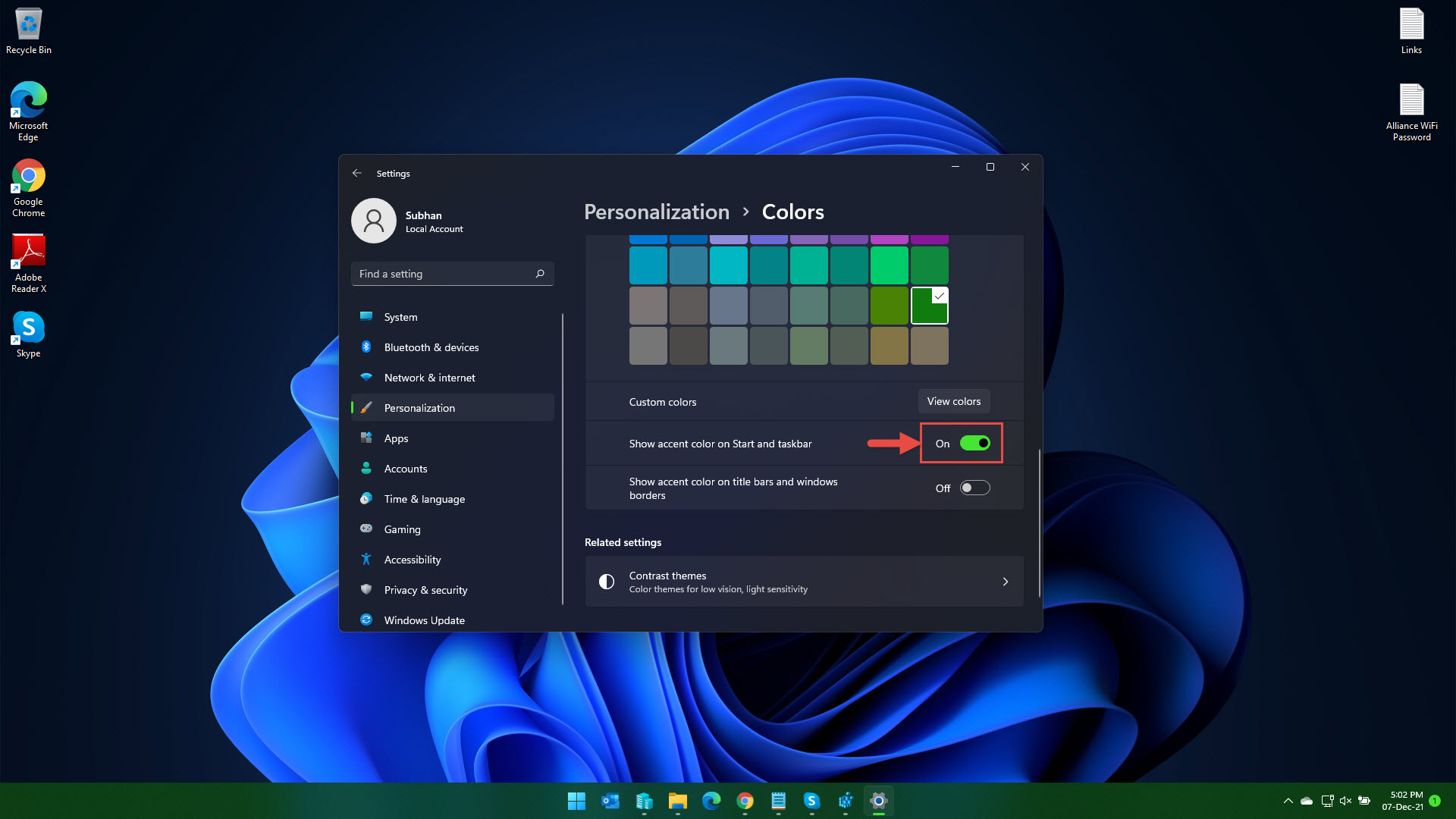
Taskbar එකේ accent colour පෙන්නන්න.
Method 3: Registry Tweak
Warning: Registry එක වැරදියට edit කරන එකෙන් problems ඇති වෙන්න පුළුවන්. Changes කරන්න කලින් Registry එක backup කරන්න.
1. Windows + R press කරලා regedit type කරලා Enter කරන්න.
2. HKEY_CURRENT_USER\Software\Microsoft\Windows\CurrentVersion\Themes\Personalize වලට යන්න.
3. UseOLEDTaskbarTransparency කියන DWORD එකක් හදලා 1 කරන්න.
4. Apply කරන්න Explorer restart කරන්න.
Method 4: TranslucentTB (Full Transparency)
Note: TranslucentTB install කරන්නේ official Microsoft Store එකෙන් හෝ ඒකේ GitHub releases එකෙන් විතරයි.
1. Microsoft Store එකෙන් "TranslucentTB" install කරන්න.
2. Launch කරන්න; taskbar එක default විදිහට fully transparent වෙනවා.
3. Clear, Blur, හෝ Acrylic styles, සහ per-state behaviour තෝරන්න ඒකේ tray icon එක right-click කරන්න.
Method 5: Effects Combine කරන්න
1. Settings transparency enable කරලා, full clarity වලට TranslucentTB run කරන්න.
2. ඔබේ wallpaper එකට complement වෙන accent colour එකක් pick කරන්න.
3. Persistent look එකකට TranslucentTB Windows එක්ක start වෙන්න set කරන්න.
Troubleshooting
Problem: Transparency toggle එකෙන් මුකුත් වෙන්නේ නෑ.
Solution: ඔබ Battery saver එකේ නෑ (ඒක effects disable කරනවා), GPU driver එක up to date කියලා බලන්න.
Problem: Taskbar එක ටිකක් විතරයි translucent.
Solution: Windows' built-in effect එක design එකෙන් subtle — full transparency වලට TranslucentTB පාවිච්චි කරන්න.
Problem: Reboot එකට පස්සේ TranslucentTB reset වෙනවා.
Solution: ඒක automatically run වෙන්න ඒකේ settings වල "Open at startup" enable කරන්න.
Problem: Registry value එකට effect එකක් නෑ.
Solution: Explorer restart කරන්න හෝ sign out/in; සමහර themes value එක override කරනවා.
Conclusion
Windows' built-in transparency subtle, ඒ නිසා truly see-through taskbar එකකට TranslucentTB වගේ free tool එකක් එක්ක pair කරන්න. Matching accent colour එකයි startup configuration එකයි වලින්, boot කරන හැම වතාවෙම clean, transparent taskbar එකක් ලැබෙනවා.
About TechHub
මේ guide එක TechHub Knowledge Base එකේ කොටසක්. තව step-by-step IT guides සහ support වලට techhub.com.lk එකට යන්න.