Overview
When Windows 10 or 11 is not activated, the Personalization settings are greyed out with a "You need to activate Windows before you can personalize your PC" message. You can still change your wallpaper and apply themes using a few workarounds. This guide shows how.
Apply themes and wallpaper even when Personalization is locked.
Note: These are personalization workarounds only. Activating Windows unlocks the full Personalization settings and removes the activation watermark — consider activating with a valid licence for the complete experience.
Key Takeaways
- Unactivated Windows locks the Personalization page but not all personalization actions.
- You can set wallpaper by right-clicking an image and choosing Set as desktop background.
- Double-clicking a .theme or .deskthemepack file applies a full theme.
- Activating Windows restores full access to Personalization settings.
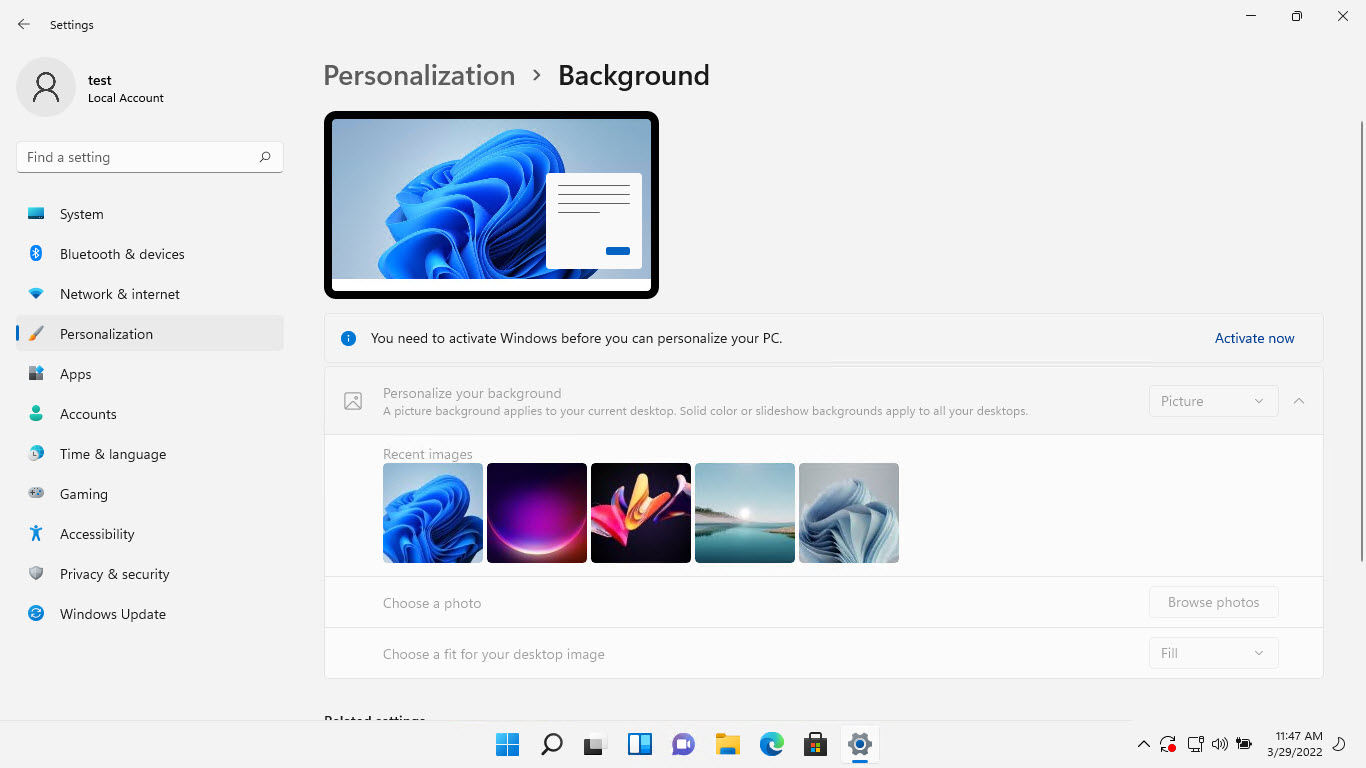
The "activate Windows before personalization" message on the Personalization page.
Method 1 — Set Wallpaper From File Explorer
1. Open the folder containing the image you want as wallpaper.
2. Right-click the image.
3. Choose "Set as desktop background".
4. The wallpaper changes immediately, even without activation.
Method 2 — Apply a Theme File Directly
1. Obtain a Windows theme file (.theme or .deskthemepack), for example from the Microsoft Store theme files or a trusted source.
2. Double-click the theme file.
3. Windows applies the theme’s wallpaper, colors, and sounds directly.
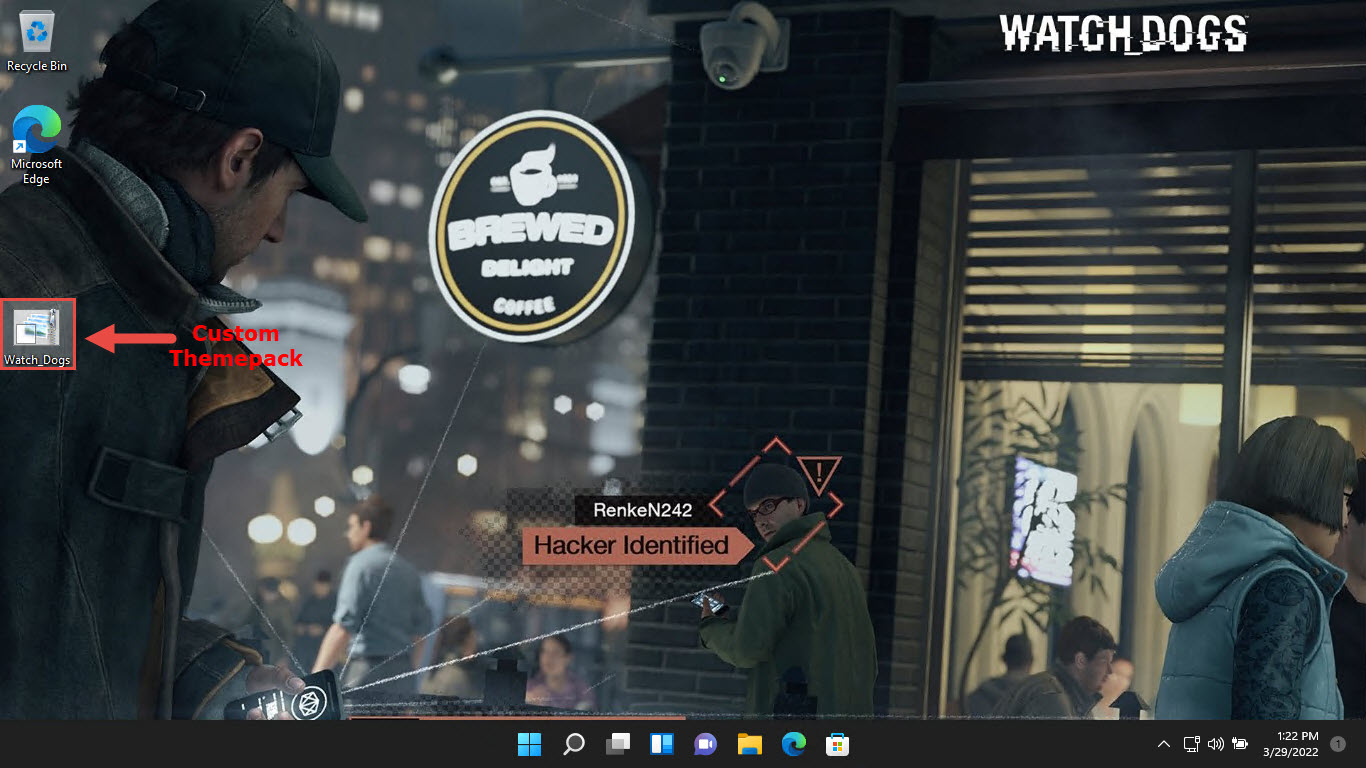
A custom theme pack applied on unactivated Windows.
Method 3 — Set Wallpaper in a Browser or Photos
1. Open an image in the Photos app or a browser.
2. Use the app’s menu option to set the image as the desktop background where available.
3. This bypasses the locked Personalization page for wallpaper changes.
Tip: Themes downloaded from the Microsoft Store download as .themepack/.deskthemepack files you can double-click to apply.
Troubleshooting
Problem: "Set as desktop background" does nothing.
Solution: Try a different image format (JPG/PNG), or apply a .theme file instead, which sets the wallpaper as part of the theme.
Problem: Accent color and lock screen still cannot change.
Solution: Those specific options remain locked until activation. Use theme files for colors, but full control requires activating Windows.
Problem: The wallpaper resets after restart.
Solution: Apply it via a .theme file, which persists, and ensure no policy or sync setting is overriding it.
Problem: You want full personalization.
Solution: Activate Windows with a valid product key or digital licence to unlock the entire Personalization settings page.
Conclusion
Even with Personalization locked, you can change wallpaper from File Explorer and apply full themes by double-clicking a theme file. For complete control over colors, lock screen, and more, activating Windows is the proper fix.
</w:pBdr><w:spacing w:before="220" w:after="40"/></w:pPr><w:r><w:rPr><w:b/><w:bCs/><w:color w:val="0B5394"/><w:sz w:val="21"/><w:szCs w:val="21"/><w:rFonts w:ascii="Calibri" w:cs="Calibri" w:eastAsia="Calibri" w:hAnsi="Calibri"/></w:rPr><w:t xml:space="preserve">About TechHub
This guide is part of the TechHub Knowledge Base. For more step-by-step IT guides and support, visit techhub.com.lk.