Overview
Windows keeps old driver versions in the Driver Store, which can waste space and occasionally cause conflicts. This guide shows safe ways to remove obsolete drivers using Disk Cleanup, Device Manager, PowerShell, and free tools.
Removing old drivers in Windows.
Key Takeaways
- Windows stores previous driver versions in the Driver Store.
- Disk Cleanup / Storage Sense can remove old device driver packages.
- Device Manager can uninstall hidden (non-present) devices.
- Keep the current driver — only remove old, unused ones.
When to Remove Old Drivers
- You’re low on disk space and the Driver Store is large.
- Hardware conflicts persist after upgrades.
- You’ve replaced a GPU/printer and old drivers linger.
Method 1: Disk Cleanup / Storage Sense
1. Open Disk Cleanup (cleanmgr) and click "Clean up system files".
2. Tick "Device driver packages".
3. Click OK to remove superseded driver packages.
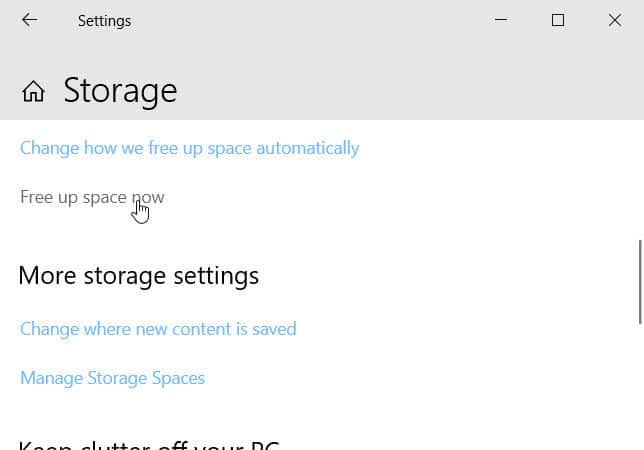
Free up space by clearing old driver packages.
Method 2: Device Manager (Hidden Devices)
1. Open Device Manager.
2. Click View > Show hidden devices.
3. Greyed-out entries are non-present hardware.
4. Right-click an old device > Uninstall device (tick "Delete the driver software" if offered).
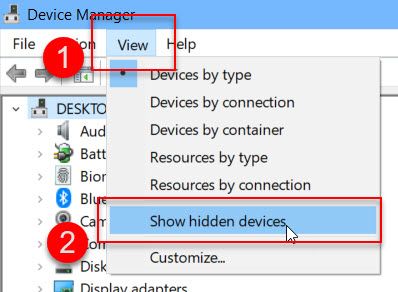
Show hidden devices to find old drivers.
Method 3: PowerShell (pnputil)
1. List third-party drivers: pnputil /enum-drivers
2. Identify the old published name (oemNN.inf).
3. Remove it: pnputil /delete-driver oemNN.inf /uninstall (add /force only if needed).
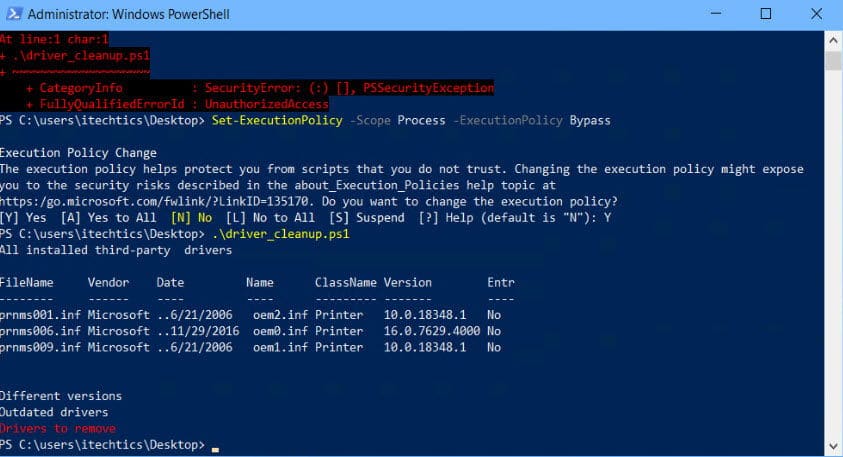
Remove old drivers with a PowerShell/pnputil command.
Method 4: Free Tools
Note: Download driver-cleanup tools only from their official sources: Driver Store Explorer (RAPR) from GitHub, Device Cleanup Tool from its official site.
- Driver Store Explorer (RAPR): lists and removes old Driver Store packages.
- Device Cleanup Tool: removes non-present devices in bulk.
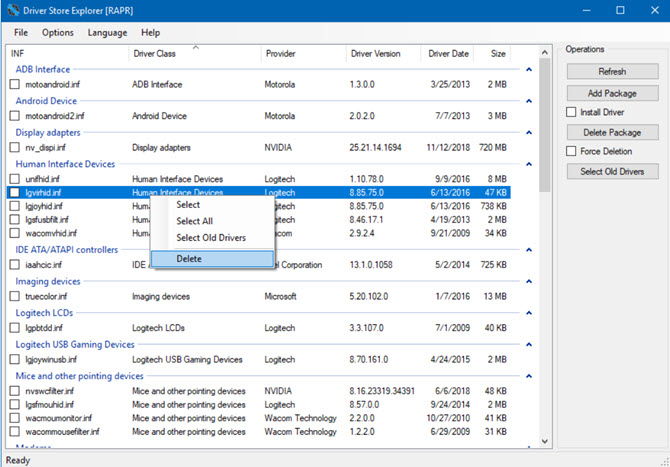
Driver Store Explorer managing driver packages.
Troubleshooting
Problem: A driver won’t delete ("in use").
Solution: Uninstall the associated device first, or use /force cautiously with pnputil.
Problem: Hardware stopped working after cleanup.
Solution: You removed an active driver — reinstall it from the vendor’s official site or via Windows Update.
Problem: Hidden devices don’t appear.
Solution: Enable View > Show hidden devices, and set DEVMGR_SHOW_NONPRESENT_DEVICES if needed.
Problem: Driver Store still large.
Solution: Use Driver Store Explorer to spot and remove multiple old versions Disk Cleanup missed.
Conclusion
Clearing old drivers frees space and reduces conflicts. Start with Disk Cleanup’s "Device driver packages", use Device Manager for hidden devices, and reach for pnputil or Driver Store Explorer for stubborn leftovers — always keeping the current, working driver in place.
</w:pBdr><w:spacing w:before="220" w:after="40"/></w:pPr><w:r><w:rPr><w:b/><w:bCs/><w:color w:val="0B5394"/><w:sz w:val="21"/><w:szCs w:val="21"/><w:rFonts w:ascii="Calibri" w:cs="Calibri" w:eastAsia="Calibri" w:hAnsi="Calibri"/></w:rPr><w:t xml:space="preserve">About TechHub
This guide is part of the TechHub Knowledge Base. For more step-by-step IT guides and support, visit techhub.com.lk.