Overview
Dell SupportAssist helps keep Dell PCs updated, but it can misbehave or refuse to reinstall. A clean uninstall removes the app plus its leftover services and files. This guide shows how.
A clean uninstall removes all traces of Dell SupportAssist.
Key Takeaways
- Uninstall the app first, then remove leftover Dell services and folders.
- Leftover services/files are why reinstalls often fail.
- Run commands as administrator.
- Reboot between steps for a fully clean result.
When to Clean Uninstall
- SupportAssist crashes or will not open.
- Updates or scans fail repeatedly.
- A reinstall fails because of leftover components.
Step 1 — Uninstall the App
1. Open Settings > Apps > Installed apps.
2. Find Dell SupportAssist (and Dell SupportAssist Remediation/OS Recovery if present).
3. Click Uninstall for each and follow the prompts.
4. Restart the PC.
Step 2 — Remove Leftover Dell Services
1. Press Windows key + R, type services.msc, and press Enter.
2. Locate any remaining SupportAssist/Dell services.
3. Note their service names, then open Command Prompt as administrator.
4. Delete each with: sc delete "ServiceName" (use the exact service name).
5. Restart the PC.
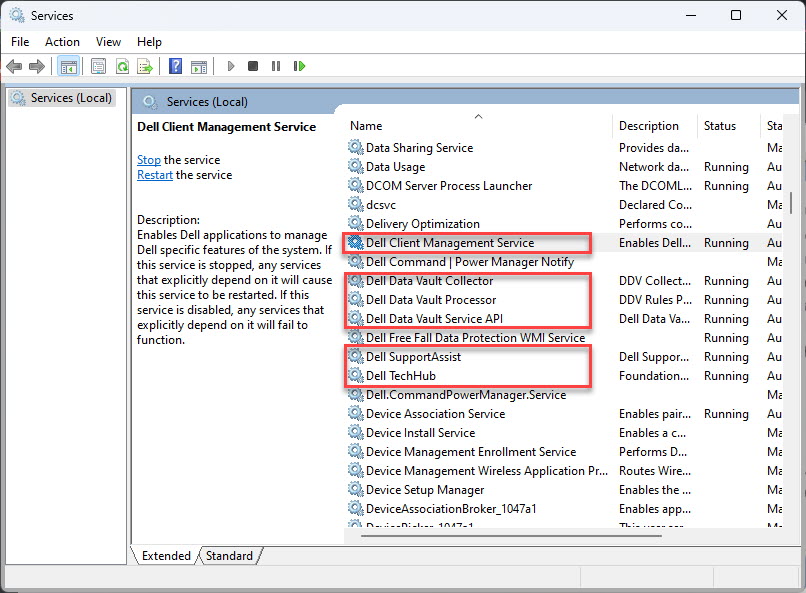
Dell services shown in the Services console.
Step 3 — Delete Leftover Files
1. Open File Explorer and enable hidden items.
2. Delete leftover Dell SupportAssist folders, typically under C:\Program Files\Dell, C:\Program Files (x86)\Dell, and C:\ProgramData\Dell.
3. Empty the Recycle Bin.
4. Restart again.
Warning: Only delete SupportAssist-related Dell folders — leave other Dell driver folders you still need intact.
Reinstall (Optional)
1. Download the latest SupportAssist from Dell’s official support site.
2. Run the installer — with leftovers removed, it should install cleanly.
3. Reboot and confirm it opens and updates correctly.
Troubleshooting
Problem: A service will not delete.
Solution: Stop it first (sc stop "ServiceName"), then run sc delete; reboot if it is locked.
Problem: Files will not delete (in use).
Solution: Reboot, or boot into Safe Mode, then delete the leftover folders.
Problem: Reinstall still fails.
Solution: Ensure all services and folders are removed and the PC is rebooted, then download a fresh installer from Dell.
Problem: You do not need it back.
Solution: You can leave it uninstalled; SupportAssist is optional, though it does automate Dell driver updates.
Conclusion
A clean SupportAssist removal means uninstalling the app and then clearing its leftover services and folders. Do that, reboot between steps, and any reinstall will go smoothly — or you can simply leave it off.
</w:pBdr><w:spacing w:before="220" w:after="40"/></w:pPr><w:r><w:rPr><w:b/><w:bCs/><w:color w:val="0B5394"/><w:sz w:val="21"/><w:szCs w:val="21"/><w:rFonts w:ascii="Calibri" w:cs="Calibri" w:eastAsia="Calibri" w:hAnsi="Calibri"/></w:rPr><w:t xml:space="preserve">About TechHub
This guide is part of the TechHub Knowledge Base. For more step-by-step IT guides and support, visit techhub.com.lk.