Overview
PowerShell 7 is the modern, open-source, cross-platform successor to the built-in Windows PowerShell 5.1. It installs side by side with the old version and runs on Windows, macOS, and Linux. This guide shows how to install, use, and remove it.
PowerShell 7 is the modern, cross-platform version of PowerShell.
Key Takeaways
- PowerShell 7 installs alongside Windows PowerShell 5.1 — both can coexist.
- It launches as pwsh (vs powershell for 5.1).
- Install it with winget, the official MSI, or the Microsoft Store.
- It is cross-platform and open source, with regular and LTS releases.
PowerShell 7 vs Windows PowerShell
- Windows PowerShell 5.1 is built into Windows and launched as powershell.
- PowerShell 7 (pwsh) is newer, faster, cross-platform, and actively developed.
- Choose the LTS release for stability, or the current release for the newest features.
Method 1 — Install With winget (Recommended)
1. Open Windows PowerShell or Command Prompt.
2. Run: winget install --id Microsoft.PowerShell --source winget
3. Wait for it to install.
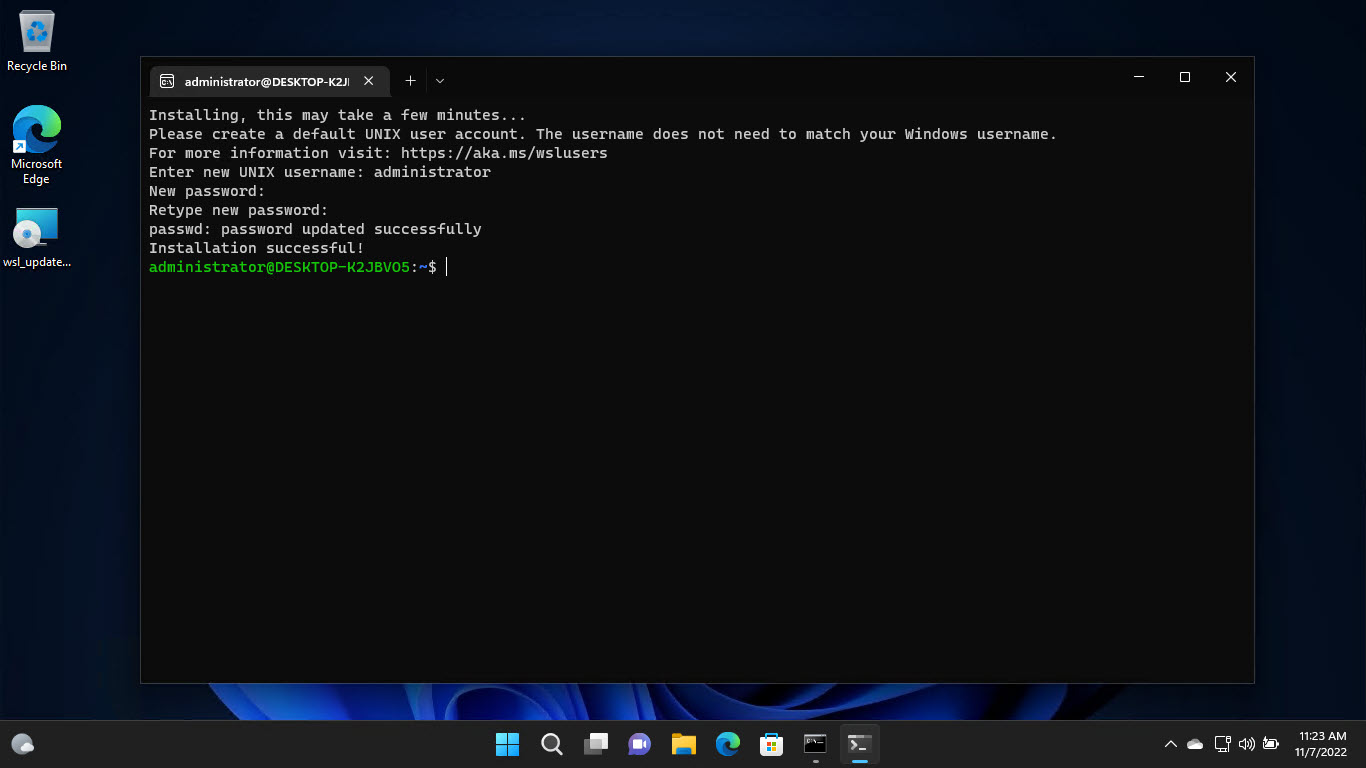
4. Launch it by typing pwsh.
Method 2 — Install From the MSI
1. Go to the official PowerShell releases page on GitHub (github.com/PowerShell/PowerShell).
2. Download the latest stable (or LTS) MSI for Windows x64.
3. Run the installer and follow the prompts.
4. Open PowerShell 7 from the Start menu.
Method 3 — Microsoft Store
1. Open the Microsoft Store and search for "PowerShell".
2. Install the official PowerShell app.
3. It updates automatically through the Store.
macOS and Linux
- macOS — install via Homebrew: brew install --cask powershell.
- Linux — install via your distro’s package manager (apt, dnf, etc.) using Microsoft’s repository.
- Run pwsh to start it on any platform.
How to Uninstall
1. Open Settings > Apps > Installed apps.
2. Find PowerShell 7 and click Uninstall.
3. Or remove it with winget: winget uninstall Microsoft.PowerShell.
Troubleshooting
Problem: pwsh is not recognized.
Solution: Open a new terminal so the PATH refreshes, or reinstall and ensure "Add to PATH" was selected.
Problem: winget is missing.
Solution: Install App Installer from the Microsoft Store, or use the MSI method instead.
Problem: Which version should I install?
Solution: Use the LTS release for production stability; the current release for the latest features.
Problem: Scripts will not run.
Solution: Set the execution policy (Set-ExecutionPolicy RemoteSigned) as needed in PowerShell 7.
Conclusion
PowerShell 7 brings a modern, cross-platform shell that lives happily beside Windows PowerShell. Install it with winget for the quickest setup, run it as pwsh, and choose LTS or current to match your needs.
</w:pBdr><w:spacing w:before="220" w:after="40"/></w:pPr><w:r><w:rPr><w:b/><w:bCs/><w:color w:val="0B5394"/><w:sz w:val="21"/><w:szCs w:val="21"/><w:rFonts w:ascii="Calibri" w:cs="Calibri" w:eastAsia="Calibri" w:hAnsi="Calibri"/></w:rPr><w:t xml:space="preserve">About TechHub
This guide is part of the TechHub Knowledge Base. For more step-by-step IT guides and support, visit techhub.com.lk.