Overview
Windows includes three powerful command-line repair tools: System File Checker (SFC), Deployment Image Servicing and Management (DISM), and Check Disk (CHKDSK). Each targets a different layer of the system — SFC repairs protected system files, DISM repairs the underlying Windows image those files come from, and CHKDSK fixes errors on the disk itself. This guide explains what each does and the order in which to run them.
Key Takeaways
- SFC scans and restores corrupted or missing Windows system files.
- DISM repairs the Windows component store (the image) that SFC draws its known-good files from.
- CHKDSK checks the physical disk and file system for errors and bad sectors.
- The recommended order for most issues is DISM first, then SFC, and CHKDSK when disk problems are suspected.
What Is System File Checker (SFC)?
SFC scans all protected Windows system files and replaces any that are corrupted, damaged, or missing with a cached, known-good copy. It is the go-to tool for symptoms like crashing built-in apps, missing system features, or general instability caused by damaged files.
What Is the DISM Tool?
DISM services the Windows image and component store. If the local store SFC relies on is itself corrupt, SFC cannot repair files properly. DISM restores health to that component store — usually by downloading fresh files through Windows Update — so that SFC has a good source to work from.
What Is Check Disk (CHKDSK)?
CHKDSK examines the file system and the physical structure of a drive. It fixes logical file-system errors and can locate and mark bad sectors so Windows stops using them. Use it when you suspect disk-level problems such as frequent crashes, corrupt files, or a drive that behaves erratically.
Step 1: Repair the Windows Image with DISM
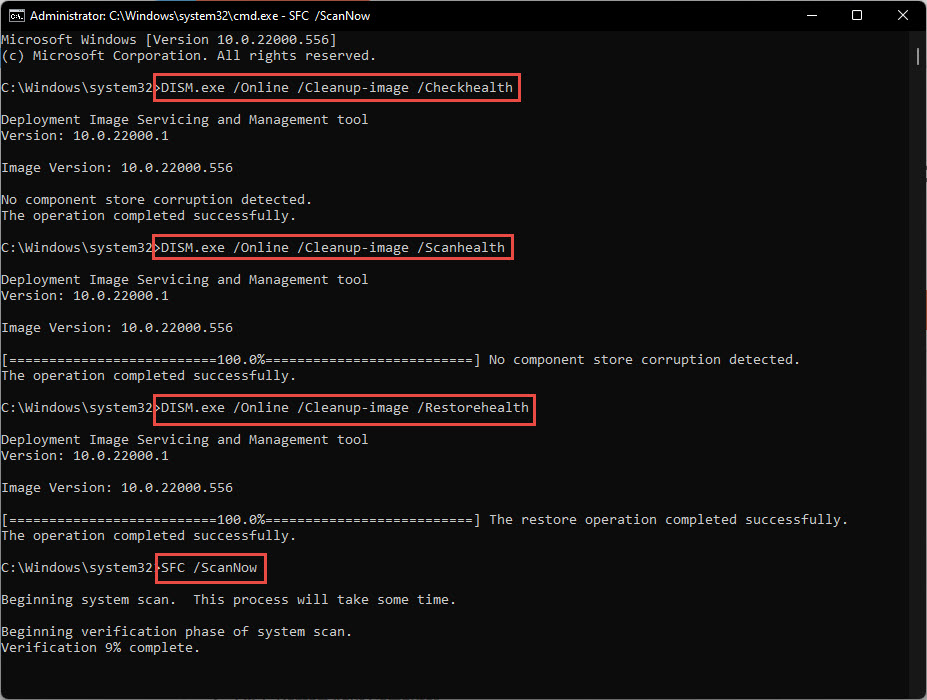
Run DISM first so SFC has a healthy source of files. Open Command Prompt or Windows Terminal as administrator, then run the three DISM stages.
1. Open the Start menu, type cmd, right-click "Command Prompt", and choose "Run as administrator".
2. Check for corruption without making changes: DISM /Online /Cleanup-Image /CheckHealth
3. Scan the image more thoroughly: DISM /Online /Cleanup-Image /ScanHealth
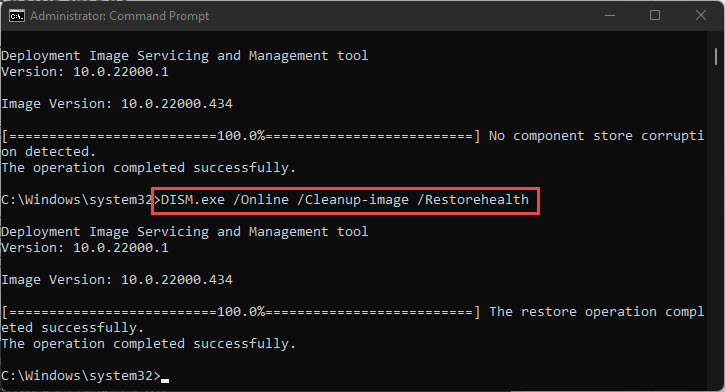
4. Repair the image: DISM /Online /Cleanup-Image /RestoreHealth
5. Wait for the process to reach 100%. It needs an internet connection to fetch replacement files through Windows Update.
Repairing the Windows component store with DISM /RestoreHealth.
Tip: If Windows Update is broken and DISM cannot download files, point it at a known-good source from a matching Windows ISO: mount the ISO and run DISM /Online /Cleanup-Image /RestoreHealth /Source:ESD or WIM path /LimitAccess.
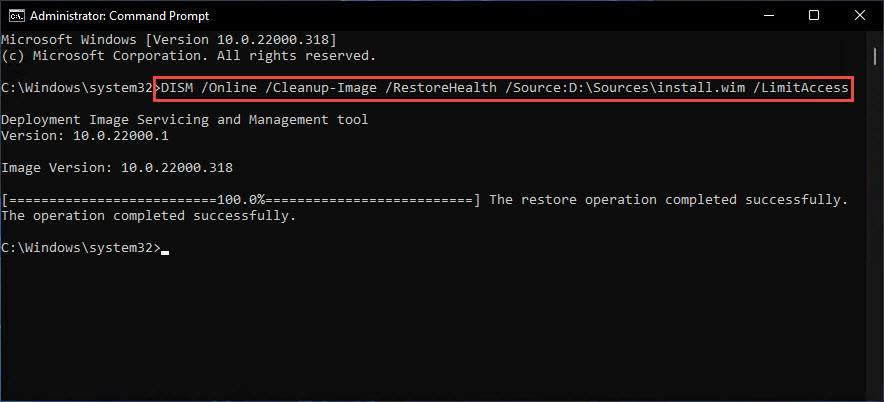
Using an install.wim source when Windows Update is unavailable.
Step 2: Repair System Files with SFC
With a healthy image in place, run SFC to repair the actual system files.
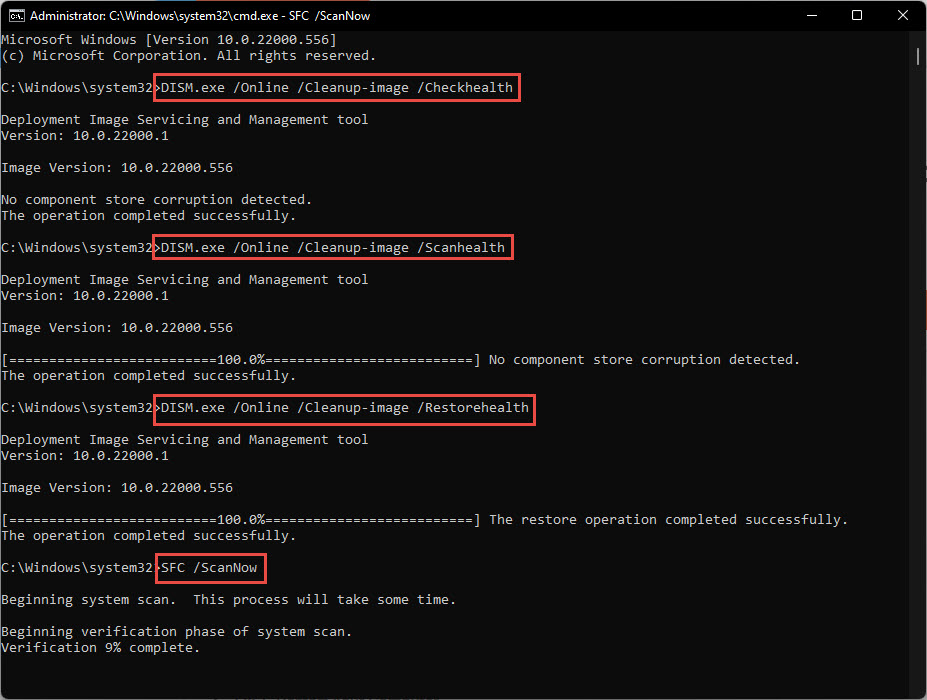
1. In the same administrator Command Prompt, run: sfc /scannow
2. Let the scan complete. SFC will report either that it found no violations, that it repaired files, or that it found files it could not fix.
3. If it repaired files, restart the computer and run sfc /scannow again to confirm it now reports no integrity violations.
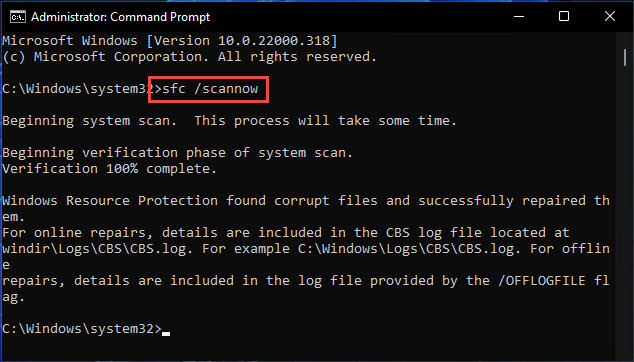
Running sfc /scannow to repair protected system files.
Step 3: Check the Disk with CHKDSK
If problems persist or you suspect disk errors, run CHKDSK to inspect and repair the drive.
1. In the administrator Command Prompt, run: chkdsk C: /f /r (replace C: with the target drive).
2. The /f switch fixes file-system errors and /r locates bad sectors and recovers readable data.
3. If the drive is in use (as the system drive usually is), type Y to schedule the scan for the next restart.
4. Restart the computer and let CHKDSK run before Windows loads.
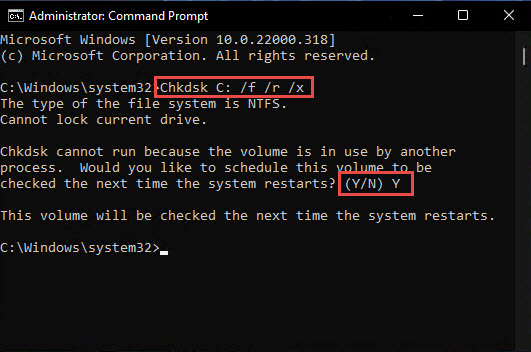
Scheduling CHKDSK to scan and repair the system drive on restart.
Warning: CHKDSK with /r can take a long time on large drives and should not be interrupted. Back up important data first, especially if the drive is already showing signs of failure.
Which Scan to Run First?
For system-file corruption, run DISM first (to repair the image), then SFC (to repair the files). If you also suspect the disk hardware — because of crashes, corrupt files, or read errors — run CHKDSK as well. In short: DISM, then SFC, and CHKDSK when disk errors are likely. SFC alone is fine for minor issues, but DISM ensures SFC has a healthy source to repair from.
Troubleshooting
Problem: SFC reports it could not repair some files.
Solution: The component store is likely corrupt. Run DISM /Online /Cleanup-Image /RestoreHealth first, then run sfc /scannow again after restarting.
Problem: DISM /RestoreHealth fails to download files.
Solution: Windows Update may be broken. Supply a source from a matching Windows ISO using the /Source and /LimitAccess switches.
Problem: CHKDSK will not run because the drive is in use.
Solution: This is normal for the system drive. Type Y to schedule it, then restart so CHKDSK runs before Windows loads.
Problem: The same errors return after all three scans.
Solution: The issue may be failing hardware or deeper corruption. Back up your data and consider an in-place repair upgrade or a clean reinstall of Windows.
Conclusion
DISM, SFC, and CHKDSK together cover the image, the system files, and the disk. Run DISM to restore a healthy image, SFC to repair system files from it, and CHKDSK to fix disk errors. Following that order resolves the majority of corruption-related Windows problems without needing a reinstall.
About TechHub
This guide is part of the TechHub Knowledge Base. For more step-by-step IT guides and support, visit techhub.com.lk.