Overview
The shutdown command lets you restart or power off a Windows PC from Command Prompt or PowerShell. It is ideal for scripts, scheduled maintenance, and restarting remote machines. This guide covers the most useful options.
Key Takeaways
- The shutdown command controls restart and shutdown from the command line.
- /r restarts, /s shuts down, and /t sets a delay in seconds.
- /m \\\\computername targets a remote machine.
- /a aborts a pending shutdown you started.
Restart the Local PC
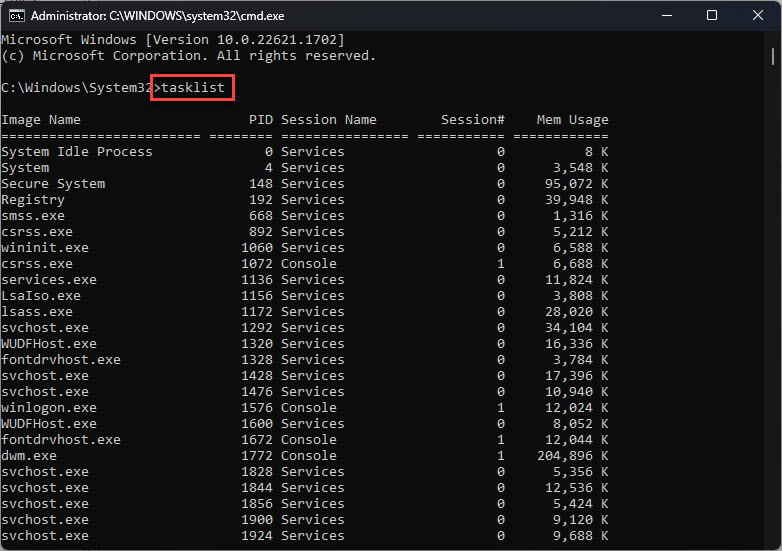
1. Open Command Prompt or PowerShell.
2. Restart immediately with: shutdown /r /t 0
3. Restart after a delay, for example 60 seconds: shutdown /r /t 60
4. Cancel a pending restart with: shutdown /a
Restart a Remote PC
1. Ensure you have administrative rights on the remote machine and it is reachable.
2. Run: shutdown /r /m \\\\computername /t 0
3. Add /f to force close running applications if needed.
4. Confirm the machine comes back online after rebooting.
Warning: Forcing a restart with /f closes apps without saving. Warn users and save work first, since unsaved data will be lost.
Troubleshooting
Problem: Access is denied when restarting a remote PC.
Solution: Run the command prompt as administrator and use an account with admin rights on the target machine.
Problem: The remote computer cannot be contacted.
Solution: Confirm it is powered on, reachable by ping, and that the Remote Registry and firewall rules permit shutdown.
Problem: A scheduled shutdown will not cancel.
Solution: Run shutdown /a from the same or an elevated prompt before the timer expires.
Problem: Apps block the shutdown.
Solution: Add the /f switch to force applications to close, after saving any important work.
Conclusion
The shutdown command is a small but powerful tool for restarting machines on demand, on a timer, or across the network — perfect for scripts and remote administration.
About TechHub
This guide is part of the TechHub Knowledge Base. For more step-by-step IT guides and support, visit techhub.com.lk.