Overview
"Microsoft Print to PDF" is a built-in virtual printer that saves any document as a PDF. If it vanishes from the printer list, it is usually because the optional feature was turned off or the printer was removed. You can restore it through Windows Features, by adding the printer manually, or with a single PowerShell or Command Prompt command.
Key Takeaways
- Microsoft Print to PDF is an optional Windows feature that can be toggled on and off.
- Re-enabling the feature restores the virtual printer in most cases.
- You can also add the printer manually through Devices and Printers.
- PowerShell and Command Prompt offer one-line ways to re-enable it.
Method 1: Re-enable the Optional Feature
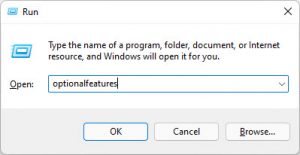
1. Press Win + R, type optionalfeatures, and press Enter.
2. In the Windows Features window, locate "Microsoft Print to PDF".
3. If it is unchecked, tick it; if it is already checked, untick it, click OK, then repeat to re-tick it (this reinstalls it).
4. Click OK and restart if prompted.
Toggle "Microsoft Print to PDF" in the Windows Features window.
Method 2: Add the Printer Manually
1. Open Settings > Bluetooth & devices > Printers & scanners and click "Add device".
2. When it does not find one, choose "Add manually" / "The printer that I want isn't listed".
3. Select "Add a local printer or network printer with manual settings".
4. Use the existing port PORTPROMPT: (Local Port), pick Microsoft as the manufacturer and "Microsoft Print to PDF" as the printer, then finish the wizard.
Method 3: Use PowerShell or Command Prompt
1. Open PowerShell as administrator.
2. Run: Enable-WindowsOptionalFeature -Online -FeatureName Printing-PrintToPDFServices-Features
3. Alternatively, in an elevated Command Prompt run: dism /Online /Enable-Feature /FeatureName:"Printing-PrintToPDFServices-Features" /All
4. Restart the PC and check the printer list.
NOTE: If the feature seems stuck, disable it first (Disable-WindowsOptionalFeature ... ), restart, then enable it again for a clean reinstall.
Troubleshooting
Problem: Print to PDF is missing even after enabling the feature.
Solution: Restart the Print Spooler service (services.msc > Print Spooler > Restart) and check the printer list again.
Problem: The manual wizard cannot find the Microsoft Print to PDF driver.
Solution: Click "Windows Update" in the driver selection step to refresh the built-in driver list, then select it again.
Problem: Printing to PDF produces an error or a blank file.
Solution: Update your Windows installation and reinstall the feature; a corrupted spooler cache can also be cleared by restarting the Print Spooler.
Problem: The option keeps disappearing.
Solution: A third-party PDF or printer tool may be interfering. Remove conflicting virtual printers and re-add Microsoft Print to PDF.
Conclusion
Restoring Print to PDF is quick: re-toggle the optional feature, add the printer manually, or run a single enable command. Once it is back, you can save any document to PDF straight from the print dialog.
About TechHub
This guide is part of the TechHub Knowledge Base. For more step-by-step IT guides and support, visit techhub.com.lk.