Overview
Running an app as a different user lets you use another account’s credentials without fully switching users — handy for admin tasks. This guide covers six ways to do it and how to restore the option if it’s missing.
Run an app as a different user in Windows.
Key Takeaways
- Shift + right-click reveals "Run as different user".
- The runas command does the same from a prompt.
- PowerShell and shortcuts can launch under other credentials.
- The Secondary Logon service must be running.
Prerequisite: Secondary Logon Service
1. Open services.msc.
2. Ensure "Secondary Logon" is Running (set to Manual/Automatic).
3. RunAs features depend on this service.
Method 1: Context Menu
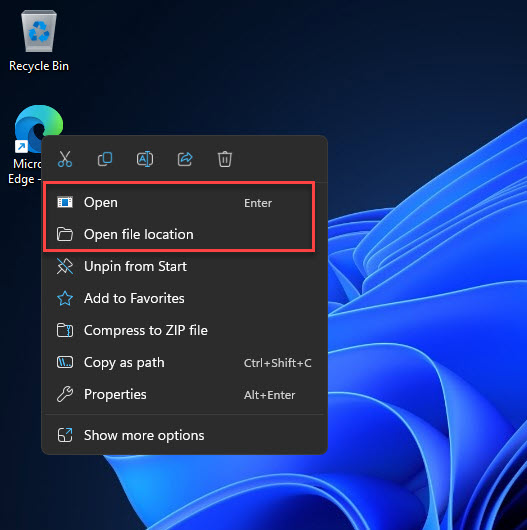
1. Hold Shift and right-click the program or its shortcut.
2. Choose "Run as different user".
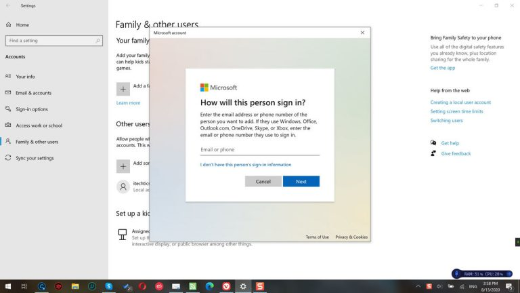
3. Enter the other account’s username and password.
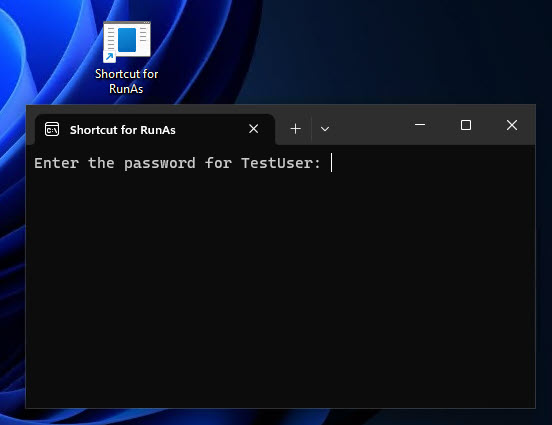
Enter the other user’s password.
Method 2: runas Command
1. Open Command Prompt or the Run dialog.
2. Run: runas /user:DOMAIN\username "C:\Path\app.exe"
3. Enter the password when prompted.
Method 3: PowerShell
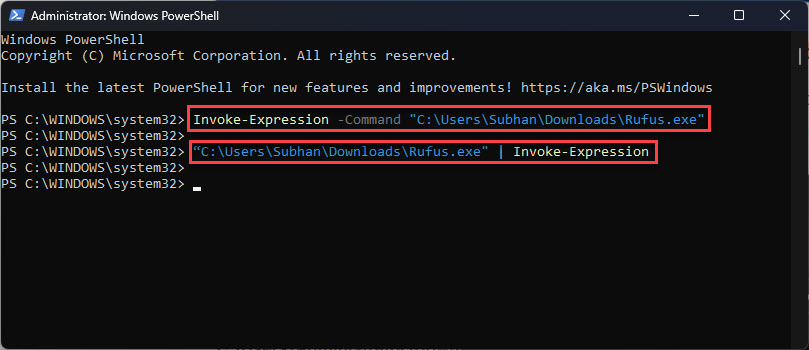
1. Run: Start-Process "app.exe" -Credential (Get-Credential)
2. Enter the target account’s credentials in the dialog.
3. The app launches under that user.
Method 4: Shortcut
1. Create a shortcut with target: runas /user:username "C:\Path\app.exe"
2. Double-click it and enter the password to launch as that user.
Method 5: RunAsTool (Optional)
Note: If you use a third-party tool like RunAsTool, download it only from its official source.
1. RunAsTool can save credentials so standard users can run specific apps as admin.
2. Configure it carefully, as it stores credentials.
Method 6: Start Menu
1. Open the Start menu and find the app.
2. Shift + right-click it > More > "Run as different user" (if available).
3. Enter the credentials.
Restore the Missing Option
Warning: Editing the Registry incorrectly can cause problems. Back up the Registry first.
1. To enable it on the Start menu, set the policy ShowRunAsDifferentUserInStart.
2. In regedit go to HKEY_LOCAL_MACHINE\SOFTWARE\Microsoft\Windows\CurrentVersion\Policies\Explorer
3. Create a DWORD ShowRunasDifferentuserinStart = 1 and restart Explorer.
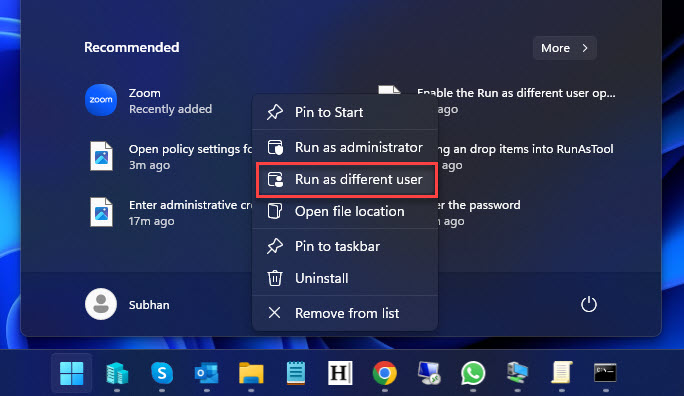
"Run as different user" enabled in the menu.
Troubleshooting
Problem: Option is missing from the menu.
Solution: Hold Shift while right-clicking, ensure Secondary Logon is running, or enable the Start-menu policy.
Problem: "The user profile cannot be loaded".
Solution: The target account may need to have signed in once, or a profile issue exists — sign in as that user first.
Problem: runas asks for a smart card.
Solution: Add /netonly if the account uses network-only credentials, or use the correct logon type.
Problem: Access denied.
Solution: Ensure the target account has permission to run the app and access its folder.
Conclusion
Windows offers many ways to run a program under another account — from Shift + right-click to the runas command and PowerShell’s -Credential. Keep the Secondary Logon service running, and if the menu option is missing, a quick policy tweak brings it back.
</w:pBdr><w:spacing w:before="220" w:after="40"/></w:pPr><w:r><w:rPr><w:b/><w:bCs/><w:color w:val="0B5394"/><w:sz w:val="21"/><w:szCs w:val="21"/><w:rFonts w:ascii="Calibri" w:cs="Calibri" w:eastAsia="Calibri" w:hAnsi="Calibri"/></w:rPr><w:t xml:space="preserve">About TechHub
This guide is part of the TechHub Knowledge Base. For more step-by-step IT guides and support, visit techhub.com.lk.