Overview
Running .exe files from PowerShell is useful for scripting and automation. This guide covers four reliable methods — running directly, using the & call operator, Invoke-Expression, and Start-Process (with arguments and elevation).
Run EXE files using PowerShell.
Key Takeaways
- Run an exe directly by typing its path.
- The & call operator handles paths with spaces.
- Start-Process supports arguments, elevation, and waiting.
- Invoke-Expression runs a command string (use carefully).
Method 1: Run Directly
1. Navigate to the folder: cd "C:\Path\To\App"
2. Run it with a relative path: .\app.exe
3. Or provide the full path: C:\Path\To\app.exe
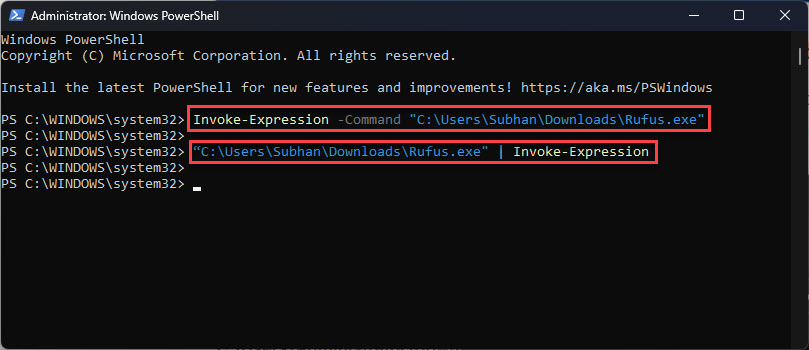
Running an executable directly from PowerShell.
Method 2: The & Call Operator
1. Use & with a quoted path: & "C:\Program Files\App\app.exe"
2. Pass arguments after the path: & "C:\...\app.exe" "/silent"
3. This is the standard way to run paths containing spaces.
Method 3: Start-Process
1. Run an exe: Start-Process -FilePath "C:\...\app.exe"
2. Add arguments: Start-Process "app.exe" -ArgumentList "/install","/quiet"
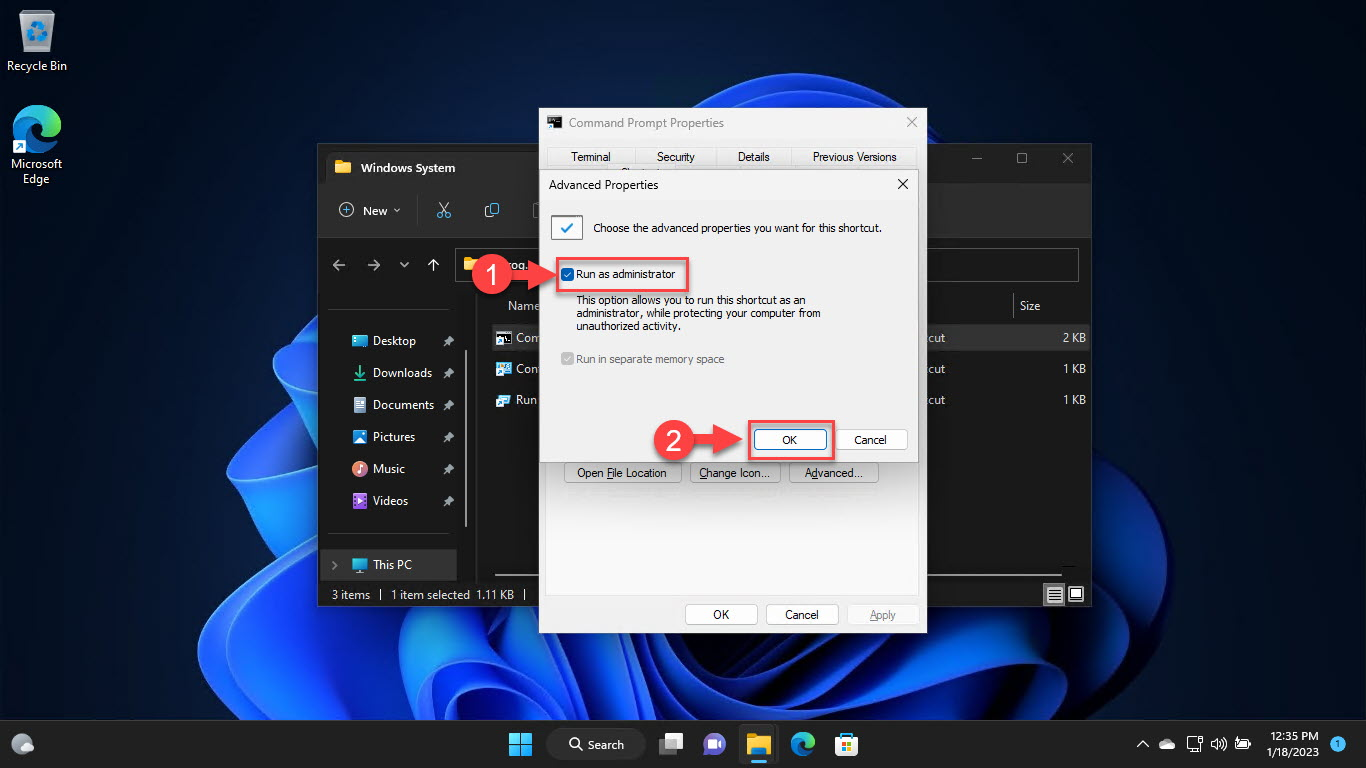
3. Run elevated: Start-Process "app.exe" -Verb RunAs
4. Wait for it to finish: add -Wait
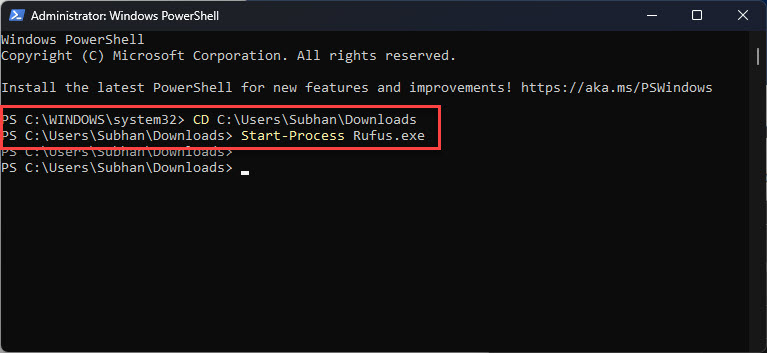
Running an executable with Start-Process.
Method 4: Invoke-Expression
Warning: Invoke-Expression runs whatever string it’s given — never pass it untrusted input, as that’s a code-injection risk.
1. Build the command string: $cmd = "C:\...\app.exe"
2. Run it: Invoke-Expression $cmd
3. Prefer & or Start-Process for normal use; reserve IEX for dynamic, trusted commands.
Troubleshooting
Problem: "The term ... is not recognized".
Solution: Use a full or .\ relative path; PowerShell doesn’t run from the current folder without .\.
Problem: Path with spaces fails.
Solution: Quote the path and prefix with the & call operator.
Problem: Needs admin rights.
Solution: Use Start-Process -Verb RunAs to trigger the UAC elevation prompt.
Problem: Script continues before the app finishes.
Solution: Add -Wait to Start-Process so the script pauses until the program exits.
Conclusion
PowerShell offers several ways to launch executables: run directly for simple cases, use & for quoted paths, and Start-Process when you need arguments, elevation, or to wait for completion. Reserve Invoke-Expression for trusted, dynamic commands only.
</w:pBdr><w:spacing w:before="220" w:after="40"/></w:pPr><w:r><w:rPr><w:b/><w:bCs/><w:color w:val="0B5394"/><w:sz w:val="21"/><w:szCs w:val="21"/><w:rFonts w:ascii="Calibri" w:cs="Calibri" w:eastAsia="Calibri" w:hAnsi="Calibri"/></w:rPr><w:t xml:space="preserve">About TechHub
This guide is part of the TechHub Knowledge Base. For more step-by-step IT guides and support, visit techhub.com.lk.