Overview
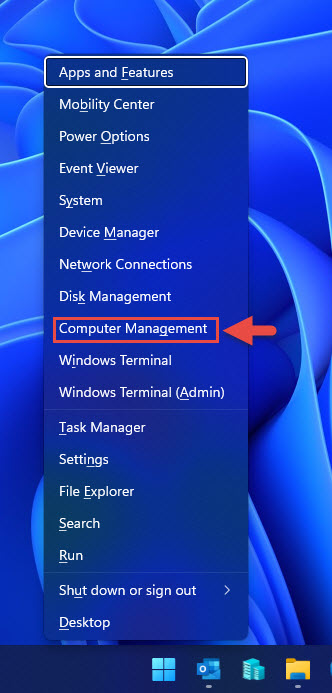
Microsoft Management Console (MSC) files open administrative tools such as the Group Policy Editor (gpedit.msc), Services (services.msc), Disk Management (diskmgmt.msc), and Computer Management (compmgmt.msc). Some changes inside these consoles require elevated privileges. This guide shows three reliable ways to launch any MSC file with administrator rights so your changes apply without permission errors.
Key Takeaways
- MSC files open Windows management consoles used for system administration.
- Running them as administrator prevents "access denied" errors when saving changes.
- You can elevate an MSC file from an elevated command prompt, from File Explorer, or through a custom shortcut.
- You must be signed in with an account that has administrator rights.
Warning: Administrative consoles can change system-wide settings. Only modify policies and services you understand, and create a restore point before making significant changes.
Method 1: From an Elevated Command Line
The quickest way is to open an elevated Command Prompt or PowerShell and launch the console from there.
1. Click Start, type "cmd", right-click Command Prompt, and choose Run as administrator.
2. Approve the User Account Control (UAC) prompt.
3. Type the name of the console you want, for example gpedit.msc, and press Enter.
4. The console opens with administrator rights inherited from the elevated prompt.
Launching a console from an elevated command prompt.
Method 2: Using File Explorer
You can locate the MSC file in the Windows System32 folder and run it as administrator directly.
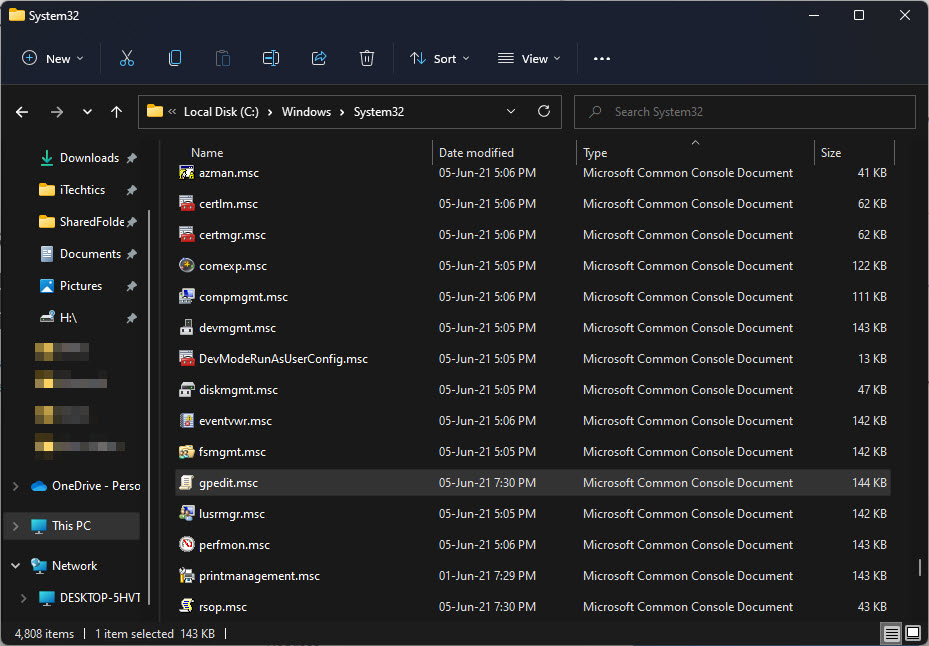
1. Open File Explorer and navigate to C:\Windows\System32.
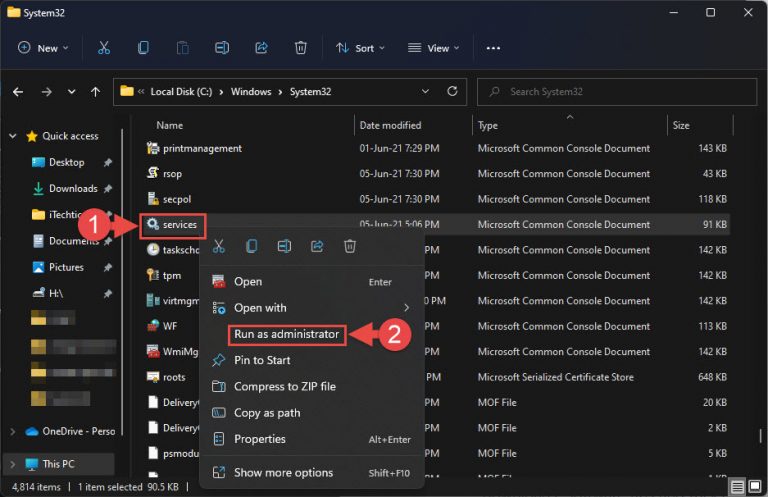
2. Find the MSC file you need, such as services.msc or diskmgmt.msc.
3. Right-click the file and select Run as administrator (or Show more options first on Windows 11).
4. Approve the UAC prompt to open the console elevated.
Method 3: Create an Elevated Shortcut
If you open a particular console often, make a desktop shortcut that always launches it as administrator.
1. Right-click an empty area of the desktop and choose New > Shortcut.
2. Enter the console name or full path, for example gpedit.msc, then click Next and give the shortcut a name.
3. Right-click the new shortcut and choose Properties.
4. On the Shortcut tab, click Advanced, tick Run as administrator, and click OK.
5. Click Apply and OK. Double-clicking the shortcut now opens the console elevated.
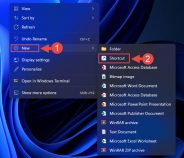
Creating a shortcut for the console.
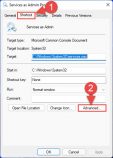
Enabling "Run as administrator" in the shortcut properties.
Tip: The same three methods work for any console — gpedit.msc, services.msc, diskmgmt.msc, compmgmt.msc, secpol.msc, and the generic mmc.exe. Just substitute the file name you need.
Troubleshooting
Problem: "Run as administrator" is missing from the right-click menu.
Solution: On Windows 11, click Show more options to reveal the full context menu, or use Method 1 by launching the console from an elevated command prompt.
Problem: gpedit.msc or secpol.msc is not found.
Solution: These consoles are not included in Windows Home editions by default. Enable them through the optional features or use an alternative that ships with your edition.
Problem: Changes still fail with "access denied".
Solution: Confirm your account is a member of the Administrators group and that you approved the UAC prompt when opening the console.
Problem: The shortcut opens without elevation.
Solution: Reopen the shortcut Properties, click Advanced, and confirm Run as administrator is ticked and saved.
Conclusion
Running MSC files as administrator ensures your changes to policies, services, and disks are saved correctly. Use the elevated command line for a quick one-off launch, File Explorer for occasional access, or a dedicated elevated shortcut for tools you use regularly.
About TechHub
This guide is part of the TechHub Knowledge Base. For more step-by-step IT guides and support, visit techhub.com.lk.