Overview
Microsoft Management Console (MSC) files වලින් administrative tools open වෙනවා — Group Policy Editor (gpedit.msc), Services (services.msc), Disk Management (diskmgmt.msc), Computer Management (compmgmt.msc) වගේ. මේ consoles ඇතුළේ සමහර වෙනස්කම් වලට elevated privileges අවශ්යයි. මේ guide එකෙන් ඕනම MSC file එකක් administrator rights එක්ක launch කරන විශ්වාසවන්ත ක්රම තුනක් පෙන්නනවා, ඒකෙන් permission errors නැතුව ඔයාගේ වෙනස්කම් apply වෙනවා.
Key Takeaways
- MSC files වලින් system administration වලට use කරන Windows management consoles open වෙනවා.
- ඒවා administrator විදිහට run කරන එකෙන් changes save කරනකොට එන "access denied" errors නවතිනවා.
- Elevated command prompt එකකින්, File Explorer එකෙන්, නැත්නම් custom shortcut එකකින් MSC file එකක් elevate කරන්න පුළුවන්.
- Administrator rights තියෙන account එකකින් sign in වෙලා ඉන්න ඕන.
Warning: Administrative consoles වලින් system-wide settings වෙනස් කරන්න පුළුවන්. ඔයාට තේරෙන policies සහ services විතරක් modify කරන්න, වැදගත් වෙනස්කම් කරන්න කලින් restore point එකක් create කරන්න.
Method 1: From an Elevated Command Line
ඉක්මන්ම ක්රමය තමයි elevated Command Prompt එකක් හෝ PowerShell එකක් open කරලා එතනින් console එක launch කරන එක.
1. Start click කරලා, "cmd" type කරලා, Command Prompt right-click කරලා, Run as administrator තෝරන්න.
2. User Account Control (UAC) prompt එක approve කරන්න.
3. ඔයාට ඕන console එකේ නම type කරන්න, උදාහරණයක් විදිහට gpedit.msc, ඊට පස්සේ Enter press කරන්න.
4. Elevated prompt එකෙන් inherit කරගත්ත administrator rights එක්ක console එක open වෙනවා.
Elevated command prompt එකකින් console එකක් launch කිරීම.
Method 2: Using File Explorer
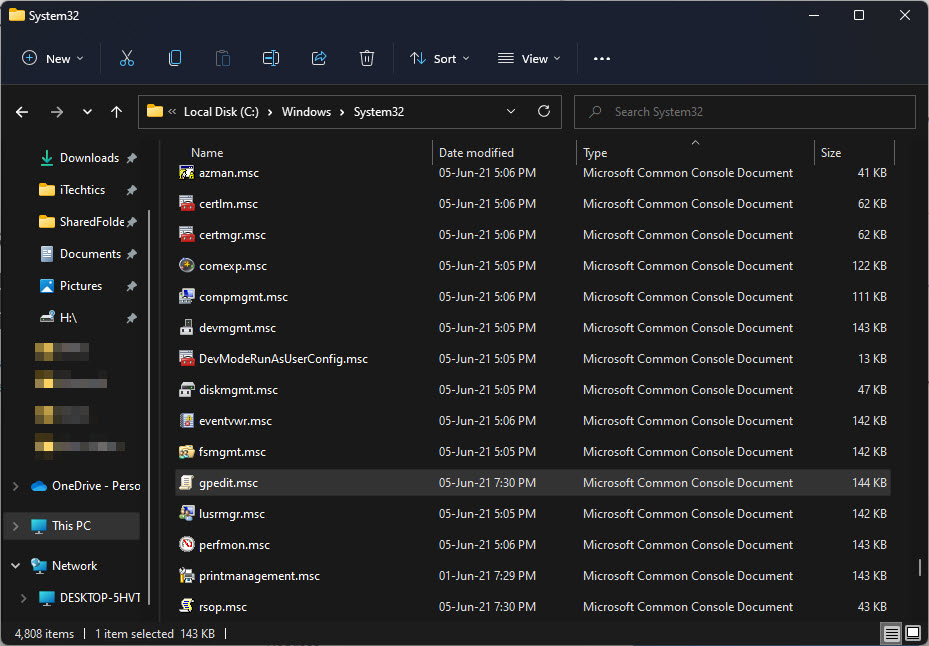
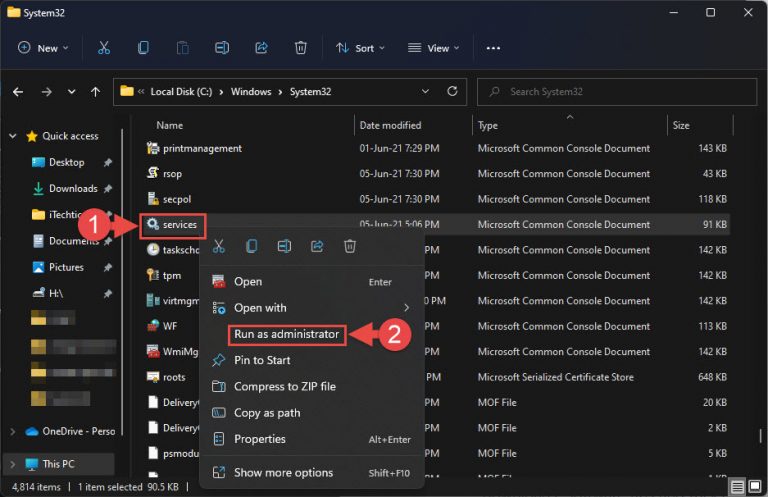
MSC file එක Windows System32 folder එකේ හොයාගෙන කෙලින්ම administrator විදිහට run කරන්න පුළුවන්.
1. File Explorer open කරලා C:\Windows\System32 වෙත navigate කරන්න.
2. ඔයාට ඕන MSC file එක හොයාගන්න, services.msc නැත්නම් diskmgmt.msc වගේ.
3. File එක right-click කරලා Run as administrator තෝරන්න (නැත්නම් Windows 11 එකේ මුලින්ම Show more options).
4. Console එක elevated open කරන්න UAC prompt එක approve කරන්න.
Method 3: Create an Elevated Shortcut
යම් console එකක් නිතරම open කරනවා නම්, ඒක හැම වෙලාවෙම administrator විදිහට launch කරන desktop shortcut එකක් හදාගන්න.
1. Desktop එකේ හිස් තැනක් right-click කරලා New > Shortcut තෝරන්න.
2. Console එකේ නම නැත්නම් full path එක enter කරන්න, උදාහරණයක් විදිහට gpedit.msc, ඊට පස්සේ Next click කරලා shortcut එකට නමක් දෙන්න.
3. අලුත් shortcut එක right-click කරලා Properties තෝරන්න.
4. Shortcut tab එකේ, Advanced click කරලා, Run as administrator tick කරලා, OK click කරන්න.
5. Apply සහ OK click කරන්න. දැන් shortcut එක double-click කරාම console එක elevated open වෙනවා.
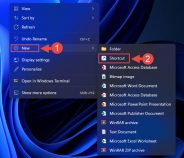
Console එකට shortcut එකක් හැදීම.
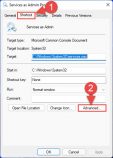
Shortcut properties එකේ "Run as administrator" enable කිරීම.
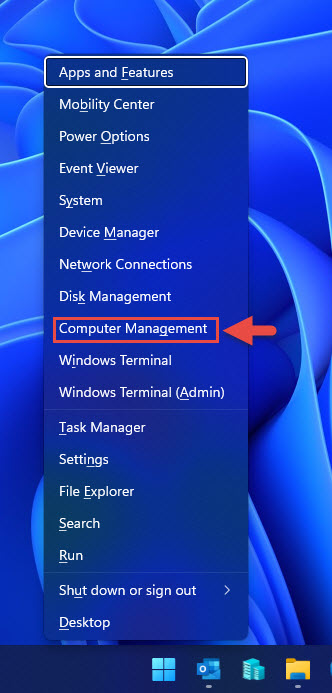
Tip: මේ ක්රම තුනම ඕනම console එකකට වැඩ කරනවා — gpedit.msc, services.msc, diskmgmt.msc, compmgmt.msc, secpol.msc, සහ generic mmc.exe. ඔයාට ඕන file name එක replace කරන්න විතරයි.
Troubleshooting
Problem: Right-click menu එකේ "Run as administrator" නැහැ.
Solution: Windows 11 එකේ, full context menu එක reveal කරන්න Show more options click කරන්න, නැත්නම් elevated command prompt එකකින් console එක launch කරලා Method 1 use කරන්න.
Problem: gpedit.msc නැත්නම් secpol.msc හම්බ වෙන්නේ නැහැ.
Solution: මේ consoles default විදිහට Windows Home editions වල නැහැ. Optional features වලින් enable කරන්න නැත්නම් ඔයාගේ edition එකේ එන alternative එකක් use කරන්න.
Problem: Changes තාමත් "access denied" එක්ක fail වෙනවා.
Solution: ඔයාගේ account එක Administrators group එකේ member කෙනෙක් කියලා, console එක open කරනකොට UAC prompt එක approve කරා කියලා confirm කරගන්න.
Problem: Shortcut එක elevation නැතුව open වෙනවා.
Solution: Shortcut Properties එක ආපහු open කරලා, Advanced click කරලා, Run as administrator tick කරලා save කරා කියලා confirm කරන්න.
Conclusion
MSC files administrator විදිහට run කරන එකෙන් policies, services, disks වලට කරන ඔයාගේ changes නිවැරදිව save වෙනවා. ඉක්මන් one-off launch එකකට elevated command line එක use කරන්න, ඉඳහිට access කරන්න File Explorer, නිතරම use කරන tools වලට dedicated elevated shortcut එකක් use කරන්න.
About TechHub
මේ guide එක TechHub Knowledge Base එකේ කොටසක්. තව step-by-step IT guides සහ support වලට techhub.com.lk එකට යන්න.