Overview
Slipstreaming means integrating updates directly into a Windows installation image so that a fresh install arrives already patched. This saves time, avoids a long round of post-install updates, and is invaluable when you deploy Windows to many machines. This guide explains how to inject cumulative update packages into a Windows 10 ISO using the built-in DISM tool.
Key Takeaways
- Slipstreaming bakes updates into the install.wim so new installs are already up to date.
- You download updates as .msu files from the official Microsoft Update Catalog.
- DISM mounts the image, adds the packages, then commits the changes.
- You rebuild the ISO from the updated files once slipstreaming is done.
Note: Download update packages only from the official Microsoft Update Catalog at catalog.update.microsoft.com to ensure they are genuine.
Prepare the Files
1. Extract the contents of your Windows 10 ISO to a working folder on your drive.
2. Create a separate folder to hold the mounted image and another for the update files.
3. Download the cumulative update .msu files for your Windows 10 build from the Microsoft Update Catalog.
Mount and Update the Image
1. Open an elevated Command Prompt in the folder with the extracted files.
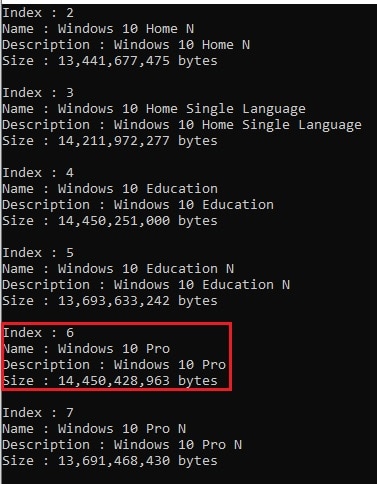
2. Run DISM /Get-WimInfo /WimFile:sources\install.wim to find the correct image index.
3. Mount the image: DISM /Mount-Wim /WimFile:sources\install.wim /Index:<number> /MountDir:mount
4. Add each update: DISM /Image:mount /Add-Package /PackagePath:"C:\updates\update.msu"
5. Wait for each package to report success.
Finding the correct image index before mounting.
Commit and Rebuild
1. Commit the changes and unmount: DISM /Unmount-Wim /MountDir:mount /Commit
2. Use an ISO-authoring tool such as the Windows ADK oscdimg utility to repackage the updated folder into a bootable ISO.
3. Test the new ISO in a virtual machine before deploying it widely.
Warning: Always work on a copy of your install files. If DISM is interrupted mid-operation the image can be left in an inconsistent state, so never modify your only copy.
Troubleshooting
Problem: DISM reports the package is not applicable to the image.
Solution: Confirm the update matches the exact Windows 10 version and architecture of the image you mounted.
Problem: The mount operation fails or hangs.
Solution: Run DISM /Cleanup-Mountpoints, ensure the mount folder is empty, and try mounting again from an elevated prompt.
Problem: The rebuilt ISO will not boot.
Solution: Recreate the ISO using oscdimg with the correct boot sector parameters rather than a generic zip-to-ISO tool.
Problem: You picked the wrong image index.
Solution: Run DISM /Get-WimInfo again to list editions and mount the index matching the edition you intend to install.
Conclusion
Slipstreaming updates into a Windows 10 ISO produces install media that is patched from the first boot. Once you are comfortable with the DISM workflow, maintaining an up-to-date deployment image becomes a routine task.
About TechHub
This guide is part of the TechHub Knowledge Base. For more step-by-step IT guides and support, visit techhub.com.lk.