Overview
You can test your SSD’s read/write speed without installing anything, using Windows’ built-in WinSAT (Windows System Assessment Tool) from the command line. This guide shows how to run it and interpret the results.
Benchmark your SSD with the built-in WinSAT tool.
Key Takeaways
- WinSAT can benchmark disk performance from the command line.
- It reports sequential and random read/write speeds.
- Compare results against your SSD’s rated specs.
- Third-party tools like CrystalDiskMark give a friendlier interface.
Run the SSD Speed Test With WinSAT
1. Open Command Prompt as administrator.
2. Run: winsat disk -drive C (replace C with your drive letter).
3. Wait while it tests sequential and random read/write performance.
4. Read the results — look at the MB/s values for read and write.
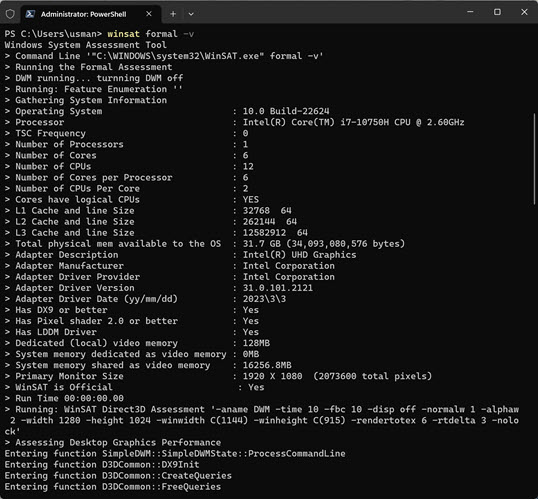
Running the WinSAT disk assessment.
Understand the Results
- Sequential read/write — speed for large continuous files.
- Random read/write — speed for many small files (important for responsiveness).
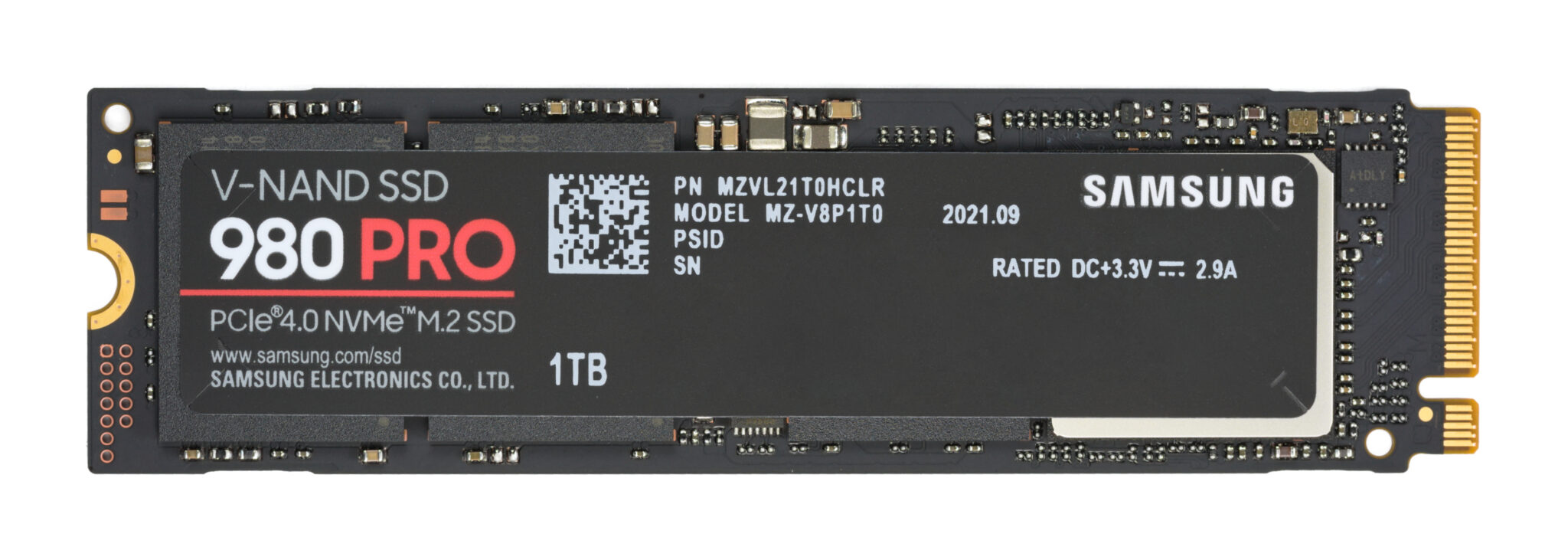
- Compare these to your SSD’s advertised speeds; SATA tops ~550 MB/s, NVMe is multiple GB/s.
Improve SSD Performance
- Ensure the SSD has free space (avoid filling it completely).
- Enable TRIM (it is on by default): verify with fsutil behavior query DisableDeleteNotify (0 = TRIM on).
- Keep firmware updated via the SSD maker’s tool.
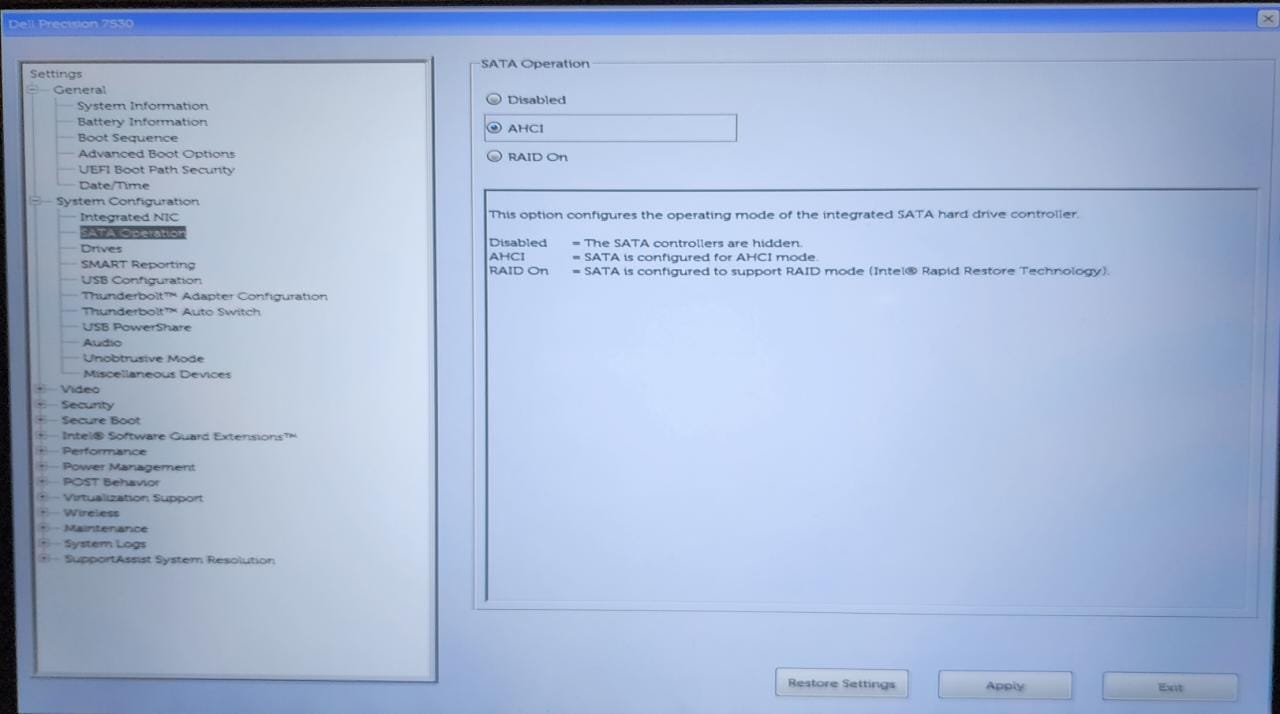
- Use AHCI/NVMe mode and a fast port (PCIe slot for NVMe).
Troubleshooting
Problem: winsat reports an error.
Solution: Run Command Prompt as administrator and specify the correct drive letter (winsat disk -drive C).
Problem: Speeds are far below the rated spec.
Solution: Check the drive is on the right interface (NVMe in a PCIe slot, not SATA), TRIM is on, and firmware is current.
Problem: Random speeds are low.
Solution: Free up space, ensure TRIM is enabled, and update the SSD firmware; heavy fragmentation/fullness hurts SSDs too.
Problem: I want detailed graphs.
Solution: Use CrystalDiskMark (official) for sequential/random benchmarks with a clear interface.
Conclusion
WinSAT gives a quick, built-in SSD benchmark from the command line. Run winsat disk -drive C, compare the read/write numbers to your drive’s rated speeds, and keep free space, TRIM, and firmware in good shape for peak performance.
</w:pBdr><w:spacing w:before="220" w:after="40"/></w:pPr><w:r><w:rPr><w:b/><w:bCs/><w:color w:val="0B5394"/><w:sz w:val="21"/><w:szCs w:val="21"/><w:rFonts w:ascii="Calibri" w:cs="Calibri" w:eastAsia="Calibri" w:hAnsi="Calibri"/></w:rPr><w:t xml:space="preserve">About TechHub
This guide is part of the TechHub Knowledge Base. For more step-by-step IT guides and support, visit techhub.com.lk.