How to Get System Information Using SystemInfo and MSInfo32
View detailed PC specs and generate reports with Windows’ built-in system information tools.
Overview
Windows includes two handy tools for viewing hardware and OS details: MSInfo32 (a GUI) and SystemInfo.exe (command line). This guide shows how to use each and how to export reports.
The System Information tools.
Key Takeaways
- MSInfo32 is a detailed GUI overview of your system.
- SystemInfo.exe prints specs from the command line.
- Both show OS, CPU, RAM, BIOS, and more.
- You can export reports and query remote PCs.
MSInfo32 vs SystemInfo
- MSInfo32: rich GUI with hardware resources, components, and software environment.
- SystemInfo.exe: quick, scriptable text output; supports remote queries.
- Use MSInfo32 for browsing, SystemInfo for automation.
Use MSInfo32
1. Press Windows + R, type msinfo32, and press Enter.
2. Browse System Summary, Hardware Resources, Components, and Software Environment.
3. Use Find what… to search for a specific item.
Export an MSInfo32 Report
1. In MSInfo32, click File > Export (text) or Save (.nfo).
2. Choose a location and save.
3. Share the report for support/diagnostics.
Use SystemInfo.exe
1. Open Command Prompt.
2. Run: systeminfo
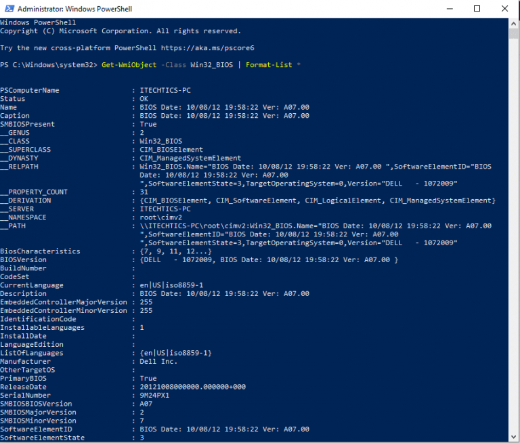
3. Read OS, uptime, BIOS, RAM, and network details.
4. Filter, e.g.: systeminfo | find "Total Physical Memory"
Query a Remote Computer
1. Run: systeminfo /s COMPUTERNAME /u DOMAIN\user /p password
2. This returns the remote machine’s details (with proper permissions).
3. Only query computers you are authorized to manage.
Troubleshooting
Problem: systeminfo is slow.
Solution: It gathers a lot of data; pipe to find for a specific value, or use MSInfo32/PowerShell for targeted queries.
Problem: Remote query fails.
Solution: Ensure network access, correct credentials, and that WMI/remote management is allowed on the target.
Problem: Report won’t export.
Solution: Run MSInfo32 as administrator and choose a writable location.
Problem: Need scriptable output.
Solution: Use SystemInfo.exe or PowerShell (Get-ComputerInfo) for parsing.
Conclusion
MSInfo32 gives a browsable, exportable overview of your system, while SystemInfo.exe offers quick, scriptable output and remote queries. Together they cover both interactive inspection and automation for gathering PC details.