Overview
Backlit keyboard එකකින් low light එකේ type කිරීම පහසු කරනවා, නමුත් controls laptop brand එක අනුව වෙනස් වෙනවා. සමහර models වල dedicated function key එකක් use කරනවා, සමහරක් manufacturer software එක මත රඳා පවතිනවා, තව ටිකක් brightness එක Windows එකෙන්ම expose කරනවා. මේ guide එකෙන් backlight එක on කරන, එහි brightness adjust කරන, සහ light එක නොදැල්වුනාම fix කරන common ක්රම හරහා යනවා.
Key Takeaways
- Laptops ගොඩක් backlight එක toggle කරන්නේ function key එකකින් — බොහෝවිට F5, F9, හෝ keyboard icon එකක් පෙන්නන key එකකින්.
- Backlight key එක press කරද්දී Fn key එක අල්ලාගෙන ඉන්න වෙන්න පුළුවන්.
- Dell, HP, Lenovo, හෝ ASUS utilities වගේ brand software එකෙන් finer control සහ timeout settings දෙනවා.
- හැම keyboard එකකම backlight එකක් නෑ — මුලින්ම ඔබේ model එකේ specifications බලන්න.
Turn On the Backlight with Function Keys
1. Top row එකේ (F1–F12) සහ Space bar area එකේ illuminated-keyboard icon එකක් පෙන්නන key එකක් තියෙනවද බලන්න.
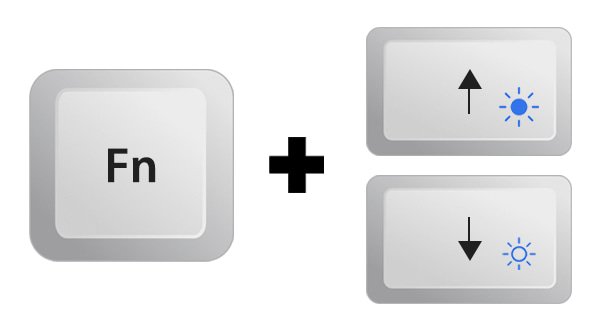
2. ඒ key එක තනියම press කරන්න, නැත්නම් top-row keys media actions වලට default වෙනවා නම් Fn අල්ලාගෙන press කරන්න.
3. Brightness levels හරහා cycle කරන්න ආයෙත් press කරන්න — keyboards ගොඩක් dim, bright, සහ off දෙනවා.
4. මුකුත් වෙන්නේ නැත්නම්, පහත manufacturer software method එකට යන්න.
Typical keyboard-backlight function key එකක්.
Adjust the Backlight in Windows Mobility Center
1. Windows + R press කරලා, mblctr type කරලා, Enter press කරලා Windows Mobility Center open කරන්න.
2. Keyboard Brightness tile එකක් තියෙනවද බලන්න (සමහර laptops වල තියෙනවා).
3. Brightness set කරන්න slider එක use කරන්න, නැත්නම් auto-off timeout එකක් configure කරන්න එහි settings open කරන්න.
Note: Keyboard Brightness tile එක පෙනෙන්නේ ඔබේ laptop එකේ driver එක එය expose කරොත් විතරයි. එය නැත්නම්, ඒ වෙනුවට brand utility එක use කරන්න.
Use Manufacturer Software
1. ඔබේ laptop brand එක හඳුනාගෙන එහි official utility එක install කරන්න — උදාහරණයක් විදිහට Dell (Dell Command හෝ keyboard settings හරහා), HP (HP System Event Utility), Lenovo (Lenovo Vantage), හෝ ASUS (Armoury Crate / MyASUS).
2. App එක open කරලා keyboard හෝ lighting section එක හොයන්න.
3. Backlight එක on කරලා brightness හෝ inactivity timeout එකක් set කරන්න.
4. Bundled හෝ fake software වළක්වන්න utilities download කරන්නේ manufacturer ගේ official website එකෙන් විතරයි.
Tip: Battery save කරන්න backlights බොහෝවිට auto එකෙන් dim වෙනවා හෝ off වෙනවා. ඔබ කියවද්දී light එක නිතරම off වෙනවා නම් brand utility එකේ timeout එක වැඩි කරන්න.
Troubleshooting
Problem: Function key එකෙන් මුකුත් වෙන්නේ නෑ.
Solution: ඔබේ laptop maker ගේ support site එකෙන් keyboard/hotkey driver එක install හෝ update කරලා, reboot කරලා ආයෙත් try කරන්න.
Problem: Backlight key එකක්ම නෑ.
Solution: ඔබේ model එකේ specifications වල ඇත්තටම backlit keyboard එකක් තියෙනවද කියලා confirm කරන්න — budget laptops ගොඩකට එකක් නෑ.
Problem: තත්පර කීපයකට පස්සේ light එක off වෙනවා.
Solution: Manufacturer utility එක open කරලා backlight auto-off timeout එක extend හෝ disable කරන්න.
Problem: Windows update එකකට පස්සේ backlight එක වැඩ කරන්නේ නැති වුනා.
Solution: Vendor hotkey software එක reinstall කරලා Device Manager එකේ warning icon එකක් තියෙන keyboard device එකක් තියෙනවද බලන්න.
Conclusion
මොන key එකද control කරන්නේ කියලා දැනගත්තම keyboard backlight එකක් on කිරීම සාමාන්යයෙන් එක keypress එකකින් වෙනවා. Shortcut එක නැති හෝ unreliable වෙද්දී, manufacturer ගේ utility එකෙන් brightness සහ timeout මත සම්පූර්ණ control එකක් දෙනවා, ඒ නිසා ඔබට ඕන වෙද්දීම keys පෙනෙන්න තියෙනවා.
About TechHub
මේ guide එක TechHub Knowledge Base එකේ කොටසක්. තව step-by-step IT guides සහ support වලට techhub.com.lk එකට යන්න.