Overview
Root certificates කියන්නේ secure websites, signed software, සහ encrypted connections verify කරන්න Windows පාවිච්චි කරන trust වල anchors. Windows ඒවා automatically update කරනවා, නමුත් isolated හෝ කලාතුරකින් update වෙන machines වල store එක පසුබැසිලා certificate errors එන්න පුළුවන්. මේ guide එකෙන් trusted root certificates බලන්න, refresh කරන්න, සහ manually import කරන්න විදිහ පෙන්නනවා.
Key Takeaways
- Root certificates වලින් secure sites සහ signed applications trust කරන්න Windows එකට හැකි වෙනවා.
- සාමාන්යයෙන් Windows Update හරහා Windows ඒවා automatically update කරනවා.
- Certificates MMC snap-in එක හෝ PowerShell පාවිච්චි කරලා දැනට තියෙන store එක බලන්න පුළුවන්.
- Offline machines online PC එකකින් export කරපු SST file එකකින් manually refresh කරන්න පුළුවන්.
View the Trusted Root Store
1. Win + R press කරලා mmc type කරලා Enter press කරන්න.
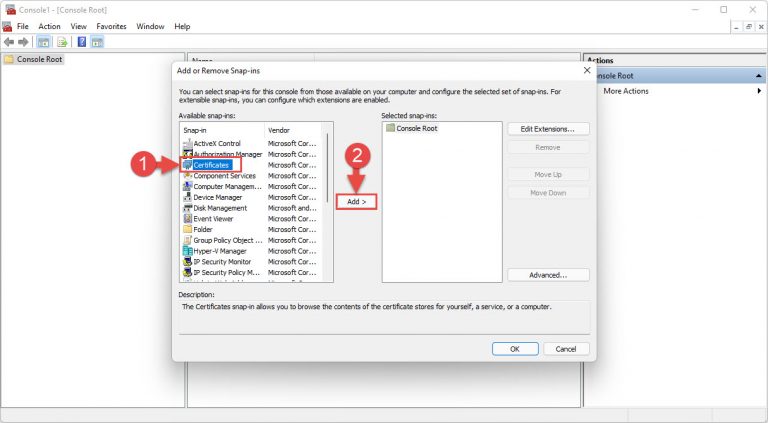
2. File > Add/Remove Snap-in තෝරලා, Certificates select කරලා, Add click කරලා, Computer account තෝරන්න.
3. Trusted Root Certification Authorities > Certificates expand කරලා trusted roots ඔක්කොම බලන්න.
MMC එකේ computer account එකට Certificates snap-in එක add කිරීම.
TIP: PowerShell එකේ මේ store එකම ඉක්මනින් list කරන්න පුළුවන්: Get-ChildItem -Path Cert:\LocalMachine\Root
Method 1: Let Windows Update Refresh Them
1. Settings > Windows Update open කරලා Check for updates click කරන්න.
2. තියෙන updates install කරන්න — ඒවාට නවතම trusted root certificate list එකත් ඇතුළත්.
3. Prompt වුණොත් restart කරන්න.
Method 2: Update Root Certificates Offline
1. Online PC එකක elevated Command Prompt එකක් open කරලා run කරන්න: certutil -generateSSTFromWU roots.sst
2. roots.sst file එක offline computer එකට copy කරන්න.
3. SST file එක right-click කරලා, Install තෝරලා, "Local Machine" select කරලා, certificates Trusted Root Certification Authorities store එකේ තියන්න.
WARNING: ඔබ සම්පූර්ණයෙන් විශ්වාස කරන sources වලින් විතරක් root certificates import කරන්න. Malicious root certificate එකකින් attacker කෙනෙකුට secure websites impersonate කරන්න පුළුවන් වෙනවා, ඒ නිසා නාඳුනන senders ගෙන් SST files කවදාවත් install කරන්න එපා.
Method 3: Import a Single Certificate
1. .cer හෝ .crt file එක double-click කරලා Install Certificate click කරන්න.
2. Local Machine තෝරලා "Place all certificates in the following store" select කරන්න.
3. Trusted Root Certification Authorities වලට browse කරලා wizard එක අවසන් කරන්න.
Troubleshooting
Problem: Offline PC එකක websites වල certificate හෝ "not trusted" errors පෙන්නනවා.
Solution: Root store එක outdated වෙලා තියෙන්න ඉඩ තියෙනවා. Online machine එකක certutil එකෙන් SST file එකක් generate කරලා import කරන්න, නැත්නම් PC එක Windows Update එකට connect කරන්න.
Problem: certutil recognise වෙන්නේ නෑ.
Solution: Command එක elevated Command Prompt එකක run කරන්න; certutil එක Windows එක්ක එනවා, නමුත් store වෙනස්කම් වලට administrator rights ඕන.
Problem: අලුතින් import කරපු certificate එක තාමත් trust වෙන්නේ නෑ.
Solution: ඒක current user වෙනුවට Local Machine එකේ Trusted Root Certification Authorities වල තිබ්බද කියලා තහවුරු කරලා, ඊට පස්සේ restart කරන්න.
Problem: ඔබ තවදුරටත් විශ්වාස නොකරන certificate එකක් අයින් කරන්න ඕන.
Solution: Certificates MMC එක open කරලා, ඒක Trusted Root Certification Authorities යටතේ හොයාගෙන, right-click කරලා Delete තෝරන්න.
Conclusion
Safe browsing එකට සහ software trust එකට වත්මන් root certificate store එකක් අත්යවශ්යයි. පුළුවන් තැන Windows Update එකට ඒක handle කරන්න දෙන්න, සහ isolated machines refresh කරන්න SST file එකක් එක්ක certutil පාවිච්චි කරන්න — ඔබ සම්පූර්ණයෙන් විශ්වාස කරන sources වලින් විතරක් certificates import කරමින්.
About TechHub
මේ guide එක TechHub Knowledge Base එකේ කොටසක්. තව step-by-step IT guides සහ support වලට techhub.com.lk එකට යන්න.