Overview
DLNA එකෙන් ඔබේ home network එකේ devices වලට media share කරන්න දෙනවා. Windows එකේ built-in DLNA media server එකක් තියෙනවා, ඒ නිසා ඔබේ smart TV, console, හෝ media player එකට PC එකෙන් content straight stream කරන්න පුළුවන්. මේ guide එකෙන් ඒක enable/manage කරන ආකාරය පෙන්නනවා.
ඔබේ PC එක network එකට DLNA media server එකක් කරන්න.
Key Takeaways
- DLNA එකෙන් එකම network එකේ TVs, consoles, players වලට PC එකෙන් media stream කරනවා.
- Control Panel එකේ Media streaming options එකෙන් enable කරන්න.
- Specific devices allow හෝ block කරන්න පුළුවන්.
- PC එකයි device එකයි එකම (Private) network එකේ ඉන්න ඕන.
DLNA කියන්නේ මොකක්ද?
DLNA (Digital Living Network Alliance) කියන්නේ compatible devices වලට local network එකක් හරහා එකිනෙකාගෙන් media discover කරලා play කරන්න දෙන standard එකක් — cables හෝ cloud එකක් නැතුව.
Step 1 — Media Streaming On කරන්න
1. Windows key + R press කරලා control type කරලා Control Panel open කරන්න.
2. Network and Sharing Center > Media streaming options වලට යන්න (හෝ "media streaming" search කරන්න).
3. "Turn on media streaming" click කරන්න.
4. ඔබේ media library එක name කරන්න — දැන් ඒක network එකේ DLNA server එකක් විදිහට පෙන්නනවා.
Step 2 — Device Permissions Manage කරන්න
1. Media streaming options එකේ, detected devices list එක බලන්න.
2. එක එක එක Allowed හෝ Blocked කරන්න.
3. Quick control වලට "Allow All" හෝ "Block All" පාවිච්චි කරලා, ඊට පස්සේ customise කරන්න.
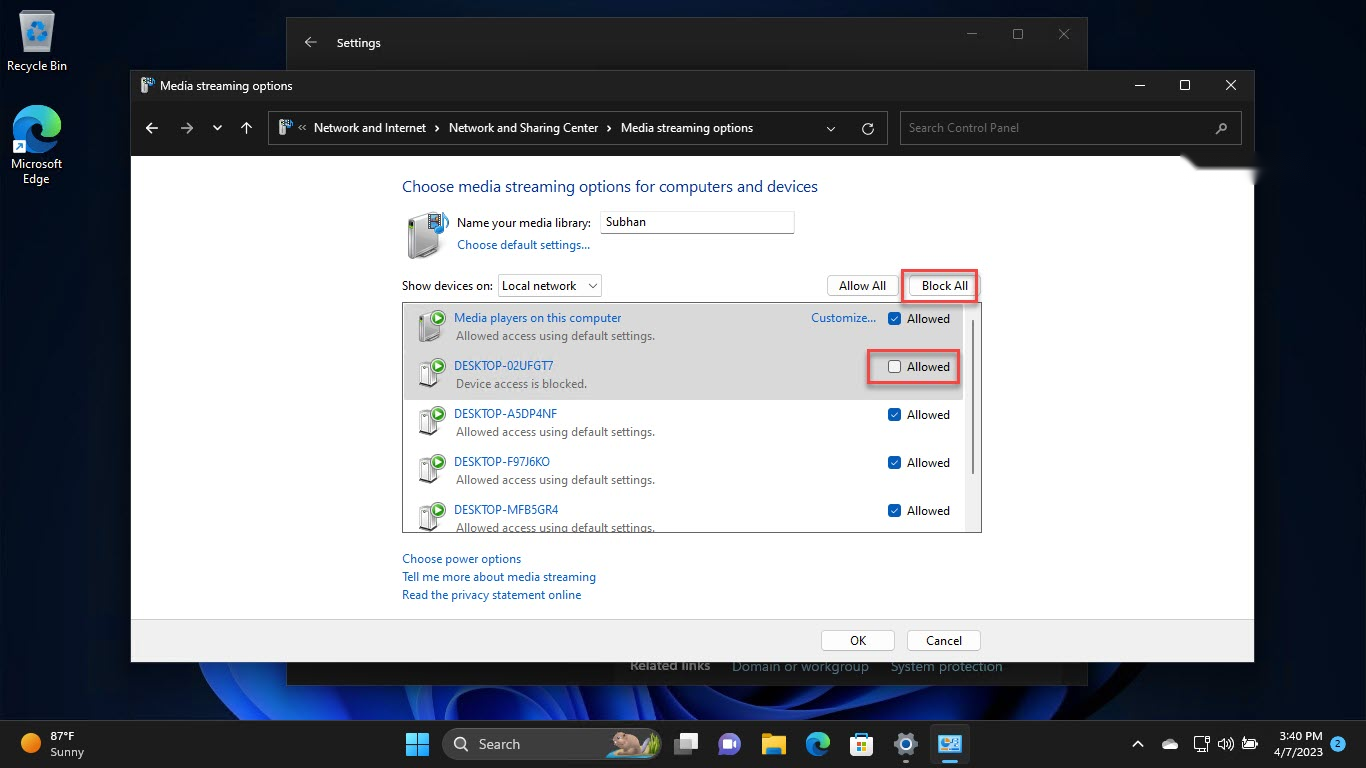
DLNA server එකෙන් specific devices allow හෝ block කරන්න.
Step 3 — Device එකකින් Play කරන්න
1. ඔබේ TV/console/player එකේ, ඒකේ media/DLNA source එක open කරන්න.
2. List එකෙන් ඔබේ PC එකේ media library එක select කරන්න.
3. ඔබේ music, photos, සහ videos browse කරලා play කරන්න.
DLNA Server එක Disable කරන්නේ කොහොමද
1. Media streaming options එකට ආපහු යන්න.
2. Devices ඔක්කොම block කරන්න, නැත්නම් services.msc එකේ Windows Media Player Network Sharing Service එක stop කරන්න.
3. මේකෙන් ආපහු on කරනකම් streaming disable කරනවා.
Troubleshooting
Problem: PC එක මගේ TV එකට පේන්නේ නෑ.
Solution: දෙකම එකම network එකේ Private set වෙලා, Network discovery on, firewall එක media streaming allow කරනවා කියලා බලන්න.
Problem: සමහර files play වෙන්නේ නෑ.
Solution: Device එක format/codec එක support නොකරන්න පුළුවන්; file එක convert කරන්න හෝ folder එක ඔබේ media libraries වලට add කරන්න.
Problem: Media library එක හිස්.
Solution: DLNA server එක share කරන Windows libraries (Music, Pictures, Videos) වලට ඔබේ media folders add කරන්න.
Problem: Streaming stutter වෙනවා.
Solution: Wired connection එකක් හෝ strong Wi-Fi පාවිච්චි කරලා, weak links වල ඉතා high-bitrate files avoid කරන්න.
Conclusion
Windows එකේ built-in DLNA server එකෙන් home streaming ලේසි කරනවා: media streaming on කරලා, ඔබේ devices allow කරලා, එකම network එකේ ඕනෑම DLNA-compatible TV හෝ player එකක ඔබේ library එක play කරන්න.
About TechHub
මේ guide එක TechHub Knowledge Base එකේ කොටසක්. තව step-by-step IT guides සහ support වලට techhub.com.lk එකට යන්න.