Overview
The WindowsApps folder in Program Files stores the files for installed Microsoft Store apps. Windows hides and protects it because tampering can break apps, but there are legitimate reasons to look inside — extracting an app's resources or troubleshooting a broken package. This guide shows how to reveal the folder and take ownership so you can open it, along with the risks involved.
Key Takeaways
- WindowsApps lives at C:\Program Files\WindowsApps and is hidden by default.
- Opening it requires unhiding protected items and taking ownership.
- Changing files inside can break Store apps, so proceed carefully.
- Restore the default TrustedInstaller ownership when you are finished.
Show the Hidden Folder
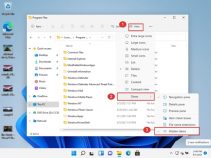
1. Open File Explorer and go to the View menu.
2. Enable Hidden items, then open Options > View and clear Hide protected operating system files.
3. Browse to C:\Program Files, where the WindowsApps folder now appears greyed out.
4. Double-clicking still shows an access-denied message until you take ownership.
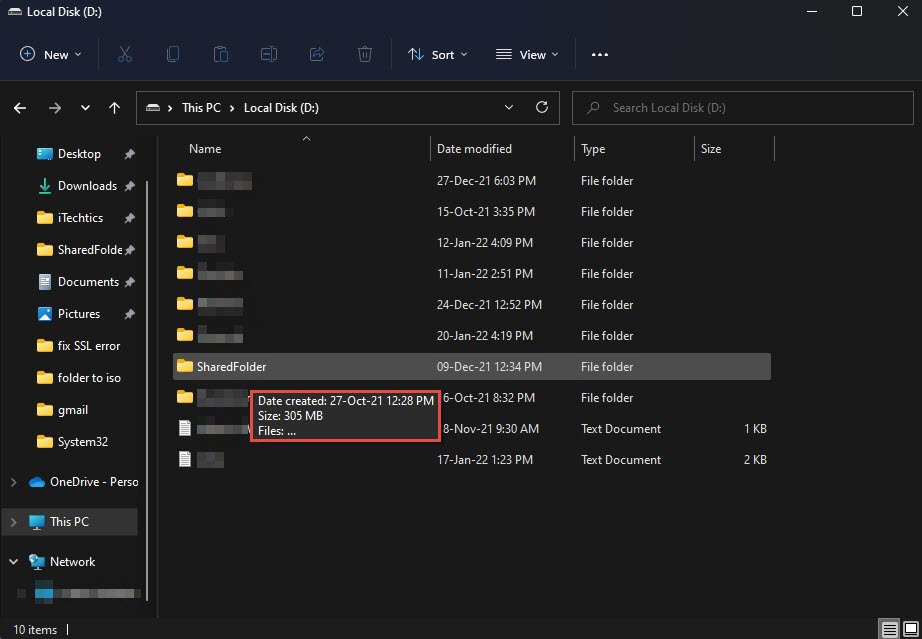
The protected WindowsApps folder in Program Files.
Take Ownership of the Folder
1. Right-click the WindowsApps folder and choose Properties > Security > Advanced.
2. Next to Owner, click Change, type your username, click Check Names, and confirm.
3. Tick Replace owner on subcontainers and objects, then click Apply.
4. Back on the Security tab, click Edit and grant your account Full control, then click OK to open the folder.
<w:bottom w:val="single" w:color="FBE4E4" w:sz="4"/><w:left w:val="single" w:color="C0392B" w:sz="24" w:space="10"/><w:right w:val="single" w:color="FBE4E4" w:sz="4"/></w:pBdr><w:shd w:fill="FBE4E4" w:color="auto" w:val="clear"/><w:spacing w:before="120" w:after="120"/></w:pPr><w:r><w:rPr><w:b/><w:bCs/><w:color w:val="C0392B"/><w:sz w:val="22"/><w:szCs w:val="22"/><w:rFonts w:ascii="Calibri" w:cs="Calibri" w:eastAsia="Calibri" w:hAnsi="Calibri"/></w:rPr><w:t xml:space="preserve">Warning: Deleting or editing files inside WindowsApps can corrupt Microsoft Store apps and may require reinstalling them. Only view or copy files unless you know exactly what you are changing.
Restore Default Ownership
1. Return to WindowsApps > Properties > Security > Advanced.
2. Click Change next to Owner and type NT SERVICE\TrustedInstaller.
3. Click Check Names, confirm, and apply the change.
4. This returns the folder to its protected state and keeps your apps stable.
<w:bottom w:val="single" w:color="DEEAF6" w:sz="4"/><w:left w:val="single" w:color="0B5394" w:sz="24" w:space="10"/><w:right w:val="single" w:color="DEEAF6" w:sz="4"/></w:pBdr><w:shd w:fill="DEEAF6" w:color="auto" w:val="clear"/><w:spacing w:before="120" w:after="120"/></w:pPr><w:r><w:rPr><w:b/><w:bCs/><w:color w:val="0B5394"/><w:sz w:val="22"/><w:szCs w:val="22"/><w:rFonts w:ascii="Calibri" w:cs="Calibri" w:eastAsia="Calibri" w:hAnsi="Calibri"/></w:rPr><w:t xml:space="preserve">Note: Taking ownership is reversible. Restoring TrustedInstaller as the owner is the safest state once you have what you need.
Troubleshooting
Problem: The WindowsApps folder is not visible.
Solution: Enable Hidden items and clear Hide protected operating system files in Folder Options, then look again in Program Files.
Problem: Access is still denied after taking ownership.
Solution: Grant your specific user account Full control on the Security tab, not just ownership, and reopen the folder.
Problem: Store apps stopped working after changes.
Solution: Reinstall the affected app from the Microsoft Store, or reset it via Settings > Apps > Installed apps > Advanced options.
Problem: You cannot restore TrustedInstaller ownership.
Solution: Type the name exactly as NT SERVICE\TrustedInstaller and click Check Names; it should resolve correctly.
Conclusion
The WindowsApps folder is locked down for good reason, but taking ownership lets you look inside when you need to. Reveal it, grant your account access carefully, and restore TrustedInstaller ownership afterward to keep your Store apps healthy.
About TechHub
This guide is part of the TechHub Knowledge Base. For more step-by-step IT guides and support, visit techhub.com.lk.