Overview
Program Files ඇතුළේ තියෙන WindowsApps folder එකේ, install කරපු Microsoft Store apps වල files ගබඩා වෙනවා. Tamper කරන එකෙන් apps කැඩෙන්න පුළුවන් නිසා Windows ඒක හංගලා protect කරලා තියෙනවා, නමුත් ඒක ඇතුළට බලන්න වලංගු හේතු තියෙනවා — app එකක resources extract කරන එක හෝ කැඩුණු package එකක් troubleshoot කරන එක. මේ guide එකෙන් folder එක reveal කරලා ownership එක ගන්නේ කොහොමද, ඒක ඇතුළ තියෙන අවදානම් මොනවද කියලා පෙන්නනවා.
Key Takeaways
- WindowsApps තියෙන්නේ C:\Program Files\WindowsApps එකේ, default විදිහට hidden වෙලා.
- ඒක open කරන්න protected items unhide කරලා ownership එක ගන්න ඕන.
- ඒක ඇතුළේ files වෙනස් කරන එකෙන් Store apps කැඩෙන්න පුළුවන්, ඒ නිසා පරිස්සමෙන් ඉදිරියට යන්න.
- ඉවර වුණාම default TrustedInstaller ownership එක restore කරන්න.
Show the Hidden Folder
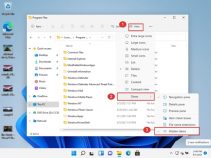
1. File Explorer එක open කරලා View menu එකට යන්න.
2. Hidden items enable කරලා, ඊට පස්සේ Options > View open කරලා Hide protected operating system files clear කරන්න.
3. C:\Program Files එකට browse කරන්න, එතන දැන් WindowsApps folder එක greyed out වෙලා පෙනෙනවා.
4. Ownership එක ගන්නකම් double-click කළත් තාමත් access-denied message එකක් පෙන්නනවා.
Program Files එකේ protected WindowsApps folder එක.
Take Ownership of the Folder
1. WindowsApps folder එක right-click කරලා Properties > Security > Advanced තෝරන්න.
2. Owner ළඟ, Change click කරලා, ඔබේ username එක type කරලා, Check Names click කරලා, confirm කරන්න.
3. Replace owner on subcontainers and objects tick කරලා, ඊට පස්සේ Apply click කරන්න.
4. ආපහු Security tab එකේ, Edit click කරලා ඔබේ account එකට Full control දෙන්න, ඊට පස්සේ OK click කරන්න folder එක open කරන්න.
Warning: WindowsApps ඇතුළේ files delete කරන එකෙන් හෝ edit කරන එකෙන් Microsoft Store apps corrupt වෙන්න පුළුවන් සහ ඒවා reinstall කරන්න වෙන්න පුළුවන්. ඔබ මොනවද වෙනස් කරන්නේ කියලා හරියටම දන්නවා නම් මිසක්, files view කරන එක හෝ copy කරන එක විතරක් කරන්න.
Restore Default Ownership
1. ආපහු WindowsApps > Properties > Security > Advanced එකට යන්න.
2. Owner ළඟ Change click කරලා NT SERVICE\TrustedInstaller type කරන්න.
3. Check Names click කරලා, confirm කරලා, වෙනස apply කරන්න.
4. මේකෙන් folder එක ආපහු ඒකේ protected state එකට ගෙන්නවා සහ ඔබේ apps stable විදිහට තියාගන්නවා.
Note: Ownership එක ගන්න එක reversible. ඔබට ඕන දේ ගත්තට පස්සේ TrustedInstaller එක owner විදිහට restore කරන එක තමයි ආරක්ෂිතම තත්ත්වය.
Troubleshooting
Problem: WindowsApps folder එක පෙන්නෙ නෑ.
Solution: Folder Options එකේ Hidden items enable කරලා Hide protected operating system files clear කරලා, ආයෙත් Program Files එකේ බලන්න.
Problem: Ownership එක ගත්තටත් පස්සේ තාමත් access denied වෙනවා.
Solution: Ownership එක විතරක් නෙවෙයි, Security tab එකේ ඔබේ නිශ්චිත user account එකට Full control දීලා folder එක ආයෙත් open කරන්න.
Problem: වෙනස්කම් වලට පස්සේ Store apps වැඩ කරන එක නැවතුණා.
Solution: බලපෑ app එක Microsoft Store එකෙන් reinstall කරන්න, නැත්නම් Settings > Apps > Installed apps > Advanced options හරහා reset කරන්න.
Problem: TrustedInstaller ownership එක restore කරන්න බෑ.
Solution: නම හරියටම NT SERVICE\TrustedInstaller විදිහට type කරලා Check Names click කරන්න; ඒක නිවැරදිව resolve වෙන්න ඕන.
Conclusion
WindowsApps folder එක හොඳ හේතුවකට lock කරලා තියෙන්නේ, නමුත් ownership එක ගන්න එකෙන් ඕන වුණ වෙලාවට ඇතුළට බලන්න පුළුවන්. ඒක reveal කරලා, ඔබේ account එකට පරිස්සමෙන් access දීලා, ඊට පස්සේ Store apps සෞඛ්ය සම්පන්නව තියාගන්න TrustedInstaller ownership එක restore කරන්න.
About TechHub
මේ guide එක TechHub Knowledge Base එකේ කොටසක්. තව step-by-step IT guides සහ support වලට techhub.com.lk එකට යන්න.