Overview
Browsing history clear කරන එකෙන් ඔබ visit කරපු sites වල record එක, ඕන නම් cookies සහ cached files එක්ක, අයින් වෙනවා. ඒකෙන් space free වෙනවා, සමහර loading issues fix වෙනවා, shared devices වල ඔබේ privacy protect වෙනවා. මේ guide එකෙන් හැම major browser එකකම ඒ ආකාරය පෙන්නනවා.
Privacy protect කරලා browser issues fix කරන්න history, cookies, සහ cache clear කරන්න.
Key Takeaways
- Clear-data dialog එක open කරන universal shortcut එක Ctrl + Shift + Delete (Mac එකේ Cmd + Shift + Delete).
- Time range එකක් (Last hour සිට All time) සහ clear කරන දේ (history, cookies, cache) තෝරන්න.
- Cookies clear කරන එකෙන් websites වලින් sign out වෙනවා.
- Mobile එකේ, option එක තියෙන්නේ browser එකේ Settings > Privacy යටතේ.
Google Chrome (Desktop)
1. Ctrl + Shift + Delete press කරන්න (හෝ Menu > Delete browsing data).
2. Time range එකක් (බ. All time) තෝරන්න.
3. Browsing history tick කරන්න (ඕන නම් Cookies / Cached files ත්).
4. Delete data click කරන්න.
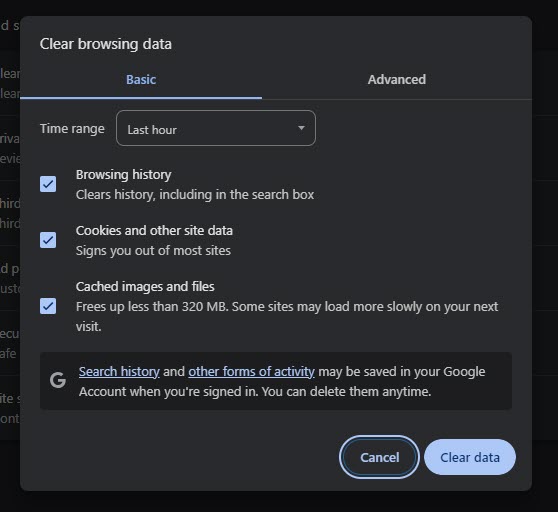
Chrome එකේ clear browsing data dialog එක.
Chrome (Android)
1. Three-dot menu එක tap කරලා > Delete browsing data (හෝ History > Delete).
2. Time range එකයි data types එකයි තෝරන්න.
3. Delete data tap කරන්න.
Microsoft Edge
1. Ctrl + Shift + Delete press කරන්න.
2. Time range එක තෝරලා Browsing history tick කරන්න (ඕන නම් තව).
3. Clear now click කරන්න.
Mozilla Firefox
1. Ctrl + Shift + Delete press කරන්න.
2. Clear කරන Time range එක set කරලා Browsing & Download History tick කරන්න.
3. OK (Clear Now) click කරන්න.
Opera සහ Vivaldi
1. Clear-data dialog එක open කරන්න Ctrl + Shift + Delete press කරන්න.
2. Time range එකයි data types එකයි තෝරන්න.
3. Clear කරන්න confirm කරන්න.
Safari (Mac)
1. Safari > History > Clear History open කරන්න (හෝ Settings > Privacy > Manage Website Data).
2. Time range එක තෝරන්න.
3. Clear History click කරන්න.
Tip: ඊළඟ පාර history save නොකර browse කරන්න, private/incognito window එකක් පාවිච්චි කරන්න.
Troubleshooting
Problem: History ආපහු ආපහු එනවා.
Solution: ඔබ sign in වෙලා sync කරනවා නම්, history වෙන devices වලින් sync වෙන්න පුළුවන්. හැම device එකකම clear කරන්න, නැත්නම් history sync off කරන්න.
Problem: Websites වලින් sign out වුණා.
Solution: ඒ cookies clear කරනකොට වෙනවා. ආපහු sign in වෙන්න; logged in ඉන්න ඕන නම් "Browsing history" විතරයි clear කරන්න.
Problem: Mobile එකේ option එක හොයාගන්න බෑ.
Solution: Browser එකේ Settings > Privacy and security > Clear browsing data යටතේ බලන්න.
Problem: සමහර sites තවම පරණ content load කරනවා.
Solution: Cached images and files ත් clear කරලා, page එක reload කරන්න.
Conclusion
Ctrl + Shift + Delete එකෙන් හැම browser එකකම වගේ clear-data dialog එක open වෙනවා. History, cookies, සහ cache wipe කරන්න ඔබේ time range එකයි data types එකයි තෝරන්න — නැත්නම් මුල ඉඳලාම history save නොකර ඉන්න private browsing පාවිච්චි කරන්න.
About TechHub
මේ guide එක TechHub Knowledge Base එකේ කොටසක්. තව step-by-step IT guides සහ support වලට techhub.com.lk එකට යන්න.