Overview
A listening port is a network port that a program keeps open to accept incoming connections. Open ports are normal, but an unexpected or unnecessary one can be a security concern or cause conflicts when another application needs the same port. This guide shows how to list listening ports, find the process behind one, and close it cleanly.
Key Takeaways
- The netstat command lists every listening port and the process ID that owns it.
- You close a port by stopping the process using it, not the port directly.
- Task Manager and taskkill both let you end the responsible process.
- A firewall rule can block a port without stopping the underlying service.
Find Listening Ports
1. Open Command Prompt as an administrator.
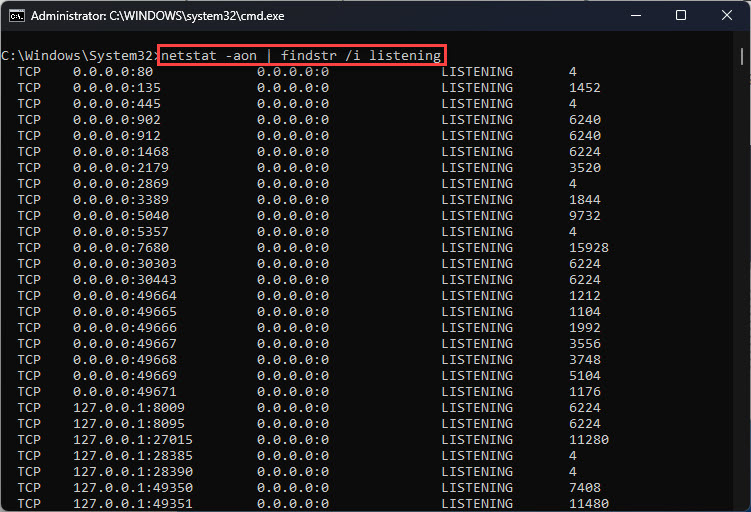
2. Run: netstat -ano | findstr LISTENING
3. Read the local address column to see the port numbers and the last column for the owning process ID (PID).
Listing listening ports and their process IDs with netstat.
Identify the Process
1. Note the PID shown next to the port you want to close.
2. Open Task Manager and switch to the Details tab.
3. Match the PID column to find the program holding the port open.
Close the Port
Because a port is held open by a process, ending that process releases the port.
1. In Task Manager, right-click the process and choose End task, or
2. From an elevated Command Prompt run: taskkill /PID <number> /F
3. Re-run the netstat command to confirm the port is no longer listening.
Tip: If you cannot stop the service but need to block access, create an inbound firewall rule that blocks the specific port instead.
Warning: Do not end processes you cannot identify as safe to stop. Closing a port used by an essential Windows service can disrupt networking or system stability, so verify the process first.
Troubleshooting
Problem: The port reopens immediately after you close it.
Solution: A service is set to restart automatically; stop or disable that service in the Services console rather than only ending the process.
Problem: taskkill reports access denied.
Solution: Run Command Prompt as an administrator, since system-level processes require elevated privileges to terminate.
Problem: You are unsure which application owns a port.
Solution: Use the PID from netstat with the tasklist command or Task Manager Details tab to name the process before acting.
Problem: You need the port closed to outsiders but the service running.
Solution: Add a Windows Defender Firewall inbound rule that blocks the port instead of stopping the service.
Conclusion
Managing listening ports comes down to identifying the owning process and deciding whether to stop it or block it at the firewall. With netstat and Task Manager you can audit and control open ports in minutes.
About TechHub
This guide is part of the TechHub Knowledge Base. For more step-by-step IT guides and support, visit techhub.com.lk.