Overview
CPU throttling lowers your processor’s speed to save power and reduce heat. It extends battery life and keeps a laptop cool, but it can also limit performance during demanding tasks. This guide explains what throttling is and shows how to enable or disable it on Windows, including per-app control.
CPU throttling trades performance for lower heat and longer battery life.
Key Takeaways
- Throttling reduces CPU speed to save power and limit heat.
- Control it via the maximum/minimum processor state in Power Options.
- Disabling it boosts performance but increases heat and power draw.
- Task Manager’s Efficiency Mode throttles individual apps.
What Is CPU Throttling?
CPU throttling (also called dynamic frequency scaling) lowers the processor’s clock speed when full power is not needed, or when the chip gets too hot. It saves energy and prevents overheating, but sustained throttling can make heavy workloads feel slow.
Method 1 — Power Options (Control Panel)
1. Press Windows key + R, type powercfg.cpl, and press Enter.
2. Click Change plan settings > Change advanced power settings.
3. Expand Processor power management.
4. Set Minimum and Maximum processor state — set Maximum to 100% to reduce throttling, or lower it to throttle more.
5. Click Apply and OK.
Method 2 — Settings App (Power Mode)
1. Open Settings > System > Power & battery.
2. Set Power mode to Best performance to minimise throttling, or Best power efficiency to throttle more.
Method 3 — Group Policy / Registry
1. For Power Throttling, open Registry Editor and go to HKEY_LOCAL_MACHINE\SYSTEM\CurrentControlSet\Control\Power\PowerThrottling.
2. Create a DWORD named PowerThrottlingOff and set it to 1 to disable power throttling (0 or delete to re-enable).
3. Restart the PC to apply.
Warning: Back up the registry before editing (File > Export).
Method 4 — Per-App With Task Manager (Efficiency Mode)
1. Open Task Manager (Ctrl + Shift + Esc) and the Processes tab.
2. Right-click a process and choose Efficiency mode to throttle just that app.
3. This lowers that app’s priority and power use without affecting others.
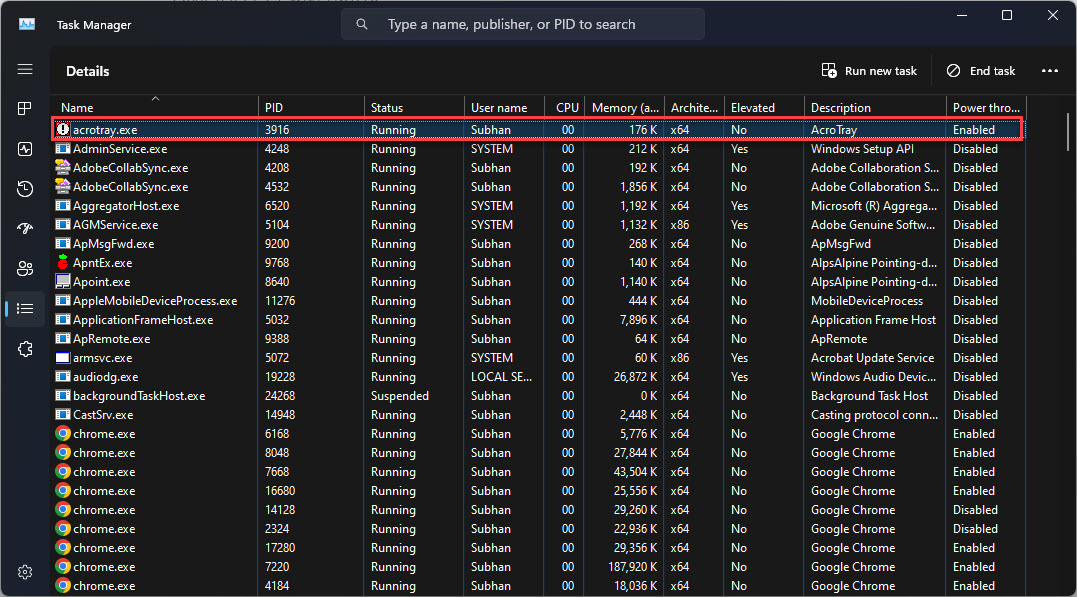
Efficiency Mode in Task Manager throttles a single app.
Should You Enable or Disable Throttling?
- Keep throttling on for laptops to maximise battery life and keep cool.
- Disable or reduce throttling on desktops or when you need full performance (gaming, rendering).
- Use Efficiency Mode to throttle background apps while keeping foreground apps fast.
Troubleshooting
Problem: The PC feels slow under load.
Solution: Set Maximum processor state to 100% and Power mode to Best performance, and check the CPU is not overheating (which forces thermal throttling).
Problem: Battery drains too fast after disabling throttling.
Solution: Re-enable throttling: lower the maximum processor state and switch Power mode back to Balanced or Best power efficiency.
Problem: The CPU still throttles at 100% max state.
Solution: That is thermal throttling — improve cooling, clean dust, and reapply thermal paste.
Problem: Processor power management is missing in Power Options.
Solution: It can be hidden; reset the power plan to defaults (powercfg -restoredefaultschemes) and try again.
Conclusion
CPU throttling is a useful balance between performance and efficiency. Tune it with Power Options for system-wide control, use Efficiency Mode for individual apps, and remember that overheating causes throttling no matter your settings.
</w:pBdr><w:spacing w:before="220" w:after="40"/></w:pPr><w:r><w:rPr><w:b/><w:bCs/><w:color w:val="0B5394"/><w:sz w:val="21"/><w:szCs w:val="21"/><w:rFonts w:ascii="Calibri" w:cs="Calibri" w:eastAsia="Calibri" w:hAnsi="Calibri"/></w:rPr><w:t xml:space="preserve">About TechHub
This guide is part of the TechHub Knowledge Base. For more step-by-step IT guides and support, visit techhub.com.lk.