Overview
CPU throttling කියන්නේ power save කරන්නත් heat අඩු කරන්නත් ඔයාගේ processor එකේ speed එක අඩු කරන එකයි. ඒකෙන් battery life වැඩි වෙනවා, laptop එක cool වෙනවා, නමුත් demanding tasks වලදී performance එක limit කරන්නත් පුළුවන්. මේ guide එකෙන් throttling කියන්නේ මොකක්ද කියලා පැහැදිලි කරලා, Windows එකේ ඒක enable හෝ disable කරන හැටි, per-app control එකත් ඇතුළුව පෙන්නනවා.
CPU throttling එකෙන් performance එක අත්හැරලා අඩු heat එකකුයි වැඩි battery life එකකුයි ලබා දෙනවා.
Key Takeaways
- Throttling එකෙන් power save කරන්නත් heat limit කරන්නත් CPU speed එක අඩු කරනවා.
- ඒක control කරන්නේ Power Options එකේ maximum/minimum processor state එකෙන්.
- ඒක disable කරන එකෙන් performance එක වැඩි වෙනවා නමුත් heat සහ power draw එකත් වැඩි වෙනවා.
- Task Manager එකේ Efficiency Mode එකෙන් තනි තනි app throttle කරනවා.
What Is CPU Throttling?
CPU throttling (dynamic frequency scaling කියලත් කියනවා) කියන්නේ full power ඕන නැති වෙලාවට, හෝ chip එක ගොඩක් උණුසුම් වෙද්දී, processor එකේ clock speed එක අඩු කරන එකයි. ඒකෙන් energy save වෙනවා, overheating වළක්වනවා, නමුත් දිගටම throttle වෙන එකෙන් බර workload slow විදිහට දැනෙන්න පුළුවන්.
Method 1 — Power Options (Control Panel)
1. Windows key + R press කරලා, powercfg.cpl කියලා type කරලා, Enter press කරන්න.
2. Change plan settings > Change advanced power settings click කරන්න.
3. Processor power management expand කරන්න.
4. Minimum සහ Maximum processor state set කරන්න — throttling අඩු කරන්න Maximum එක 100% කරන්න, හෝ වැඩිපුර throttle කරන්න ඒක අඩු කරන්න.
5. Apply සහ OK click කරන්න.
Method 2 — Settings App (Power Mode)
1. Settings > System > Power & battery open කරන්න.
2. throttling අඩුම කරන්න Power mode එක Best performance කරන්න, හෝ වැඩිපුර throttle කරන්න Best power efficiency කරන්න.
Method 3 — Group Policy / Registry
1. Power Throttling වලට, Registry Editor open කරලා HKEY_LOCAL_MACHINE\SYSTEM\CurrentControlSet\Control\Power\PowerThrottling වලට යන්න.
2. PowerThrottlingOff කියලා DWORD එකක් create කරලා power throttling disable කරන්න ඒක 1 කරන්න (re-enable කරන්න 0 හෝ delete කරන්න).
3. Apply කරන්න PC එක restart කරන්න.
Warning: Edit කරන්න කලින් registry එක back up කරන්න (File > Export).
Method 4 — Per-App With Task Manager (Efficiency Mode)
1. Task Manager (Ctrl + Shift + Esc) සහ Processes tab එක open කරන්න.
2. Process එකක් මත right-click කරලා, ඒ app එක විතරක් throttle කරන්න Efficiency mode තෝරන්න.
3. ඒකෙන් අනිත් ඒවාට බලපෑමක් නැතුව ඒ app එකේ priority එකයි power use එකයි අඩු කරනවා.
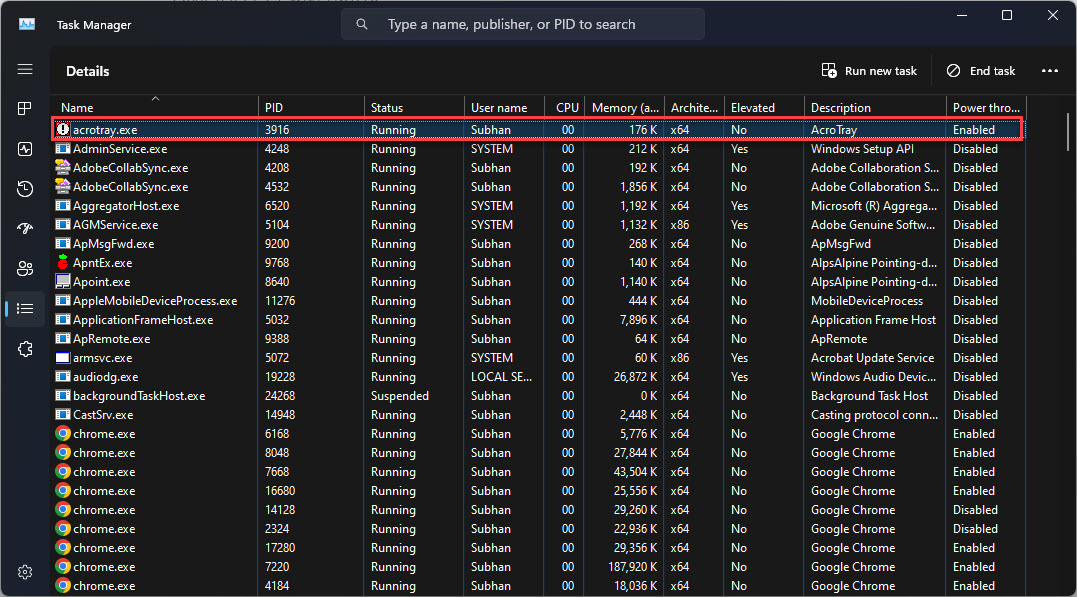
Task Manager එකේ Efficiency Mode එකෙන් තනි app එකක් throttle කරනවා.
Should You Enable or Disable Throttling?
- battery life උපරිම කරන්නත් cool තියාගන්නත් laptop වල throttling on තියාගන්න.
- Desktop වල, හෝ full performance ඕන වෙද්දී (gaming, rendering) throttling disable කරන්න හෝ අඩු කරන්න.
- Foreground apps fast තියාගෙනම background apps throttle කරන්න Efficiency Mode පාවිච්චි කරන්න.
Troubleshooting
Problem: PC එක load එකේදී slow විදිහට දැනෙනවා.
Solution: Maximum processor state එක 100% කරලා Power mode එක Best performance කරන්න, CPU එක overheat වෙන්නේ නෑ කියලා check කරන්න (ඒකෙන් thermal throttling බලෙන් වෙනවා).
Problem: Throttling disable කළාට පස්සේ battery ඉක්මනට drain වෙනවා.
Solution: Throttling නැවත enable කරන්න: maximum processor state එක අඩු කරලා Power mode එක ආපහු Balanced හෝ Best power efficiency කරන්න.
Problem: 100% max state එකේදීත් CPU එක තාම throttle වෙනවා.
Solution: ඒක thermal throttling — cooling වැඩි කරන්න, dust clean කරන්න, thermal paste නැවත දාන්න.
Problem: Power Options එකේ Processor power management නෑ.
Solution: ඒක hide වෙලා තියෙන්න පුළුවන්; power plan එක defaults වලට reset කරලා (powercfg -restoredefaultschemes) නැවත try කරන්න.
Conclusion
CPU throttling කියන්නේ performance එකයි efficiency එකයි අතර ප්රයෝජනවත් balance එකක්. system-wide control වලට Power Options එකෙන් tune කරන්න, තනි app වලට Efficiency Mode පාවිච්චි කරන්න, ඔයාගේ settings මොනවා වුණත් overheating එකෙන් throttling වෙනවා කියන එක මතක තියාගන්න.
About TechHub
මේ guide එක TechHub Knowledge Base එකේ කොටසක්. තව step-by-step IT guides සහ support වලට techhub.com.lk එකට යන්න.