Overview
The Run dialog (Windows + R) remembers commands you’ve typed and suggests them later. This guide shows how to clear that history and how to enable or disable it for privacy via Settings or the Registry.
Manage the Run command history in Windows.
Key Takeaways
- Run history powers the autosuggestions in the Run box.
- Clear it by turning off recent items, or via the Registry.
- Disable history through Settings (Privacy) or a Registry value.
- Clearing history removes saved autosuggestions for privacy.
Clear the Run Command History
1. Open Settings > Personalization > Start.
2. Toggle off "Show recently opened items in Jump Lists on Start or the taskbar".
3. Toggle it back on if you want suggestions again — toggling off clears the stored list.
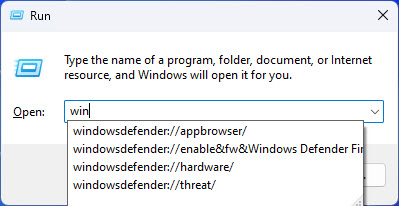
The Run box autosuggestions come from saved history.
Disable Run History from Settings
1. Open Settings > Privacy & security > General (or Personalization > Start).
2. Turn off the recent-items / recently opened items setting.
3. The Run box will stop saving new entries.
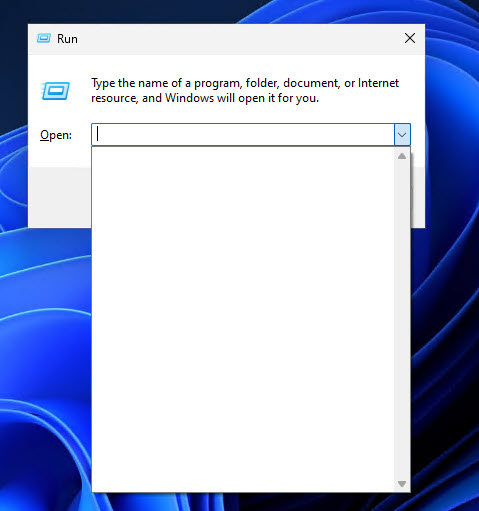
An empty suggestion box after disabling history.
Enable or Disable via the Registry
Warning: Editing the Registry incorrectly can cause problems. Back up the Registry (File > Export) before making changes.
1. Press Windows + R, type regedit, and press Enter.
2. Go to: HKEY_CURRENT_USER\Software\Microsoft\Windows\CurrentVersion\Policies\Explorer
3. Create a DWORD named NoRunMRU and set it to 1 to disable history (0 or delete to enable).
4. To clear existing entries, delete the values under HKEY_CURRENT_USER\Software\Microsoft\Windows\CurrentVersion\Explorer\RunMRU.
5. Sign out and back in for the change to take effect.
Troubleshooting
Problem: Old suggestions still appear.
Solution: Clear the RunMRU key values and sign out/in; toggling recent items off then on also refreshes the list.
Problem: NoRunMRU has no effect.
Solution: Ensure it’s a DWORD under Policies\Explorer for the current user, then sign out and back in.
Problem: I can’t find the Policies\Explorer key.
Solution: Create the Explorer subkey under Policies manually, then add the NoRunMRU DWORD.
Problem: I want history back.
Solution: Set NoRunMRU to 0 (or delete it) and re-enable recent items in Settings.
Conclusion
Whether for privacy or a cleaner Run box, Windows lets you clear or disable Run command history through Settings or the Registry. Use the NoRunMRU value for a permanent policy, and remember to back up the Registry before editing.
</w:pBdr><w:spacing w:before="220" w:after="40"/></w:pPr><w:r><w:rPr><w:b/><w:bCs/><w:color w:val="0B5394"/><w:sz w:val="21"/><w:szCs w:val="21"/><w:rFonts w:ascii="Calibri" w:cs="Calibri" w:eastAsia="Calibri" w:hAnsi="Calibri"/></w:rPr><w:t xml:space="preserve">About TechHub
This guide is part of the TechHub Knowledge Base. For more step-by-step IT guides and support, visit techhub.com.lk.