Overview
Run dialog (Windows + R) එකෙන් ඔබ type කරපු commands මතක තියාගෙන පස්සේ suggest කරනවා. මේ guide එකෙන් ඒ history එක clear කරන ආකාරය සහ privacy වලට Settings හෝ Registry එකෙන් ඒක enable/disable කරන ආකාරය පෙන්නනවා.
Windows එකේ Run command history එක manage කරන්න.
Key Takeaways
- Run history එකෙන් Run box එකේ autosuggestions power කරනවා.
- Recent items off කරලා, හෝ Registry එකෙන් clear කරන්න.
- Settings (Privacy) හෝ Registry value එකකින් history disable කරන්න.
- History clear කරන එකෙන් privacy වලට saved autosuggestions අයින් කරනවා.
Run Command History එක Clear කරන්න
1. Settings > Personalization > Start open කරන්න.
2. "Show recently opened items in Jump Lists on Start or the taskbar" off toggle කරන්න.
3. ආපහු suggestions ඕන නම් ආපහු on toggle කරන්න — off කරන එකෙන් stored list එක clear කරනවා.
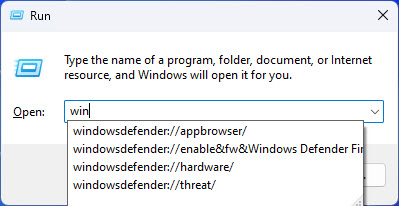
Run box autosuggestions එන්නේ saved history එකෙන්.
Settings එකෙන් Run History Disable කරන්න
1. Settings > Privacy & security > General (හෝ Personalization > Start) open කරන්න.
2. Recent-items / recently opened items setting එක off කරන්න.
3. Run box එක අලුත් entries save කරන එක නවතිනවා.
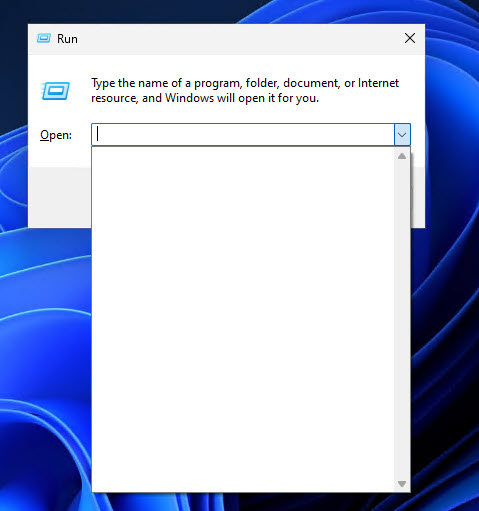
History disable කළාට පස්සේ empty suggestion box එකක්.
Registry එකෙන් Enable හෝ Disable කරන්න
Warning: Registry එක වැරදියට edit කරන එකෙන් problems ඇති වෙන්න පුළුවන්. Changes කරන්න කලින් Registry එක backup කරන්න (File > Export).
1. Windows + R press කරලා regedit type කරලා Enter කරන්න.
2. මෙතනට යන්න: HKEY_CURRENT_USER\Software\Microsoft\Windows\CurrentVersion\Policies\Explorer
3. NoRunMRU කියන DWORD එකක් හදලා history disable කරන්න 1 කරන්න (enable කරන්න 0 හෝ delete).
4. Existing entries clear කරන්න, HKEY_CURRENT_USER\Software\Microsoft\Windows\CurrentVersion\Explorer\RunMRU යටතේ values delete කරන්න.
5. Change එක effect වෙන්න sign out කරලා ආපහු sign in වෙන්න.
Troubleshooting
Problem: පරණ suggestions තවම එනවා.
Solution: RunMRU key values clear කරලා sign out/in කරන්න; recent items off කරලා on කරන එකෙනුත් list එක refresh වෙනවා.
Problem: NoRunMRU වලට effect එකක් නෑ.
Solution: ඒක current user වලට Policies\Explorer යටතේ DWORD එකක් කියලා බලලා, sign out කරලා ආපහු sign in වෙන්න.
Problem: Policies\Explorer key එක හොයාගන්න බෑ.
Solution: Policies යටතේ Explorer subkey එක manually හදලා, NoRunMRU DWORD එක add කරන්න.
Problem: History ආපහු ඕන.
Solution: NoRunMRU 0 කරන්න (හෝ delete කරන්න), Settings එකේ recent items ආපහු enable කරන්න.
Conclusion
Privacy වලට හෝ cleaner Run box එකකට, Windows එකෙන් Settings හෝ Registry එකෙන් Run command history clear/disable කරන්න දෙනවා. Permanent policy එකකට NoRunMRU value එක පාවිච්චි කරලා, edit කරන්න කලින් Registry එක backup කරන්න මතක තියාගන්න.
About TechHub
මේ guide එක TechHub Knowledge Base එකේ කොටසක්. තව step-by-step IT guides සහ support වලට techhub.com.lk එකට යන්න.