Google Chrome Offline Installers (Stable, Beta, Canary) Download කරන්නේ කොහොමද
Offline setup වලට full standalone Chrome installer එක ගන්න විදිහ, ඒ එක්කම ඔයාගේ version එක check කරලා update කරන්නේ කොහොමද කියලා.
Overview
සාමාන්ය Chrome download එක කුඩා online stub එකක්. Offline (standalone) installer එකේ හැම දෙයක්ම තියෙනවා, ඒ නිසා internet නැති PCs වල හෝ machines කිහිපයක Chrome install කරන්න පුළුවන්. මේ guide එකෙන් ඒක ගන්නේ කොහොමද, versions manage කරන්නේ කොහොමද කියලා පෙන්නනවා.
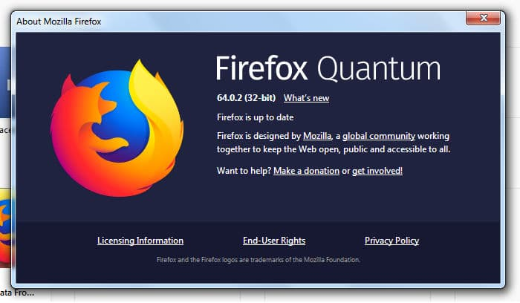
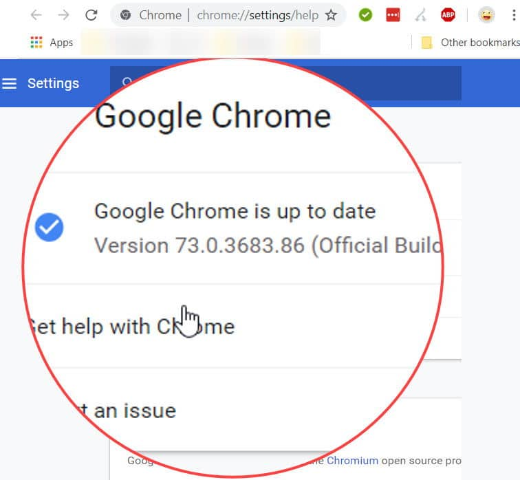
Google Chrome version එක check කිරීම.
Note: Chrome download කරන්නේ Google ගේ official site එකෙන් විතරයි (google.com/chrome). Third-party mirrors වෙනුවට official offline-installer URLs use කරන්න.
Key Takeaways
- Offline installer එක සම්පූර්ණ, standalone setup file එකක්.
- Stable, Beta, Dev, සහ Canary channels වලට තියෙනවා.
- Offline PCs හෝ bulk installs වලට හොඳම.
- Chrome auto-update වෙනවා, හැබැයි ඔයාට manually update කරන්නත් පුළුවන්.
Download the Offline (Standalone) Installer
1. Google ගේ official Chrome page එකට යන්න: google.com/chrome/.
2. Full package එක ගන්න "alternate installer" link එක (හෝ standalone/offline installer URL එක) use කරන්න.
3. ඕන විදිහට 64-bit (recommended) හෝ 32-bit තෝරන්න.
4. Download කරපු installer එක target PC එකේ run කරන්න — internet ඕන නැහැ.
Beta, Dev, and Canary Channels
- Beta: near-final features, තරමක් stable.
- Dev: කලින් එන features, අඩුවෙන් stable.
- Canary: bleeding-edge nightly build (unstable වෙන්න පුළුවන්); stable එක්කම install වෙනවා.
- එකිනෙක Google ගේ official channel pages වලින් download කරන්න.
Check Your Chrome Version
1. Chrome open කරලා chrome://settings/help වලට යන්න (Menu > Help > About Google Chrome).
2. Version එක පෙන්නනවා, Chrome ඉබේම updates check කරනවා.
Update Chrome
1. About page එකේ, Chrome එකට කිසියම් update එකක් download කරන්න දෙන්න.
2. ඒක apply කරන්න "Relaunch" click කරන්න.
3. නැත්නම් අලුත්ම offline installer එකෙන් reinstall කරලා manually update කරන්න.
Troubleshooting
Problem: සාමාන්ය download එකට internet ඕන.
Solution: Offline/standalone installer link එක use කරන්න, එතකොට setup එක install වෙද්දී components download කරන්නේ නැහැ.
Problem: Update එක stuck වෙනවා හෝ fail වෙනවා.
Solution: අලුත්ම offline installer එකෙන් reinstall කරන්න, නැත්නම් Google Update service එක block වෙලා නැහැ නේද කියලා බලන්න.
Problem: 32-bit ඕන.
Solution: 32-bit standalone installer එක explicitly download කරන්න; 64-bit තමයි default සහ recommended.
Problem: Features safe ව test කරන්න ඕන.
Solution: Beta හෝ Canary install කරන්න, ඒවා stable Chrome එක්කම run වෙනවා.
Conclusion
Chrome ගේ offline installer එක තමයි install වෙද්දී download එකක් මත rely නොවී browser එක setup කරන්න තියෙන ක්රමය — offline හෝ PCs කිහිපයක් වලට හරිම පහසුයි. ඒක Google ගේ official site එකෙන් අරගෙන, ඔයාගේ channel එක තෝරලා, About page එකෙන් හෝ අලුත්ම offline installer එකෙන් Chrome එක current ව තියාගන්න.