Overview
Steam is Valve’s popular platform for buying, downloading, and playing PC games. This guide shows how to download and install the official Steam client on Windows, Mac, and Linux, and how to remove it.
Downloading the Steam client.
Note: Download Steam only from the official store.steampowered.com website to avoid fake or bundled installers.
Key Takeaways
- Steam is free; you pay only for games.
- Download the client from the official Steam website.
- It’s available for Windows, Mac, and Linux.
- Uninstalling Steam removes its installed games too.
Download Steam
1. Go to the official site: store.steampowered.com.
2. Click "Install Steam" at the top right.
3. Download the installer for your OS (Windows .exe, Mac .dmg, or Linux package).
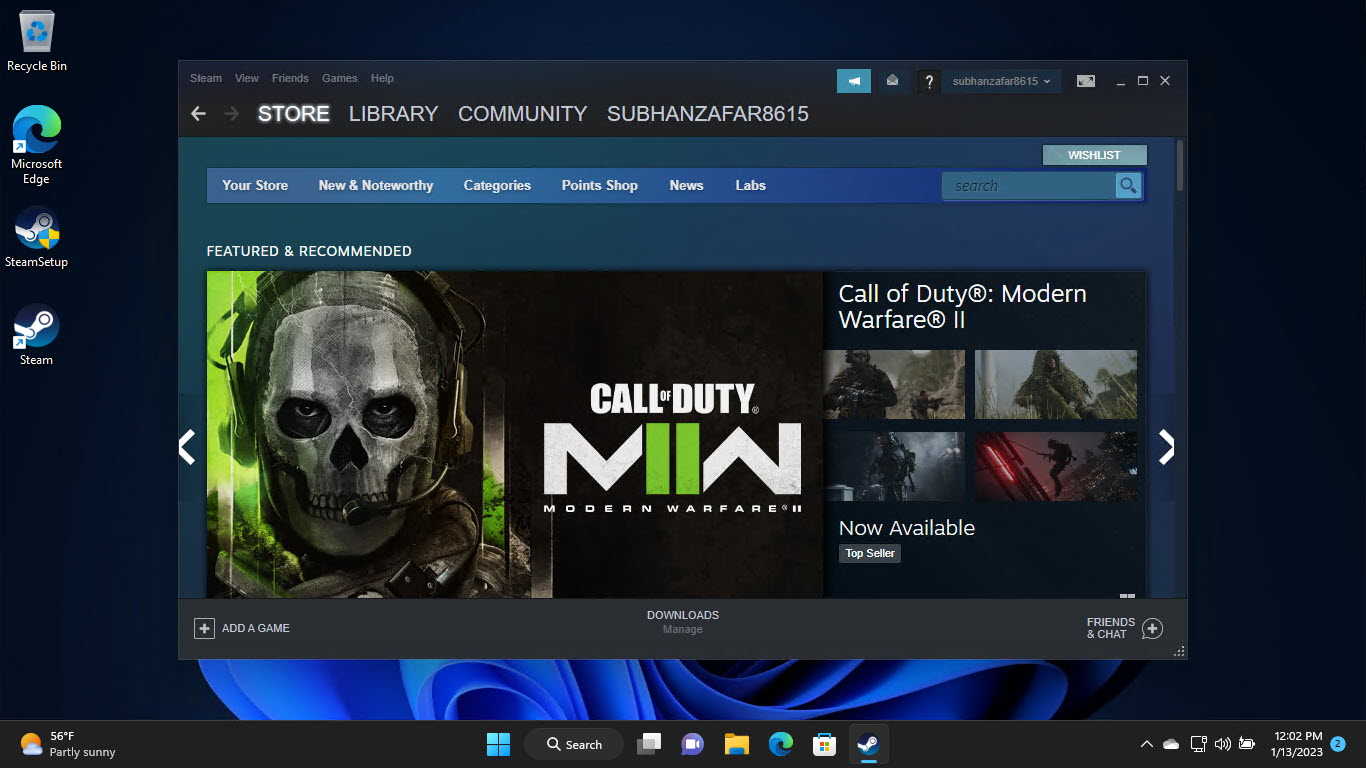
Begin your journey with Steam.
Install on Windows
1. Run SteamSetup.exe.
2. Follow the wizard and choose an install location.
3. Launch Steam, then create or sign in to your account.
4. Let it update, then browse your library or the store.
Install on Mac and Linux
1. Mac: open the .dmg and drag Steam to Applications.
2. Linux: install the downloaded package (or via your distro’s package manager).
3. Launch Steam and sign in.
Uninstall Steam
Warning: Uninstalling Steam deletes its installed games and their local data. Back up save files or use Steam Cloud first.
1. Windows: Settings > Apps > Installed apps > Steam > Uninstall.
2. Mac: drag Steam from Applications to the Trash.
3. Linux: remove the package via your package manager.
Troubleshooting
Problem: Installer won’t run.
Solution: Re-download from the official site and run as administrator; check your antivirus isn’t blocking it.
Problem: Steam won’t update.
Solution: Check your connection and firewall; allow Steam through Windows Defender Firewall.
Problem: Lost games after uninstalling.
Solution: Uninstalling removes games — reinstall Steam and re-download them; cloud saves are restored on login.
Problem: Can I install on Windows 11?
Solution: Yes, Steam fully supports Windows 11 — use the standard Windows installer.
Conclusion
Installing Steam is quick: download the client from the official website, run the installer for your OS, and sign in. Just remember that removing Steam also deletes its games, so back up saves or rely on Steam Cloud before uninstalling.
</w:pBdr><w:spacing w:before="220" w:after="40"/></w:pPr><w:r><w:rPr><w:b/><w:bCs/><w:color w:val="0B5394"/><w:sz w:val="21"/><w:szCs w:val="21"/><w:rFonts w:ascii="Calibri" w:cs="Calibri" w:eastAsia="Calibri" w:hAnsi="Calibri"/></w:rPr><w:t xml:space="preserve">About TechHub
This guide is part of the TechHub Knowledge Base. For more step-by-step IT guides and support, visit techhub.com.lk.