Overview
Up-to-date NVIDIA drivers improve game performance, fix bugs, and add features. You can get them automatically with the NVIDIA app (formerly GeForce Experience) or manually from NVIDIA’s website. This guide covers each method, the Game Ready vs Studio choice, and how to roll back.
The NVIDIA app keeps GeForce drivers up to date automatically.
Key Takeaways
- The NVIDIA app / GeForce Experience installs and updates drivers automatically.
- You can also search and download drivers manually from nvidia.com.
- Game Ready drivers suit gamers; Studio drivers suit creators.
- Always download from NVIDIA’s official site or app.
Method 1 — NVIDIA App / GeForce Experience
1. Download and install the NVIDIA app (or GeForce Experience) from nvidia.com.
2. Open it and go to the Drivers tab.
3. Click Check for updates, then Download the latest driver.
4. Choose Express installation to install it automatically.
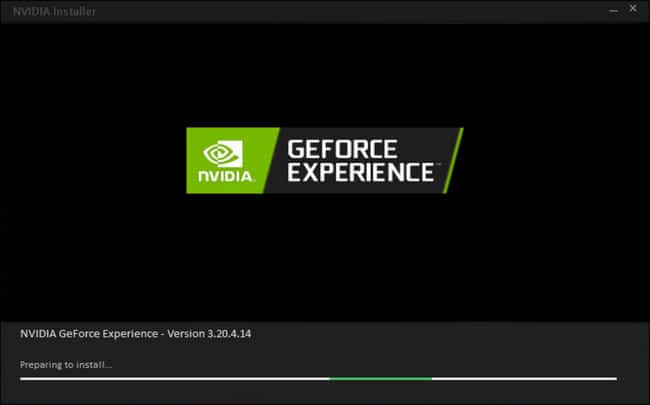
The NVIDIA app prepares and installs the latest driver.
Method 2 — Manual Download
1. Go to NVIDIA’s official Drivers page (nvidia.com/Download).
2. Select your GPU model, operating system, and driver type (Game Ready or Studio).
3. Click Search, then Download the latest driver.
4. Run the installer and choose Custom > Perform a clean installation for best results.
Warning: Download GeForce drivers only from NVIDIA’s official website or app.
Method 3 — Device Manager
1. Right-click Start and open Device Manager.
2. Expand Display adapters, right-click your NVIDIA GPU, and choose Update driver.
3. Select Search automatically for drivers.
Game Ready vs Studio Drivers
- Game Ready — optimized and tested for the latest games; best for gamers.
- Studio — optimized and validated for creative apps (video, 3D, design); best for creators.
- Both are WHQL-certified; pick the one matching your main use.
Check Your Driver Version
1. Open Device Manager > Display adapters > your GPU > Properties > Driver tab.
2. Or open the NVIDIA Control Panel > Help > System Information.
3. Compare it with the latest version on NVIDIA’s site.
How to Roll Back a Driver
1. Open Device Manager > Display adapters > your GPU > Properties > Driver tab.
2. Click Roll Back Driver if a previous version is available.
3. For a clean downgrade, use Display Driver Uninstaller (DDU) in Safe Mode, then install the older driver.
Frequently Asked Questions
Problem: What does WHQL mean?
Solution: WHQL (Windows Hardware Quality Labs) certification means Microsoft tested the driver for stability and compatibility.
Problem: How do I confirm I have an NVIDIA GPU?
Solution: Check Device Manager > Display adapters, or Task Manager > Performance > GPU.
Problem: The new driver causes issues.
Solution: Roll back via Device Manager, or use DDU and install the previous stable version.
Problem: Installation fails.
Solution: Run the installer as administrator, choose a clean installation, and temporarily disable antivirus.
Conclusion
Keep your NVIDIA GPU current with the NVIDIA app for automatic updates, or download manually for full control. Pick Game Ready or Studio to match your workload, and roll back easily if a release misbehaves.
</w:pBdr><w:spacing w:before="220" w:after="40"/></w:pPr><w:r><w:rPr><w:b/><w:bCs/><w:color w:val="0B5394"/><w:sz w:val="21"/><w:szCs w:val="21"/><w:rFonts w:ascii="Calibri" w:cs="Calibri" w:eastAsia="Calibri" w:hAnsi="Calibri"/></w:rPr><w:t xml:space="preserve">About TechHub
This guide is part of the TechHub Knowledge Base. For more step-by-step IT guides and support, visit techhub.com.lk.