Overview
Microsoft removed the classic built-in games when it moved to the Microsoft Store versions, which often include ads and require a sign-in. A free, community-maintained package restores the original Windows 7 games — Solitaire, Spider Solitaire, FreeCell, Hearts, Minesweeper, Mahjong Titans, Chess Titans, and Purble Place — and installs them cleanly on Windows 11, 10, or 8. This guide shows you how.
The classic Windows 7 games can be restored on Windows 11 for free.
Key Takeaways
- A free Windows 7 Games package installs the original classic games on Windows 11/10/8.
- You choose exactly which games to install during setup.
- The games run from the Start menu just like any other app and have no ads.
- A silent install option is available for deploying to multiple PCs.
Before You Begin
- Windows 11, 10, or 8 (the package supports all three).
- A tool to extract a .zip file (built into Windows).
- Administrator rights to install the games.
How to Download and Install the Windows 7 Games
1. Open the Windows 7 Games package download page and click the Download Games button.
2. When the ZIP file finishes downloading, extract its contents into an empty folder.
3. Open the extracted folder and double-click the installer (.exe) file to run it.
4. On the first screen, choose the wizard language from the drop-down and click OK.
5. Click Next to proceed.
6. Select the games you want to install, then click Install.
7. When installation finishes, click Finish to close the wizard.
Tip: Only tick the games you actually want — you can re-run the installer later to add or remove titles.
Silent (Unattended) Installation
To install all games without prompts — useful when setting up several PCs — run the installer with a silent switch:
1. Open Command Prompt in the folder containing the installer.
2. Run the installer followed by the /S switch (for example: installer.exe /S).
3. All games install automatically with no wizard.
How to Run the Games
1. Click the Start button and open the All apps list.
2. Locate the Games folder or the individual game (for example Solitaire or Minesweeper).
3. Click the game to launch it — it runs exactly like the original Windows 7 version.
How to Uninstall the Games
1. Open Settings > Apps > Installed apps (or Control Panel > Programs and Features).
2. Find the Windows 7 Games entry.
3. Click it and choose Uninstall, then follow the prompts to remove all of the games.
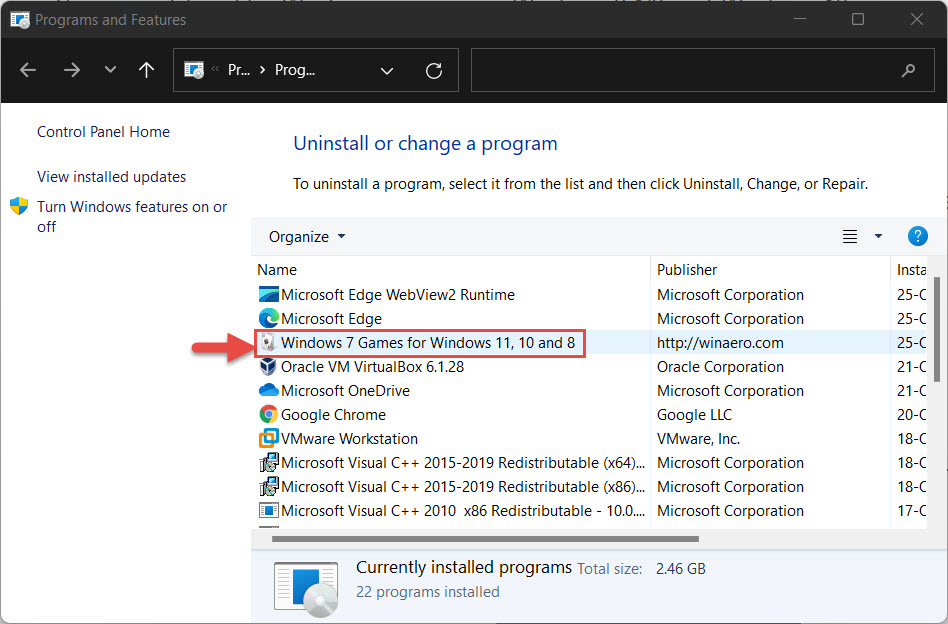
Remove all the classic games at once from Installed apps.
Note: Your game statistics and saved progress can be preserved between reinstalls, since they are stored in your user profile.
Why Choose the Classic Games?
- No advertisements or pop-ups, unlike many Microsoft Store versions.
- No Microsoft account sign-in required to play.
- Lightweight and familiar — identical to the original Windows 7 experience.
- Fully offline once installed.
Frequently Asked Questions
Problem: Do Windows 7 games work on Windows 11?
Solution: Yes. The community package is designed for Windows 11, 10, and 8, and the games run natively without compatibility tweaks.
Problem: A game will not launch after installing.
Solution: Re-run the installer and ensure the game is selected, or reinstall the package. Make sure you installed it with administrator rights.
Problem: Is the package safe and free?
Solution: It is free. Always download it from the well-known maintainer’s official page and scan the file if you are unsure, since it is a third-party package.
Problem: Can I install only one game, like Solitaire?
Solution: Yes. During setup, deselect everything except the game you want, then click Install.
Conclusion
If you miss the original Solitaire or Minesweeper, the free Windows 7 Games package brings them back to Windows 11 in minutes — ad-free, sign-in-free, and exactly as you remember them.
</w:pBdr><w:spacing w:before="220" w:after="40"/></w:pPr><w:r><w:rPr><w:b/><w:bCs/><w:color w:val="0B5394"/><w:sz w:val="21"/><w:szCs w:val="21"/><w:rFonts w:ascii="Calibri" w:cs="Calibri" w:eastAsia="Calibri" w:hAnsi="Calibri"/></w:rPr><w:t xml:space="preserve">About TechHub
This guide is part of the TechHub Knowledge Base. For more step-by-step IT guides and support, visit techhub.com.lk.