Overview
Windows 11 ISO එකකින් clean install එකක්, existing system එකක් repair කරන එකක්, හෝ bootable installation media හදන එකක් කරන්න පුළුවන්. මේ guide එකෙන් Microsoft එකෙන් Windows 11 download කරන official ක්රම, minimum system requirements, සහ bootable USB එකක් හදලා OS එක install කරන ආකාරය පෙන්නනවා.
Genuine Windows 11 ISO එකක් Microsoft එකෙන්ම direct download කරන්න.
Key Takeaways
- Clean, genuine image එකකට හැමවෙලේම Windows 11 download කරන්නේ Microsoft's official website එකෙන්.
- ISO එක direct, Media Creation Tool එකෙන්, හෝ Installation Assistant එකෙන් in-place upgrade විදිහට ගන්න පුළුවන්.
- Windows 11 වලට TPM 2.0, Secure Boot, UEFI, සහ supported processor එකක් ඕන.
- Media Creation Tool, Rufus, හෝ Ventoy එකෙන් bootable USB එකක් හදලා install කරන්න.
Method 1 — Microsoft එකෙන් ISO එක Direct Download කරන්න
1. Microsoft's official Windows 11 download page එකට යන්න (microsoft.com/software-download/windows11).
2. "Download Windows 11 Disk Image (ISO) for x64 devices" එකට scroll කරන්න.
3. Windows 11 (multi-edition ISO) select කරලා Download click කරන්න.
4. Product language එක තෝරලා confirm කරලා, ISO එක save කරන්න 64-bit Download button එක click කරන්න.
Warning: Windows 11 download කරන්නේ microsoft.com එකෙන් විතරයි. Third-party හෝ "pre-activated" sources වල ISOs tamper වෙලා, unsafe වෙන්න පුළුවන්.
Method 2 — Media Creation Tool පාවිච්චි කරන්න
Media Creation Tool එකෙන් Windows 11 download කරලා ඒක direct USB drive එකකට write කරන්න හෝ ISO එකක් විදිහට save කරන්න පුළුවන්.
1. එම Microsoft download page එකේ, "Create Windows 11 Installation Media" යටතේ Download Now click කරන්න.
2. Tool එක run කරලා, licence terms accept කරලා, language එකයි edition එකයි confirm කරන්න.
3. Direct bootable media හදන්න USB flash drive, නැත්නම් image එකක් save කරන්න ISO file තෝරන්න.
4. Download එකයි media creation එකයි ඉවර වෙනකම් ඉන්න.
Media Creation Tool එකෙන් Windows 11 download කරලා installation media හදනවා.
Method 3 — Existing PC එකක් Upgrade කරන්න
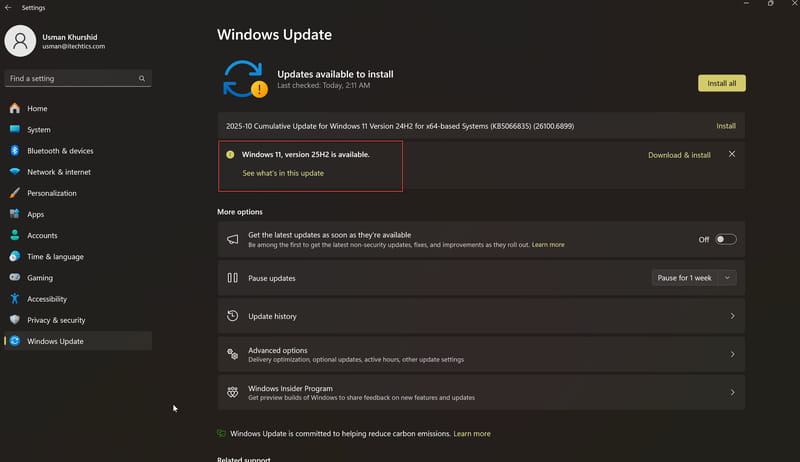
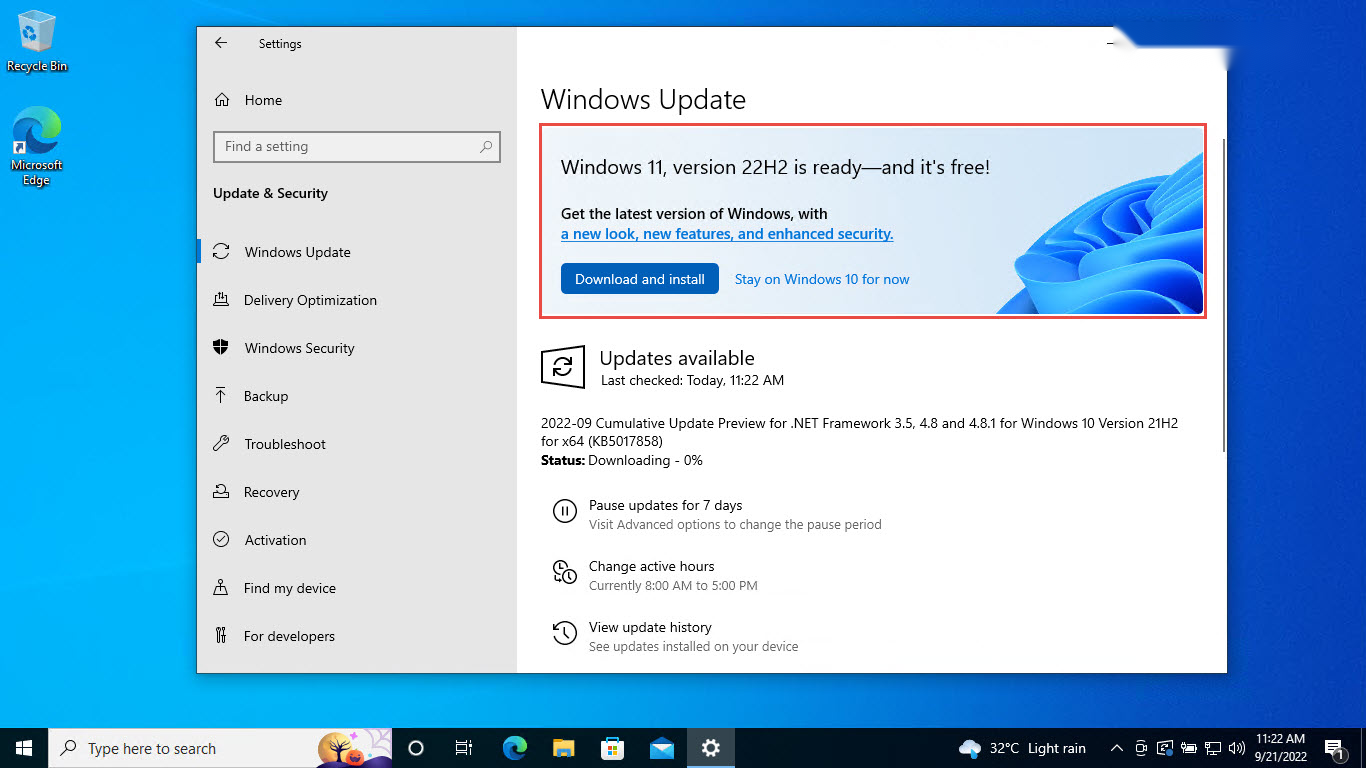
- Windows Update — eligible Windows 10 PC එකක, Settings > Windows Update open කරන්න; offer කරනවා නම්, Windows 11 upgrade එක එතන පෙන්නනවා.
- Installation Assistant — compatible PC එකක් වහාම upgrade කරන්න Microsoft එකෙන් Windows 11 Installation Assistant download කරන්න, files සහ apps තියාගෙන.
Minimum System Requirements
- Processor: supported 64-bit CPU එකක cores 2ක් හෝ වැඩිය එක්ක 1 GHz හෝ වේගවත්.
- Memory: අඩුම 4 GB RAM.
- Storage: 64 GB හෝ ලොකු drive එකක්.
- Firmware: Secure Boot capable UEFI.
- TPM: Trusted Platform Module (TPM) version 2.0.
- Graphics: WDDM 2.0 driver එක්ක DirectX 12 compatible.
Tip: Upgrade කරන්න කලින් PC එක Windows 11 requirements සම්පූර්ණ කරනවද confirm කරන්න Microsoft's PC Health Check app එක පාවිච්චි කරන්න.
Bootable Windows 11 USB Drive එකක් හදන්න
1. අඩුම 8 GB USB drive එකක් දාන්න (ඒකේ contents මැකෙනවා).
2. Direct write කරන්න Media Creation Tool එක, නැත්නම් Rufus / Ventoy drive එකක් open කරලා Windows 11 ISO එක select කරන්න.
3. Rufus එකේ, modern PCs වලට GPT partition scheme එකයි UEFI target එකයි තෝරලා Start click කරන්න.
4. Writing ඉවර වෙනකම් ඉඳලා drive එක safely eject කරන්න.
ISO එකෙන් Windows 11 Install කරන්න
1. Firmware boot menu එක (බොහෝවිට F12, F10, හෝ Esc) එකෙන් USB drive එකෙන් PC එක boot කරන්න.
2. Language එක තෝරලා Install now click කරන්න.
3. Product key එකක් ඇතුළත් කරන්න, නැත්නම් පස්සේ activate කරන්න "I don't have a product key" තෝරලා, licence terms accept කරන්න.
4. Clean install එකකට Custom තෝරලා, target partition එක select කරලා continue කරන්න.
5. Setup එකට files copy කරලා restart වෙන්න දීලා, out-of-box experience එක complete කරන්න.
Frequently Asked Questions
Problem: Windows 11 මිලදී ගන්නේ කොහොමද?
Solution: Windows 11 licences Microsoft එකෙන් සහ authorised retailers ලාගෙන් තියෙනවා. Eligible Windows 10 PC එකකට නොමිලේ Windows 11 වලට upgrade කරන්නත් පුළුවන්.
Problem: මගේ PC එක Windows 11 වලට upgrade කරන්න පුළුවන්ද?
Solution: Microsoft's PC Health Check app එක run කරන්න. PC එක TPM 2.0, Secure Boot, UEFI, සහ supported-CPU requirements සම්පූර්ණ කරන්න ඕන.
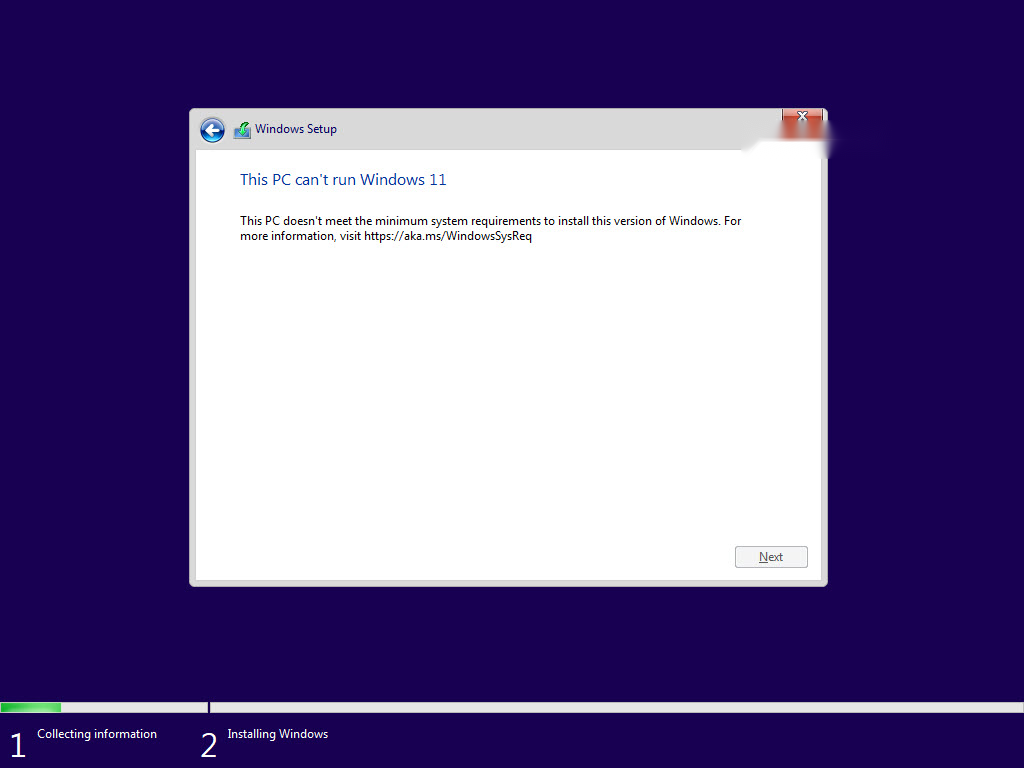
Problem: Setup කියනවා මගේ PC එක requirements සම්පූර්ණ කරන්නේ නෑ කියලා.
Solution: ඔබේ hardware එකට පුළුවන් නම් firmware (UEFI) settings වල TPM 2.0 සහ Secure Boot enable කරලා retry කරන්න. Unsupported CPUs officially eligible නෑ.
Problem: මට Windows 10 පාවිච්චි කරගෙන යන්න පුළුවන්ද?
Solution: ඔව්, ඒත් Windows 10 support එක 2025 ඔක්තෝබර් 14 එදාට ඉවර වෙනවා, ඊට පස්සේ security updates එන එක නවතිනවා. Upgrade කරන්න, නැත්නම් Extended Security Updates වලට enroll වෙන්න plan කරන්න.
Conclusion
Microsoft's official tools පාවිච්චි කරනකොට Windows 11 download කරන එක සරලයි. ඔබේ PC එක requirements සම්පූර්ණ කරනවද confirm කරලා, ISO එක හෝ Media Creation Tool එක අරගෙන, bootable USB එකක් හදලා, confidence එකෙන් install හෝ upgrade කරන්න ලෑස්තියි.
About TechHub
මේ guide එක TechHub Knowledge Base එකේ කොටසක්. තව step-by-step IT guides සහ support වලට techhub.com.lk එකට යන්න.