Overview
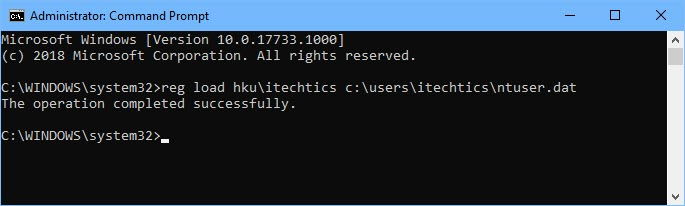
Each Windows user account has its own registry hive (HKEY_CURRENT_USER), stored in NTUSER.DAT in their profile. As an administrator you can load another user’s hive into the Registry Editor to edit their per-user settings without logging in as them. This guide shows how, safely.
Loading another user’s registry hive in the Registry Editor.
Warning: Editing the Registry incorrectly can cause problems. Back up the Registry / the hive file before editing, and only modify accounts you are authorized to manage.
Key Takeaways
- Each user’s settings live in their NTUSER.DAT hive.
- Administrators can load that hive via Registry Editor’s Load Hive.
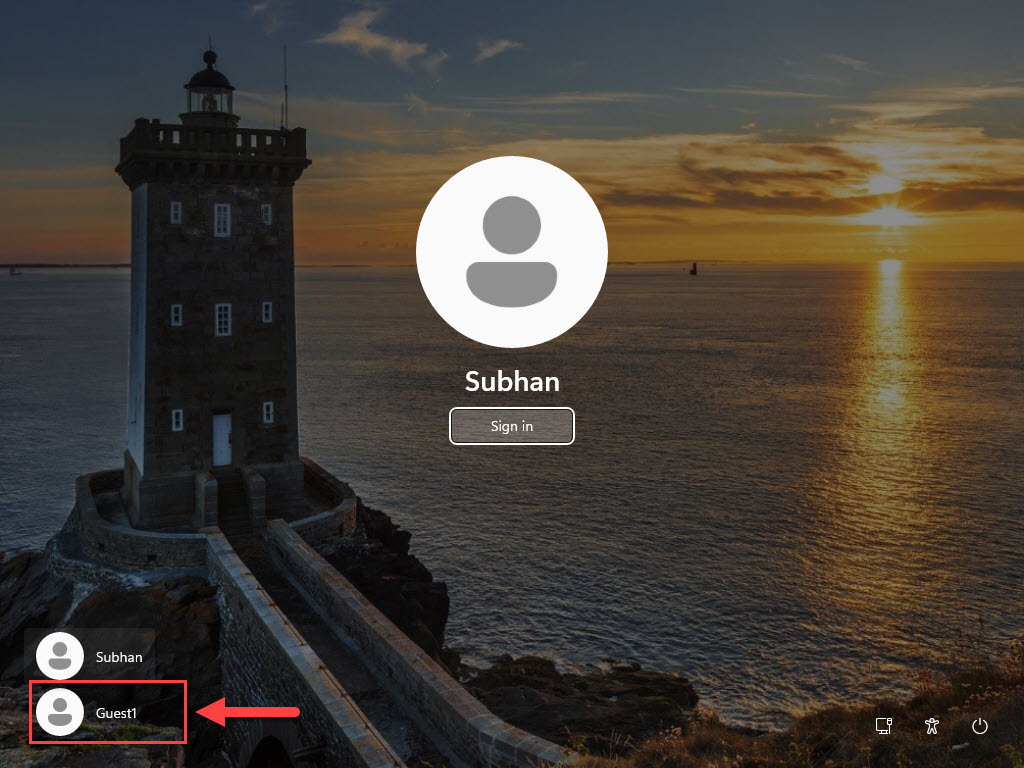
- The target user must be logged off for the hive to be available.
- Always unload the hive when finished.
Back Up First
1. Open the Registry Editor (regedit) as administrator.
2. Before changes, use File > Export to back up, or copy the target NTUSER.DAT file.
3. Keep the backup until you’ve confirmed the edit works.
Load Another User’s Hive
1. Ensure the target user is signed out (their hive can’t be loaded while active).
2. Open regedit as administrator and select HKEY_USERS.
3. Click File > Load Hive.
4. Browse to C:\Users\<username>\NTUSER.DAT (enable hidden/system files to see it).
5. Give the loaded hive a temporary key name (e.g., TempUser) and click OK.
Edit and Unload
1. Expand HKEY_USERS\TempUser and make your changes under the appropriate keys.
2. When done, select the TempUser key.
3. Click File > Unload Hive to write changes and release the file.
4. Confirm the user’s settings on their next sign-in.
Note: Unloading the hive is essential — leaving it loaded can lock the file and prevent the user from signing in cleanly.
Troubleshooting
Problem: Load Hive is greyed out.
Solution: Select HKEY_USERS (or HKEY_LOCAL_MACHINE) first; Load Hive is only enabled for those root keys.
Problem: "The process cannot access the file" error.
Solution: The user is still logged on — sign them out fully, or end their session, then retry.
Problem: Can’t see NTUSER.DAT.
Solution: Enable "Show hidden files" and uncheck "Hide protected operating system files" in Folder Options.
Problem: Changes didn’t apply.
Solution: Make sure you unloaded the hive; edits are committed on unload and take effect at next sign-in.
Conclusion
By loading another user’s NTUSER.DAT hive into HKEY_USERS, administrators can adjust per-user registry settings without signing in as that user. Back up first, ensure the user is logged off, and always unload the hive when you’re done.
</w:pBdr><w:spacing w:before="220" w:after="40"/></w:pPr><w:r><w:rPr><w:b/><w:bCs/><w:color w:val="0B5394"/><w:sz w:val="21"/><w:szCs w:val="21"/><w:rFonts w:ascii="Calibri" w:cs="Calibri" w:eastAsia="Calibri" w:hAnsi="Calibri"/></w:rPr><w:t xml:space="preserve">About TechHub
This guide is part of the TechHub Knowledge Base. For more step-by-step IT guides and support, visit techhub.com.lk.