Overview
හැම Windows user account එකකටම ඒකේම registry hive එකක් (HKEY_CURRENT_USER) තියෙනවා — ඒගොල්ලන්ගේ profile එකේ NTUSER.DAT එකේ store වෙලා. Administrator කෙනෙක් විදිහට, ඒ user විදිහට log in නොවී ඒගොල්ලන්ගේ per-user settings edit කරන්න වෙන user කෙනෙකුගේ hive එක Registry Editor එකට load කරන්න පුළුවන්. මේ guide එකෙන් ඒක safely කරන ආකාරය පෙන්නනවා.
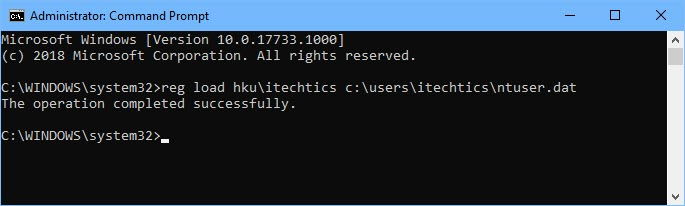
වෙන user කෙනෙකුගේ registry hive එක Registry Editor එකට load කරනවා.
Warning: Registry එක වැරදියට edit කරන එකෙන් problems ඇති වෙන්න පුළුවන්. Edit කරන්න කලින් Registry එක / hive file එක backup කරලා, manage කරන්න authorized accounts විතරයි modify කරන්න.
Key Takeaways
- හැම user කෙනෙකුගේම settings ඒගොල්ලන්ගේ NTUSER.DAT hive එකේ තියෙනවා.
- Administrators ලාට ඒ hive එක Registry Editor එකේ Load Hive එකෙන් load කරන්න පුළුවන්.
- Hive එක available වෙන්න target user logged off වෙන්න ඕන.
- ඉවර වුණාම හැමවෙලේම hive එක unload කරන්න.
මුලින්ම Back Up කරන්න
1. Registry Editor (regedit) එක administrator විදිහට open කරන්න.
2. Changes කරන්න කලින්, backup කරන්න File > Export පාවිච්චි කරන්න, නැත්නම් target NTUSER.DAT file එක copy කරන්න.
3. Edit එක වැඩ කරනවා confirm වෙනකම් backup එක තියාගන්න.
වෙන User කෙනෙකුගේ Hive එක Load කරන්න
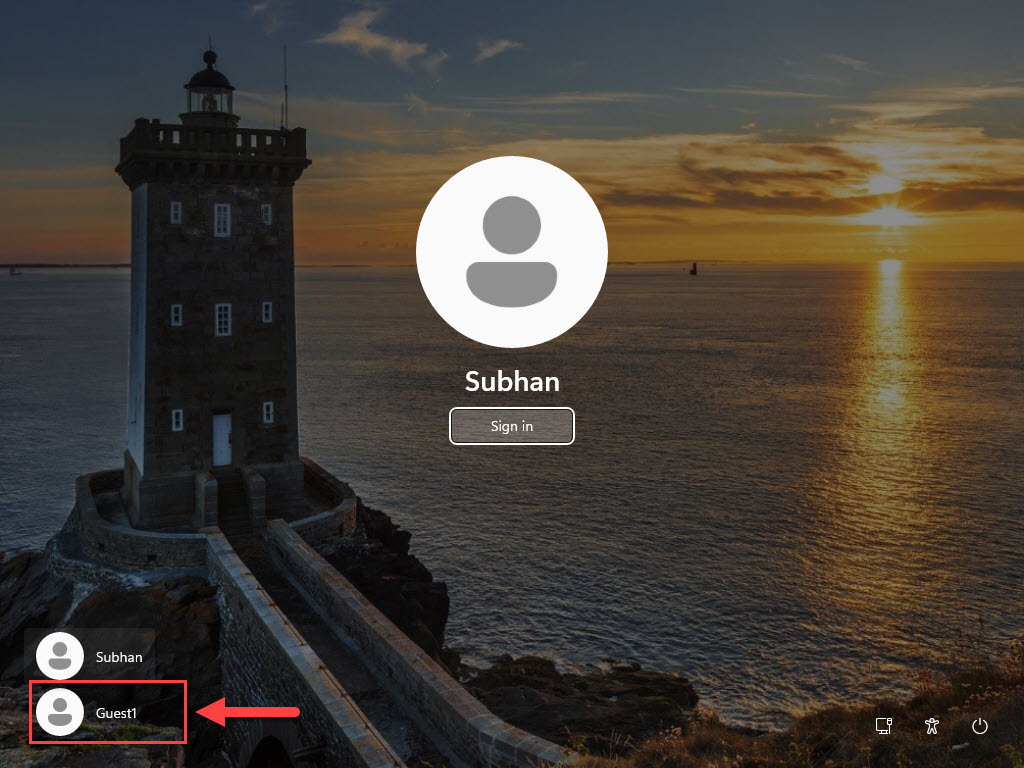
1. Target user signed out කියලා බලන්න (active වෙලා තියෙනකොට hive එක load කරන්න බෑ).
2. regedit administrator විදිහට open කරලා HKEY_USERS select කරන්න.
3. File > Load Hive click කරන්න.
4. C:\Users\<username>\NTUSER.DAT වලට browse කරන්න (බලන්න hidden/system files enable කරන්න).
5. Load වුණ hive එකට temporary key name එකක් (බ. TempUser) දීලා OK click කරන්න.
Edit කරලා Unload කරන්න
1. HKEY_USERS\TempUser expand කරලා appropriate keys යටතේ changes කරන්න.
2. ඉවර වුණාම, TempUser key එක select කරන්න.
3. Changes write කරලා file එක release කරන්න File > Unload Hive click කරන්න.
4. User ගේ settings ඒගොල්ලන්ගේ ඊළඟ sign-in එකේදී confirm කරන්න.
Note: Hive එක unload කරන එක essential — load කරලා තියෙන එක file එක lock කරලා user ට cleanly sign in වෙන්න බැරි කරන්න පුළුවන්.
Troubleshooting
Problem: Load Hive greyed out.
Solution: මුලින් HKEY_USERS (හෝ HKEY_LOCAL_MACHINE) select කරන්න; Load Hive enable වෙන්නේ ඒ root keys වලට විතරයි.
Problem: "The process cannot access the file" error.
Solution: User තවම logged on — ඒගොල්ලන්ව fully sign out කරන්න, හෝ session එක end කරලා retry කරන්න.
Problem: NTUSER.DAT පේන්නේ නෑ.
Solution: Folder Options එකේ "Show hidden files" enable කරලා "Hide protected operating system files" uncheck කරන්න.
Problem: Changes apply වුණේ නෑ.
Solution: Hive එක unload කළා කියලා බලන්න; edits commit වෙන්නේ unload එකේදී, effect වෙන්නේ ඊළඟ sign-in එකේදී.
Conclusion
වෙන user කෙනෙකුගේ NTUSER.DAT hive එක HKEY_USERS එකට load කරලා, administrators ලාට ඒ user විදිහට sign in නොවී per-user registry settings adjust කරන්න පුළුවන්. මුලින් backup කරලා, user logged off කියලා බලලා, ඉවර වුණාම හැමවෙලේම hive එක unload කරන්න.
About TechHub
මේ guide එක TechHub Knowledge Base එකේ කොටසක්. තව step-by-step IT guides සහ support වලට techhub.com.lk එකට යන්න.