













Overview
සමහර users ලාට sign-in එකේදී "A1B2C3" challenge phrase එක type කරන්න prompt එකක් ආපහු ආපහු පෙන්නනවා. ඒක Windows Hello safeguard එකක්, ඒත් ආපහු ආපහු එනවා නම් බොහෝවිට කියන්නේ ඔබේ PIN/credential store (NGC folder එක) corrupted කියලා. මේ guide එකෙන් ඒක පහුකරලා ආපහු එන එක නවත්තන ආකාරය පෙන්නනවා.
Windows ආපහු ආපහු A1B2C3 challenge phrase එක අහන්න පුළුවන්.
Warning: එක fix එකක Windows Hello (NGC) credential folder එක delete කරනවා. වැදගත් data backup කරලා, ඔබේ Microsoft account password එක මුලින් දැනගන්න — මොකද පස්සේ PIN එක ආපහු හදන්න වෙනවා.
Key Takeaways
- A1B2C3 කියන්නේ Windows Hello verification prompt එකක්; ආපහු ආපහු එන prompts කියන්නේ corrupted PIN data.
- මුලින්ම, Windows එකට යන්න A1B2C3 හරියටම type කරන්න.
- "I forgot my PIN" එකෙන් PIN එක reset කරන්න.
- තවම තියෙනවා නම්, NGC folder එකේ permissions reset කරලා clear කරලා, fresh PIN එකක් හදන්න.
Step 1 — Prompt එක පහුකරන්න
1. Prompt වුණාම, sign in continue කරන්න A1B2C3 හරියටම type කරන්න (literal challenge phrase එක).
2. නැත්නම් Sign-in options click කරලා ඔබේ password එක හෝ වෙන method එකක් පාවිච්චි කරන්න.
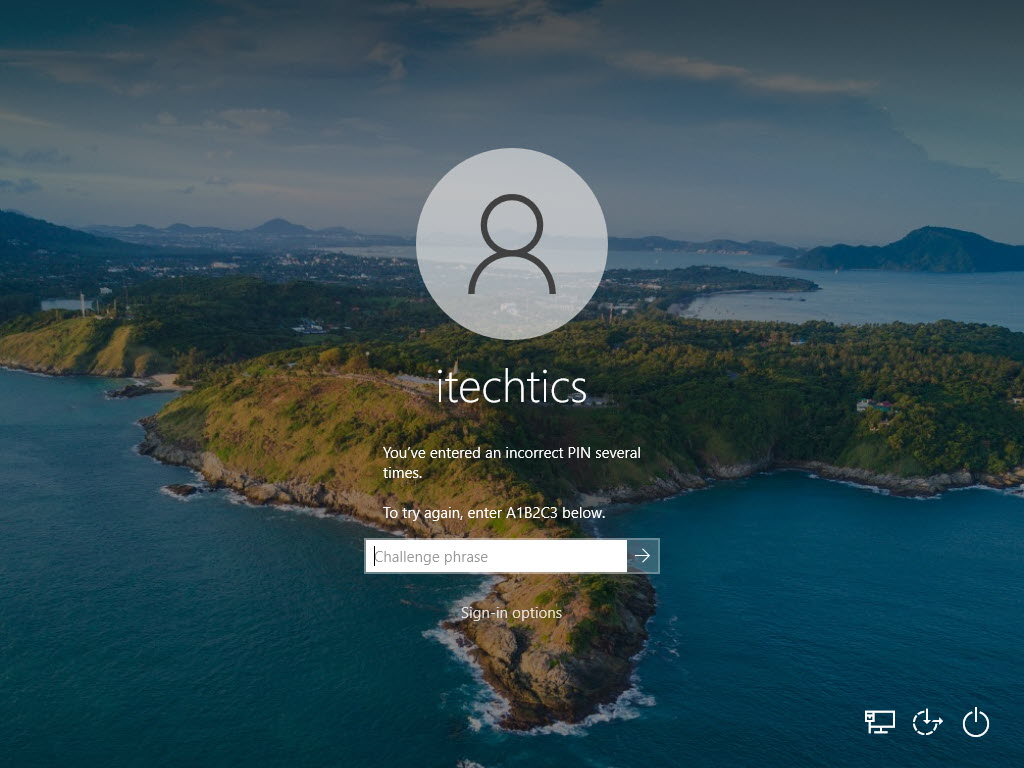
A1B2C3 challenge phrase prompt එක.
Step 2 — ඔබේ PIN එක Reset කරන්න
1. Settings > Accounts > Sign-in options > PIN (Windows Hello) open කරන්න.
2. "I forgot my PIN" click කරන්න.
3. ඔබේ Microsoft account password එකෙන් verify කරලා අලුත් PIN එකක් set කරන්න.
4. Restart කරලා prompt එක ආපහු එනවද බලන්න.
Step 3 — NGC Folder එක Reset කරලා Clear කරන්න (තවම තියෙනවා නම්)
Warning: මේකෙන් device එකේ Windows Hello PINs/biometrics ඔක්කොම අයින් වෙනවා; ඒවා ආපහු set කරන්න වෙනවා.
1. Command Prompt එක administrator විදිහට open කරන්න.
2. NGC folder එකේ ownership/permissions reset කරන්න: takeown /f C:\Windows\ServiceProfiles\LocalService\AppData\Local\Microsoft\Ngc /r /d y, ඊට පස්සේ එම path එකේ administrators ලාට full control දෙන්න icacls.
3. ඒ Ngc folder එකේ contents delete කරන්න (folder එකම නෙවෙයි).
4. Restart කරලා, Sign-in options වලට ගිහින් අලුත් PIN එකක් හදන්න — Windows credential files rebuild කරනවා.
Troubleshooting
Problem: A1B2C3 එකෙන් ඇතුළට යන්න දෙන්නේ නෑ.
Solution: ඒ වෙනුවට Sign-in options සහ account password එක පාවිච්චි කරලා, Settings වලින් PIN එක reset කරන්න.
Problem: Ngc folder එකට access කරන්න බෑ.
Solution: Contents clear කරන්න කලින් ownership/permissions reset කරන්න administrator විදිහට takeown සහ icacls පාවිච්චි කරන්න.
Problem: PIN reset කළාට පස්සේ prompt එක ආපහු එනවා.
Solution: NGC folder contents clear කරලා (Step 3) fresh PIN එකක් හදන්න; corrupted credential files තමයි සාමාන්ය හේතුව.
Problem: ඔබ work/school device එකක.
Solution: ඔබේ organisation එක Windows Hello manage කරන්න පුළුවන්. Credential store එක ඔබම clear කරනවා වෙනුවට IT එක්ක කතා කරන්න.
Conclusion
ආපහු ආපහු එන A1B2C3 prompt එක corrupted Windows Hello PIN store එකක් පෙන්නනවා. Phrase එකෙන් හෝ password එකෙන් ඇතුළට ගිහින්, PIN එක reset කරලා, ඕන නම් NGC folder එක clear කරලා fresh PIN එකක් හදලා ඒක නවත්වන්න.
About TechHub
මේ guide එක TechHub Knowledge Base එකේ කොටසක්. තව step-by-step IT guides සහ support වලට techhub.com.lk එකට යන්න.





