Overview
If Windows Security opens to a blank/white screen, its app or underlying components are likely damaged — often by a third-party antivirus or corrupt system files. This guide restores it step by step.
Fixing a blank Windows Security screen.
Key Takeaways
- A blank page usually means the app or components are corrupt.
- Repair/reset the Windows Security app first.
- Third-party antivirus can disable Windows Security.
- SFC/DISM and re-registration fix deeper issues.
Fix 1: Restart and Update
1. Restart the PC to clear transient glitches.
2. Install pending updates via Settings > Windows Update.
3. Reopen Windows Security.
Fix 2: Repair or Reset the App
1. Open Settings > Apps > Installed apps.
2. Find "Windows Security", click the three dots > Advanced options.
3. Click Repair; if that fails, click Reset.
4. Reopen the app.
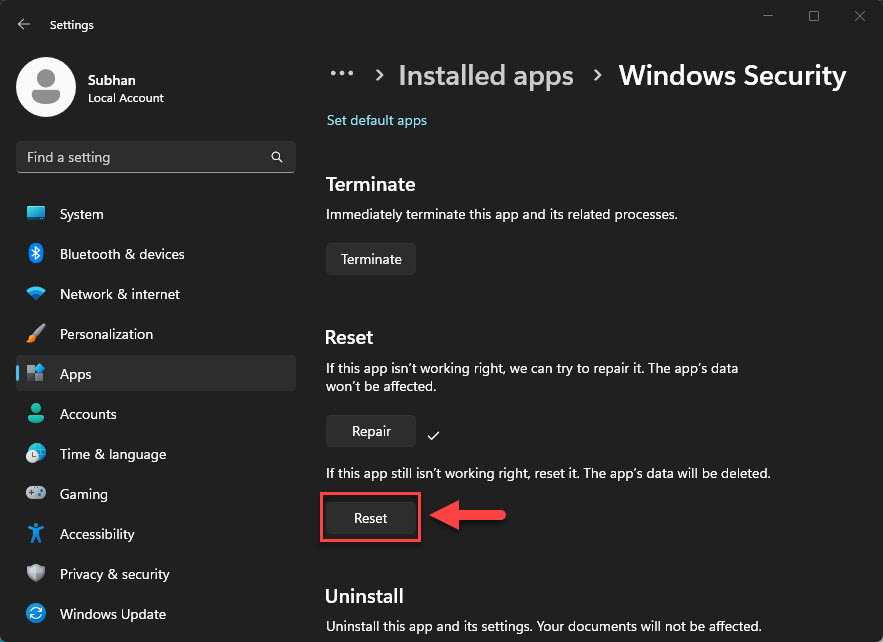
Reset the Windows Security app.
Fix 3: Remove Conflicting Antivirus
1. Uninstall any third-party antivirus that may have disabled Windows Security.
2. Reboot; Windows Security should re-activate.
3. Reinstall the AV later if you still want it.
Fix 4: Repair System Files
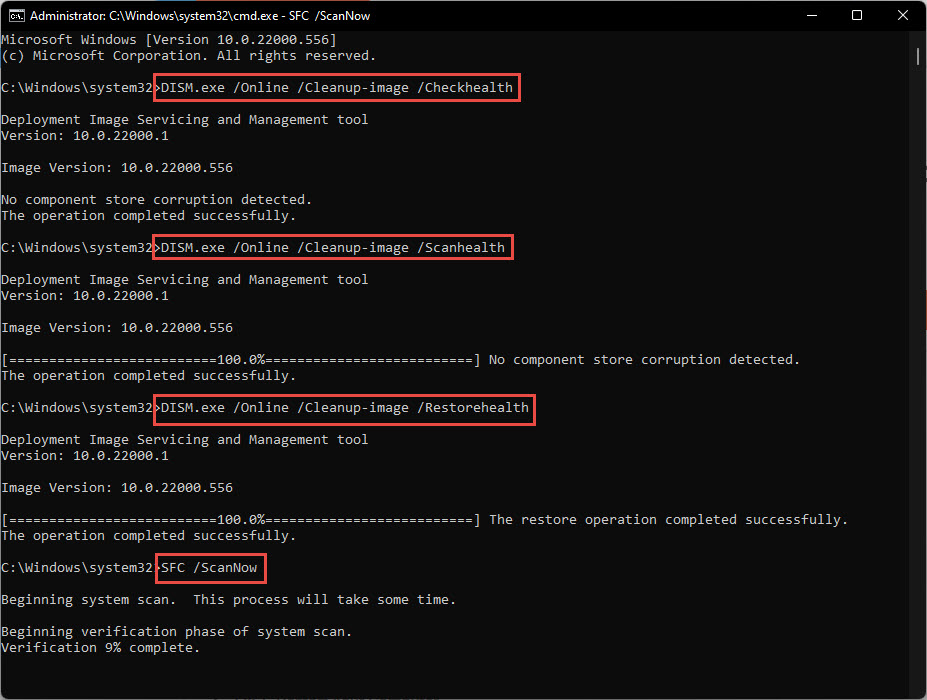
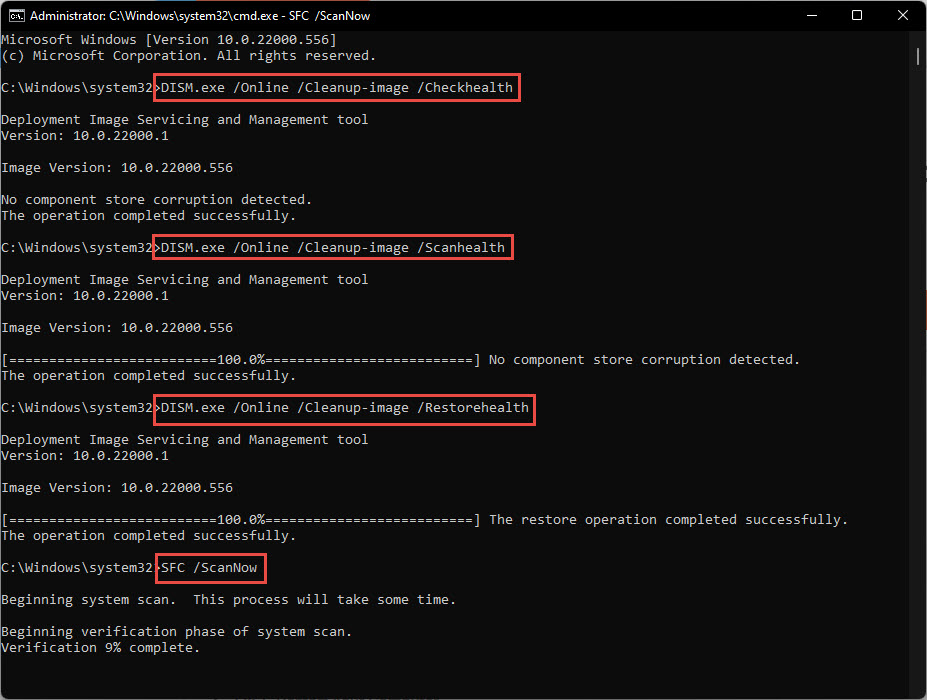
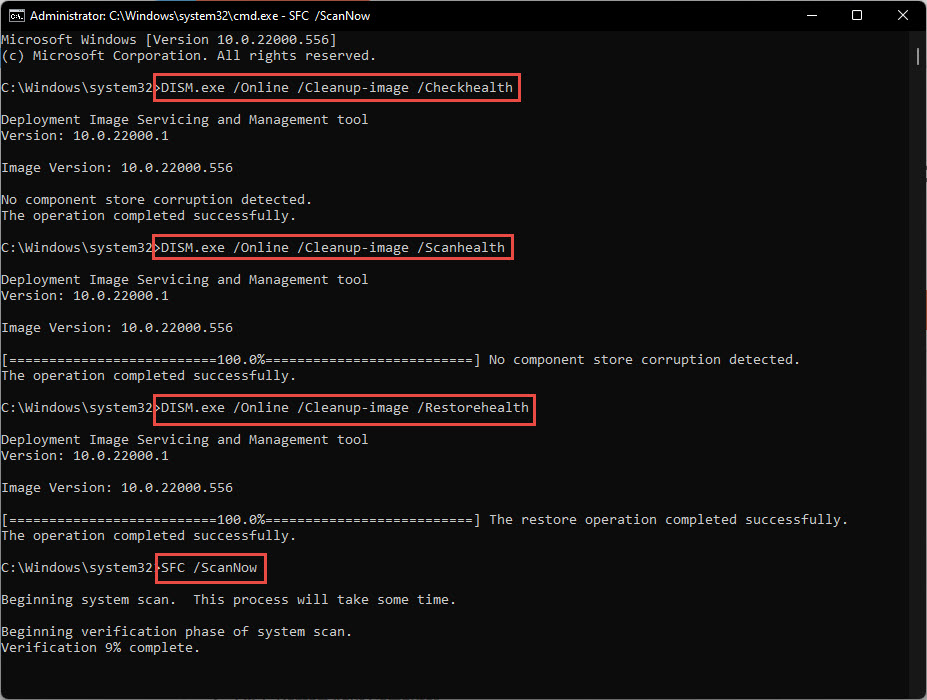
1. Open Command Prompt as administrator.
2. Run: sfc /scannow
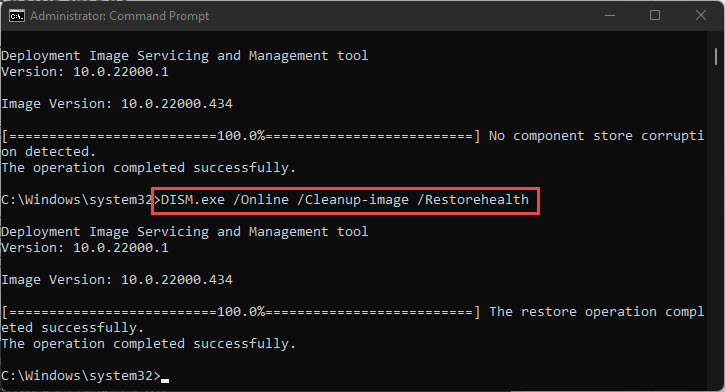
3. Then: DISM /Online /Cleanup-Image /RestoreHealth
4. Restart and retry.
Fix 5: Re-register the Security App
1. Open PowerShell as administrator.
2. Run: Get-AppxPackage Microsoft.SecHealthUI -AllUsers | Reset-AppxPackage (or re-register with Add-AppxPackage using its manifest).
3. Restart and reopen Windows Security.
Troubleshooting
Problem: Repair/Reset options are missing.
Solution: Use the PowerShell re-register command, then reboot.
Problem: Security stays off after removing AV.
Solution: Run the AV vendor’s removal tool to clear leftovers, then reboot.
Problem: Still blank after SFC/DISM.
Solution: Register system files and reinstall the Security app; as a last resort, reset Windows keeping files.
Problem: "Page not available" instead of blank.
Solution: Ensure the Security Center service (wscsvc) and Microsoft Defender services are running.
Conclusion
A blank Windows Security screen is almost always a repairable app/component issue. Reset the app, remove conflicting antivirus, and repair system files with SFC/DISM — re-registering the app if needed — to get your protection dashboard back.
</w:pBdr><w:spacing w:before="220" w:after="40"/></w:pPr><w:r><w:rPr><w:b/><w:bCs/><w:color w:val="0B5394"/><w:sz w:val="21"/><w:szCs w:val="21"/><w:rFonts w:ascii="Calibri" w:cs="Calibri" w:eastAsia="Calibri" w:hAnsi="Calibri"/></w:rPr><w:t xml:space="preserve">About TechHub
This guide is part of the TechHub Knowledge Base. For more step-by-step IT guides and support, visit techhub.com.lk.