













Overview
"Unknown USB Device (Device Descriptor Request Failed)" කියන දෝෂය Device Manager එකේ පෙන්නන්නේ, USB device එකක් connect වෙනකොට එවන identification data එක Windows එකට කියවගන්න බැරි වුණාම. මේකට හේතුව සාමාන්යයෙන් device එක නරක් වීමක් නෙවෙයි, driver එකක්, power ප්රශ්නයක් හෝ port ප්රශ්නයක්. මේ guide එකේ අපි පටන් ගන්නේ ලේසිම checks වලින්, ඊට පස්සේ ගැඹුරු driver සහ power fixes වලට යනවා.
Key Takeaways
- මේ දෝෂය කියන්නේ Windows එකට USB device descriptor එක කියවගන්න බැරි වුණා කියන එකයි, බොහෝ විට drivers හෝ power නිසා.
- වෙනත් port එකක්, reboot එකක්, හෝ power cycle එකක් වගේ සරල steps වලින් බොහෝ අවස්ථා විසඳෙනවා.
- USB controllers reinstall කරලා, chipset drivers update කරාම driver එකට සම්බන්ධ බොහෝ හේතු fix වෙනවා.
- USB selective suspend සහ fast startup disable කරාම මේ දෝෂය නැවත එන එක වළක්වනවා.
Fix 1: Basic Checks First
1. Device එක unplug කරලා වෙනත් USB port එකක try කරන්න — හොඳම දේ hub එකකට වඩා PC එකේ කෙලින්ම තියෙන port එකක්.
2. Computer එක restart කරලා device එක නැවත connect කරන්න.
3. Hardware එක ඇත්තටම වැඩ කරනවද කියලා තහවුරු කරගන්න device එක වෙනත් computer එකක test කරන්න.
Fix 2: Power Cycle the Computer
1. PC එක සම්පූර්ණයෙන් shut down කරන්න.
2. Power cable එක ගලවලා (laptop එකේ battery එක ගලවන්න පුළුවන් නම් ඒකත් ගලවලා) විනාඩියක් විතර තියන්න — ඉතුරු වෙලා තියෙන power එක බැහැරවෙන්න.
3. Power එක නැවත සම්බන්ධ කරලා, Windows start කරලා, device එක නැවත plug කරන්න.
TIP: සම්පූර්ණ power drain එකකින් USB controllers reset වෙනවා, එතකොට තාවකාලික power fault එකක් නිසා ආපු descriptor error එක බොහෝ විට clear වෙනවා.
Fix 3: Reinstall the USB Controllers
1. Win + X press කරලා Device Manager එක open කරන්න.
2. "Universal Serial Bus controllers" expand කරන්න.
3. "Unknown USB Device (Device Descriptor Request Failed)" entry එක right-click කරලා Uninstall device තෝරන්න.
4. ඕනෑම node එකක් right-click කරලා "Scan for hardware changes" තෝරන්න, නැත්නම් PC එක restart කරලා Windows එකට controllers නැවත install කරන්න දෙන්න.
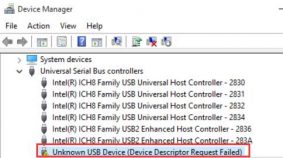
Fail වුණු device එක Device Manager එකේ Universal Serial Bus controllers යටතේ පෙන්නනවා.
Fix 4: Disable USB Selective Suspend
1. Control Panel > Power Options open කරලා ඔබේ active plan එකට "Change plan settings" click කරන්න.
2. "Change advanced power settings" තෝරන්න.
3. USB settings > USB selective suspend setting expand කරලා ඒක Disabled කරන්න.
4. වෙනස apply කරලා device එක නැවත connect කරන්න.
Fix 5: Update Chipset and USB Drivers
1. ඔබේ PC එකේ හෝ motherboard එකේ model එක හඳුනගන්න.
2. නවතම chipset සහ USB drivers manufacturer ගේ නිල site එකෙන් (Intel, AMD, හෝ ඔබේ laptop vendor) download කරන්න.
3. ඒවා install කරලා computer එක restart කරන්න.
NOTE: Fast Startup එක off කරාම (Control Panel > Power Options > Choose what the power buttons do) shutdown එකකට පස්සේ දෝෂය නැවත එන එකත් නවත්තන්න පුළුවන්.
Troubleshooting
Problem: දෝෂය එන්නේ එක specific device එකක් එක්ක විතරයි.
Solution: Device එක හෝ ඒකේ cable එක නරක් වෙලා තියෙන්න පුළුවන්. වෙන cable එකක් test කරලා, hardware එක isolate කරගන්න device එක වෙනත් PC එකක try කරන්න.
Problem: PC එක sleep එකෙන් අවදි වෙන හැම වතාවකම දෝෂය නැවත එනවා.
Solution: USB selective suspend disable කරලා Fast Startup off කරන්න — එතකොට Windows එක USB controllers සම්පූර්ණයෙන් reinitialise කරනවා.
Problem: Uninstall කරලා rescan කරාට වැඩක් නෑ.
Solution: Vendor ගෙන් motherboard chipset සහ USB drivers update කරලා, නවතම Windows updates install කරන්න.
Problem: Front-panel USB ports fail වෙනවා, නමුත් rear ports වැඩ කරනවා.
Solution: Front headers ලිහිල් වෙලා හෝ underpowered වෙලා තියෙන්න පුළුවන්. Motherboard එකේ කෙලින්ම තියෙන rear ports පාවිච්චි කරන්න, නැත්නම් front-panel USB connector එක නැවත reseat කරන්න.
Conclusion
Device descriptor error එක බොහෝවිට යථා තත්ත්වයට පත් කරන්න පුළුවන් එකක්. පටන් ගන්න වෙනත් port එකකින් සහ power cycle එකකින්, ඊට පස්සේ USB controllers reinstall කරලා chipset drivers refresh කරන්න. USB selective suspend සහ Fast Startup disable කරාම ප්රශ්නය නැවත එන එක වළක්වනවා.
About TechHub
මේ guide එක TechHub Knowledge Base එකේ කොටසක්. තව step-by-step IT guides සහ support වලට techhub.com.lk එකට යන්න.





