Overview
The taskbar can vanish for several reasons: an accidental auto-hide setting, a stalled File Explorer process, a display or projection change, or a corrupted system component. This guide works through the fixes in order of likelihood, so start at the top and stop as soon as your taskbar returns.
Key Takeaways
- Auto-hide is the most common cause — check it first.
- Restarting File Explorer resolves most temporary glitches.
- Wrong screen resolution or projection mode can push the taskbar off-screen.
- Deeper problems may need a registry fix or an in-place repair of Windows.
Fix 1: Turn Off Auto-Hide
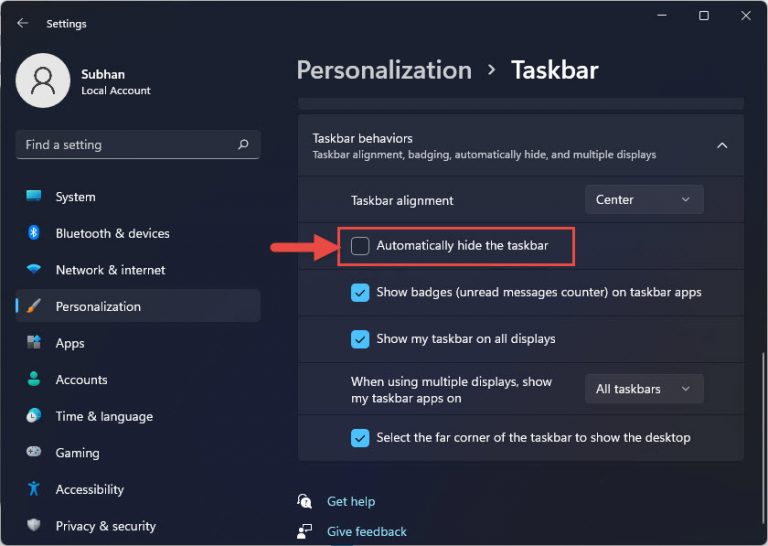
1. Right-click an empty area of the desktop and choose Personalize, then Taskbar (or open Settings > Personalization > Taskbar).
2. Expand Taskbar behaviors.
3. Uncheck "Automatically hide the taskbar".
Disable "Automatically hide the taskbar" in Taskbar behaviors.
TIP: If auto-hide is on intentionally, the taskbar reappears when you move the mouse to the very bottom edge of the screen.
Fix 2: Restart File Explorer
1. Press Ctrl + Shift + Esc to open Task Manager.
2. Find "Windows Explorer" in the Processes list.
3. Select it and click Restart. The taskbar and desktop redraw within a few seconds.
NOTE: If Windows Explorer is not listed, click Run new task, type explorer.exe, and press Enter to relaunch it.
Fix 3: Correct Screen Resolution
1. Right-click the desktop and choose Display settings.
2. Set the resolution to the value marked "(Recommended)" for your monitor.
3. Apply the change and keep it if the taskbar reappears in the correct position.
Fix 4: Reset the Projection Mode
1. Press Win + P to open the projection panel.
2. Select "PC screen only" so Windows uses your primary display rather than an external or duplicated one.
3. Confirm the taskbar returns to the main screen.
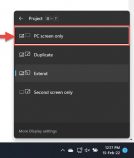
Choose "PC screen only" from the Win + P projection menu.
Fix 5: Repair System Files
1. Open Command Prompt as administrator.
2. Run sfc /scannow and let it finish.
3. If problems remain, run DISM /Online /Cleanup-Image /RestoreHealth, then restart the PC.
WARNING: Editing the registry can destabilise Windows. Back up the registry (File > Export) before changing any keys, and only remove entries you are certain are faulty.
Troubleshooting
Problem: The taskbar is missing only on a second monitor.
Solution: Open Settings > Personalization > Taskbar > Taskbar behaviors and enable "Show my taskbar on all displays".
Problem: The taskbar reappears but is frozen and unclickable.
Solution: Restart File Explorer from Task Manager; if that fails, sign out and back in to reload the shell.
Problem: The taskbar disappears again after every restart.
Solution: A startup app or a corrupted user profile may be responsible. Test with a clean boot, and create a new user account to confirm.
Problem: Nothing restores the taskbar.
Solution: Use an in-place repair by running Windows Setup and choosing "Keep personal files and apps", which reinstalls system files without erasing your data.
Conclusion
A missing taskbar is usually a settings or Explorer glitch rather than serious damage. Work through the fixes in order — auto-hide, Explorer restart, resolution, projection — and reserve system-file repairs or reinstallation for the rare cases where the simple steps do not help.
About TechHub
This guide is part of the TechHub Knowledge Base. For more step-by-step IT guides and support, visit techhub.com.lk.