How to Fix a Hard Drive Not Showing Up in Windows (Internal or External)
Recover a missing internal or external drive with connection, Disk Management, and driver fixes.
Overview
A drive that doesn’t appear is usually a connection, drive-letter, initialization, or driver issue rather than a dead disk. This guide covers both internal and external drives, from physical checks to Disk Management.
A drive not showing in Windows.
Warning: Do not initialize or format a drive that contains data you need — that erases it. Use data recovery first if the drive held important files.
Key Takeaways
- Check connections/USB ports and BIOS detection first.
- Disk Management reveals drives missing a letter or uninitialized.
- Assign a drive letter to make a healthy volume visible.
- Update drivers and run CHKDSK for detected-but-inaccessible drives.
Fix 1: Check Connections
1. External: try a different USB port and cable; connect directly (not through a hub).
2. Internal: power down and reseat the SATA/power (or M.2) connections.
3. Confirm the drive is detected in BIOS/UEFI.
Fix 2: Assign a Drive Letter / Initialize
1. Open Disk Management (diskmgmt.msc).
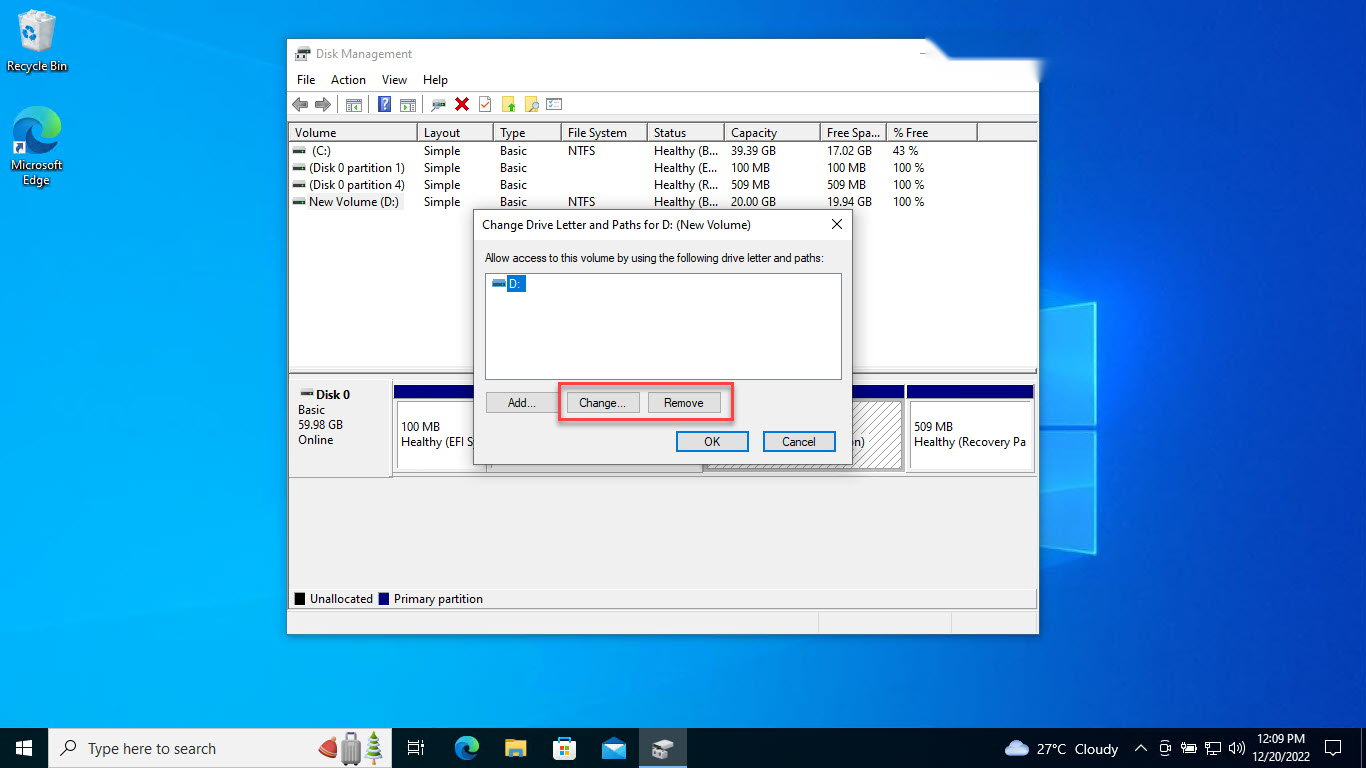
2. If the volume has no letter: right-click it > Change Drive Letter and Paths > Add.
3. If the disk shows "Not Initialized" and is new/empty: right-click > Initialize Disk (GPT).
4. For unallocated space on a new disk: create a New Simple Volume and format it.
Fix 3: Power and USB Settings
1. Disable USB selective suspend: Power Options > Change plan settings > Advanced > USB settings.
2. This stops Windows powering down external drives.
Fix 4: Driver, CHKDSK, Malware
1. Update or reinstall the disk driver in Device Manager > Disk drives.
2. Run chkdsk X: /f /r on a detected-but-inaccessible drive.
3. Scan for malware if the drive behaves oddly.
Troubleshooting
Problem: Drive shows as RAW.
Solution: The file system is damaged — recover data first, then format (or run chkdsk) to repair it.
Problem: Not in Disk Management or BIOS.
Solution: Likely a connection/power or hardware fault — reseat cables, try another port/PC.
Problem: External drive spins but no letter.
Solution: Assign a drive letter in Disk Management; disable USB selective suspend.
Problem: Detected but "inaccessible".
Solution: Run chkdsk and update the storage driver; check for file-system corruption.
Conclusion
A missing drive is usually fixable without data loss: check connections and BIOS, then use Disk Management to assign a letter or initialize a genuinely empty disk. Update drivers and run CHKDSK for drives that appear but won’t open — and recover data before formatting anything that held files.